


Misc: drag and drop does not work (Windows PC)
Updated on Apr 22, 2026
Reading time ~2 minutes
Why iMazing needs to install a Windows File Explorer extension
To enable drag and drop functionality from iMazing to a File Explorer window or the desktop, iMazing Installer needs to install a Windows File Explorer shell extension. This extension registers the necessary drag and drop handlers with Windows, allowing the operating system to recognize and process files being dragged out from iMazing into File Explorer or onto the desktop.
Installation Behavior: no automatic restart
During installation, iMazing Installer does not automatically restart Windows File Explorer or the computer for the following reasons:
- Preserving open windows: Restarting File Explorer would close all currently open File Explorer windows, potentially disrupting your workflow and causing you to lose your place in open folders.
- Limited necessity: Not all users will need to use the drag out feature immediately after installation, so requiring a system restart would be unnecessary for many users.
Enabling “drag out” after installation
When you attempt to drag files out of iMazing for the first time after installation, and if your computer has not been restarted since iMazing was installed, iMazing will detect that the File Explorer extension is not yet active. At this point, iMazing will display a prompt offering to restart Windows File Explorer for you. This restart activates the drag and drop extension without requiring a full system restart, allowing the drag out functionality to work immediately.
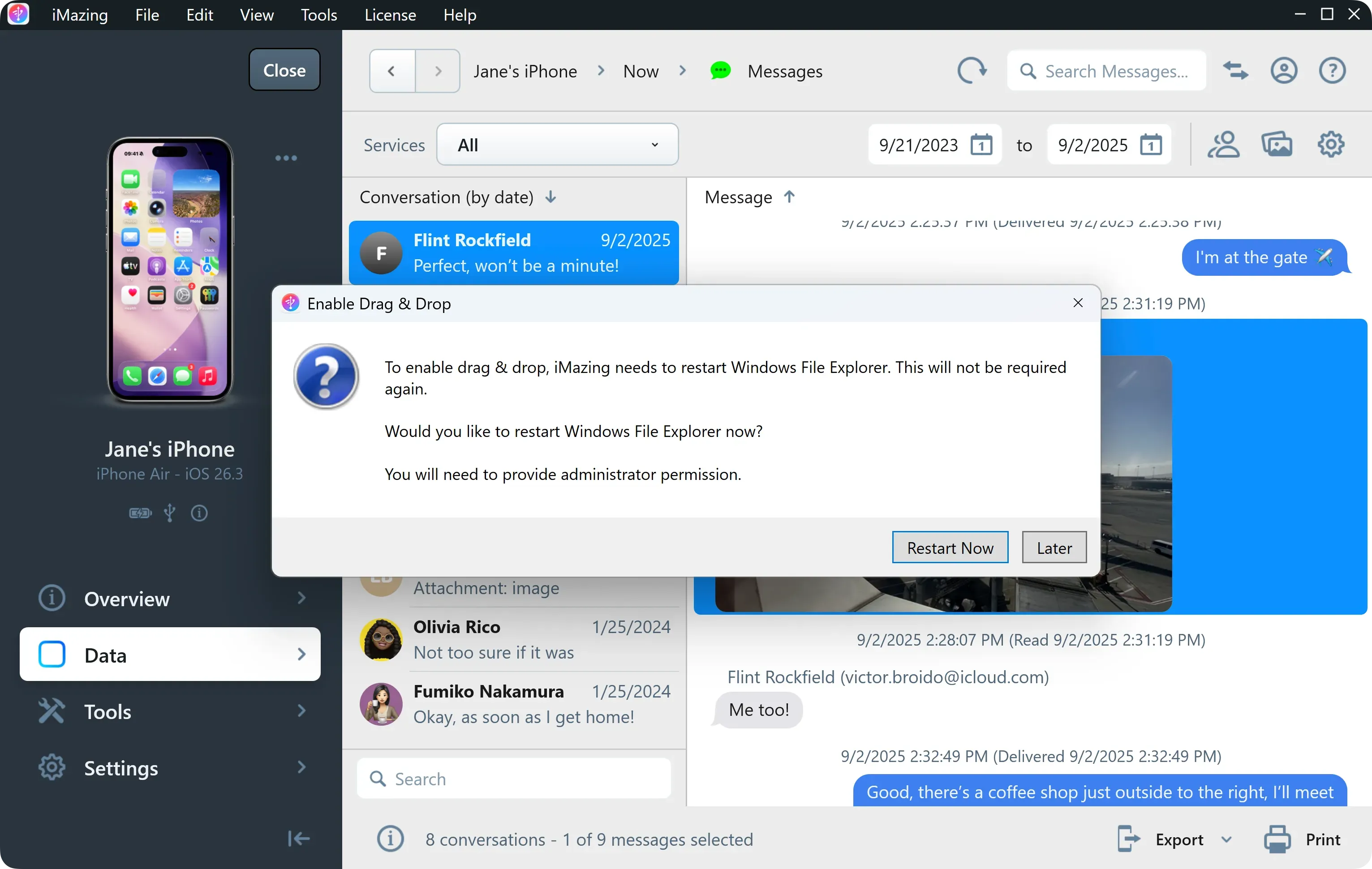
If you try to drag a file out of iMazing before granting permissions and restarting your computer, iMazing will create an
iMazing.dropfolder instead of the actual file.Drag and drop will be enabled automatically after your next computer restart.