


Photos: "Photos cannot be modified" error
Updated on Apr 22, 2026
Reading time ~1 minute
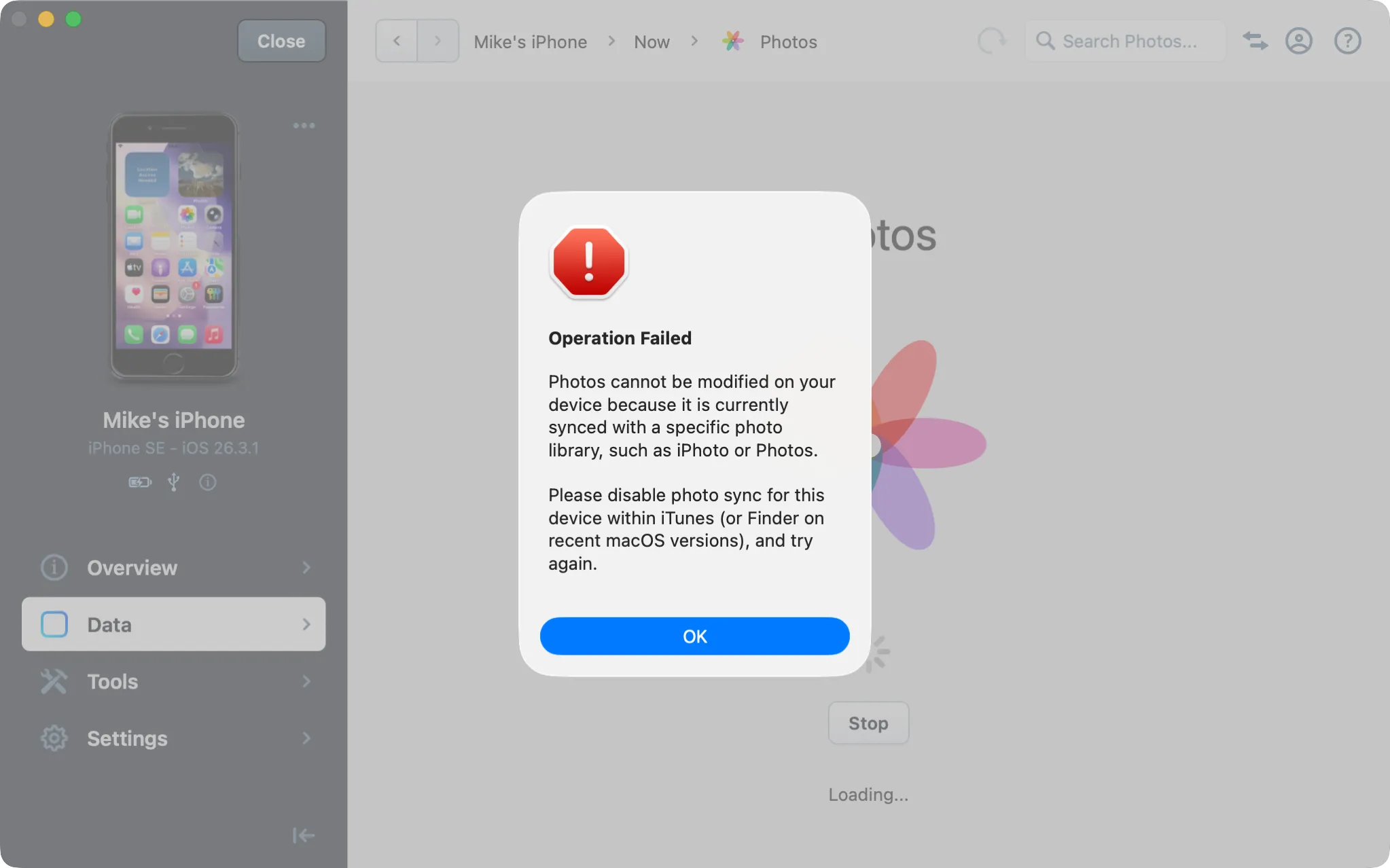
Issue
Photos cannot be modified on your device because it is currently synced with a specific photo library, such as iPhoto or Photos.
This error appears when importing or deleting photos in iMazing. It means your device is currently configured to sync photos from the macOS Photos app via Finder. When a device is synced to a photo library this way, iMazing cannot modify its photo collection.
The fix is to reconfigure the sync source from a photo app to a folder, then sync once to apply the change.
Solution
- Open Finder and connect your device via USB.
- Select your device in the Finder sidebar.
- Click the Photos tab.
- Under Sync Photos from, change the source from Photos to Choose folder... and select any folder on your Mac.
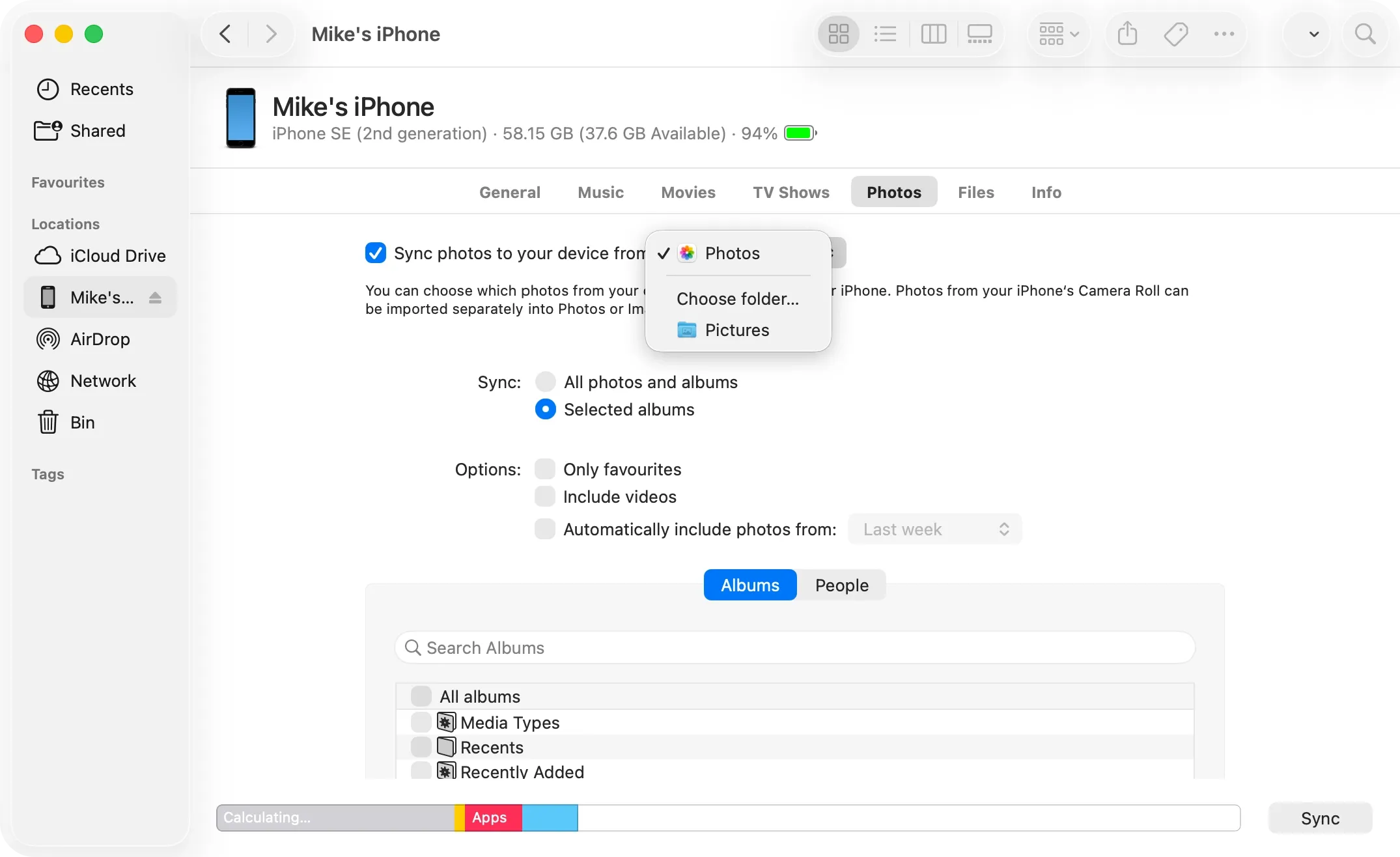
- Click Apply to sync. The photo sync mode will switch from library-based to folder-based.
Once the sync completes, iMazing will be able to import and delete photos normally.