


Easily Transfer Documents, Photos and Music to iPhone or iPad with Quick Transfer
iOS devices handle a wide variety of file types: documents, images, audio, video. But transferring content to them from a computer is fragmented: different apps, different sync methods, no unified interface.
iMazing's Quick Transfer feature provides a single drag-and-drop workflow that works across file types and apps. It detects compatible apps installed on your device and routes your files accordingly, without requiring you to manage formats or sync settings. Available on macOS and Windows, Quick Transfer is free and does not require registration or a paid iMazing license.
Note : Quick Transfer works with every apps that have File Sharing enabled and support the file types you are transferring.
Here's how to easily transfer documents, photos and music to iPhone or iPad with Quick Transfer.
Before you begin
Open iMazing and view your devices
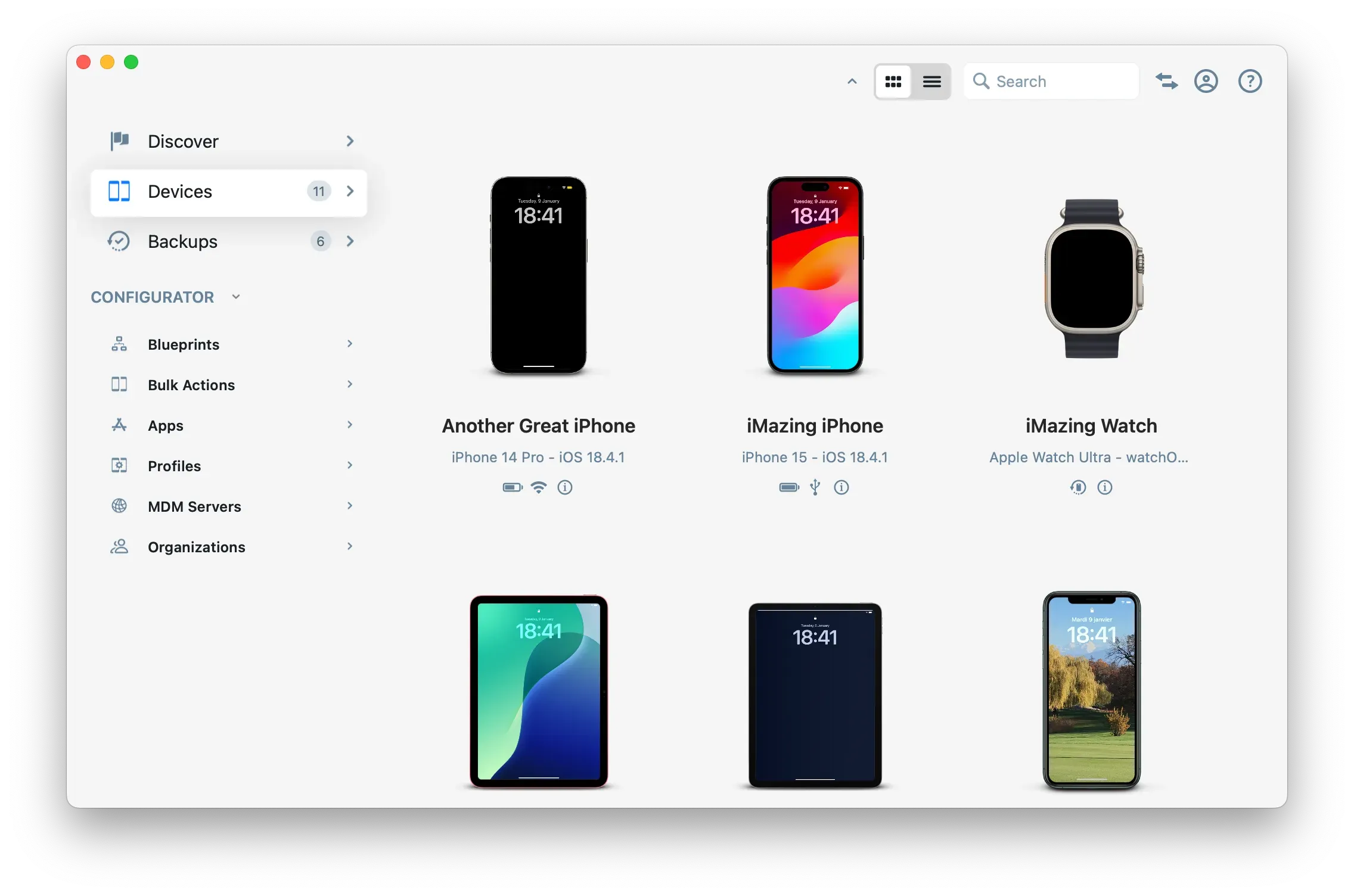
In iMazing on macOS or Windows, go to the Devices section on the Home Screen. Your connected and previously paired devices appear here.
Drag your files onto your device
Drag any file or folder from your computer and drop it onto the target device in iMazing. The device tile highlights when you hover over it.
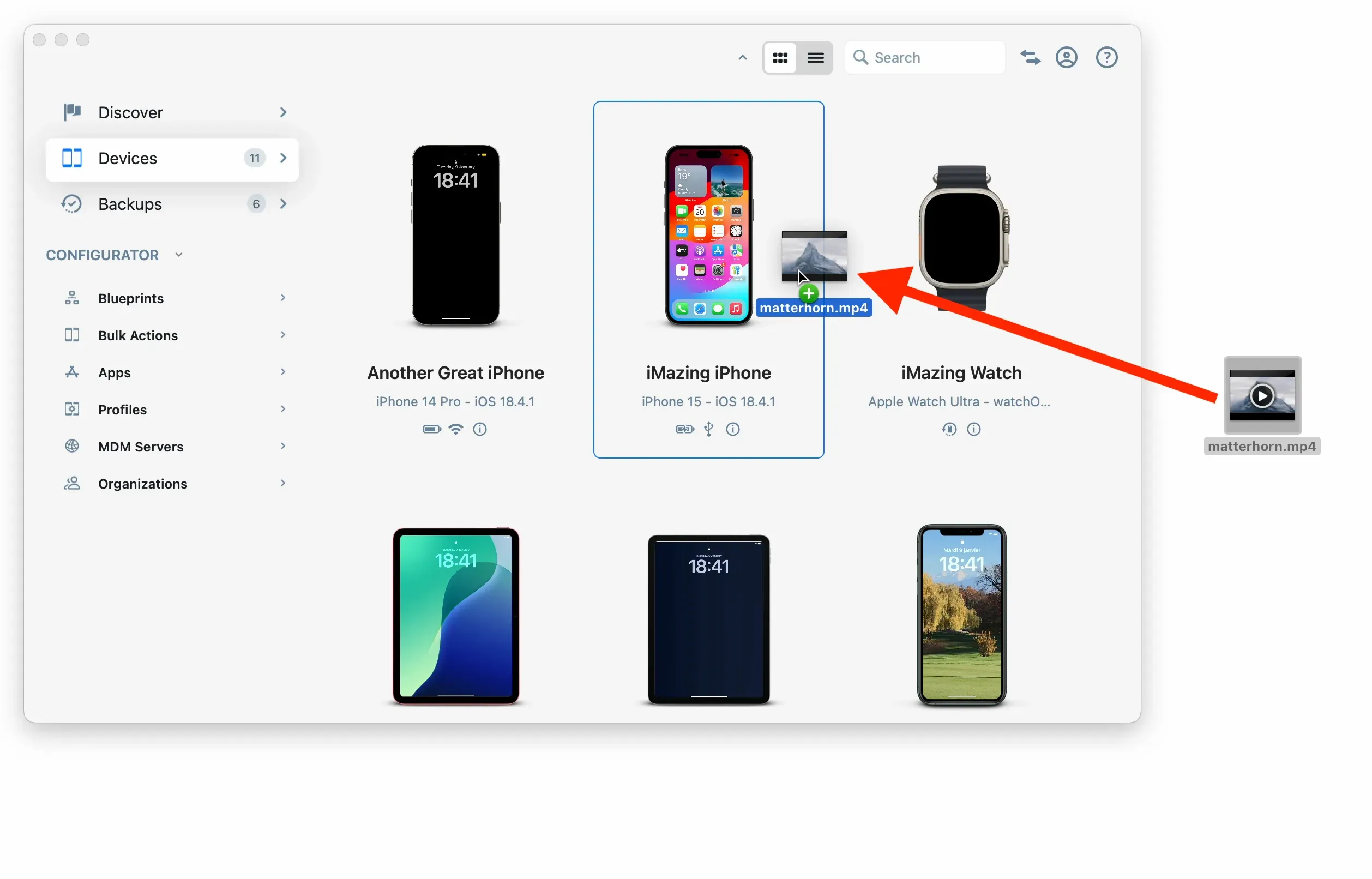
You can drop a mix of file types in one go: documents, music tracks, photos, books.
Tip: On macOS, you can drag files directly onto the iMazing Mini icon in the menu bar. iMazing Mini displays your devices, and you can drop the files onto the target device from there, without opening the main iMazing app.
Select the target app and transfer
Once you drop your files, the Quick Transfer wizard opens and displays all compatible apps installed on your device.
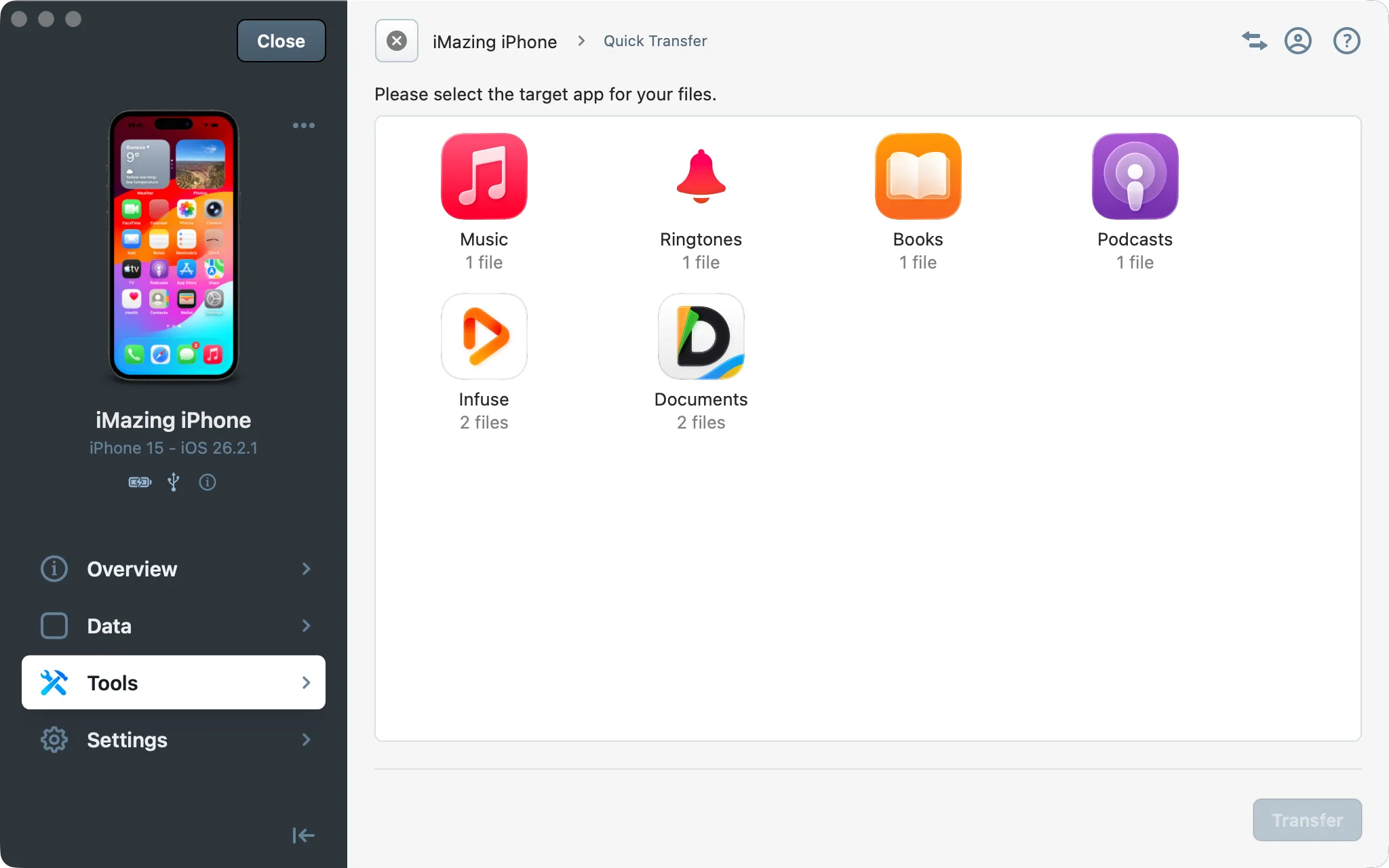
iMazing shows how many files each app can receive, and the count varies because not all apps support all file types. If you drop a mix of documents, music tracks, photos, and books, a file manager like Documents or GoodReader will show the full count, while specialized apps like Music or Photos will only show the files they can accept.
Select the target app, then click Transfer.
When no compatible app is found
If no compatible app is installed on your device for a given file type, iMazing displays a dedicated screen after you drop your files.
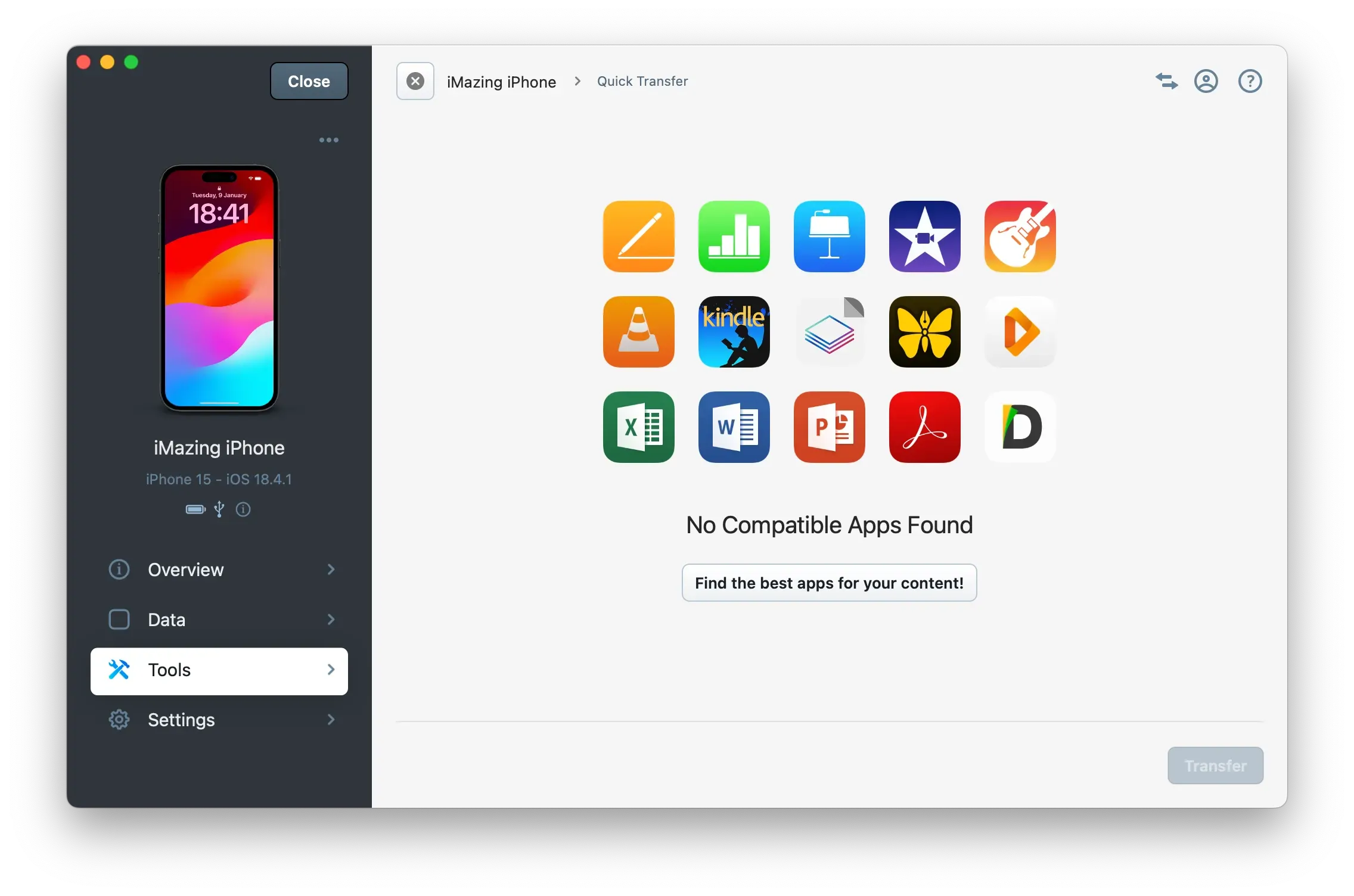
Click Find the best apps for your content! to return to this guide. The sections below list recommended apps for each content type. Install any of them from the App Store, then drop your files again: the app will appear as a transfer destination in Quick Transfer.
Compatible apps by content type
The table below lists the default iOS apps and the file types Quick Transfer routes to them.
App | Supported content | |
|---|---|---|
 | Photos | JPG and PNG images |
 | Books | EPUB books and PDF documents |
 | Music | iOS-compatible audio files |
 | Ringtones | iOS-compatible audio files |
 | Videos or TV | MP4 video files |
 | Contacts | vCard files ( |
 | 3rd party apps | Depends on the app |
Music
The iOS Music app supports most audio formats. For files that are not compatible, VLC is a free and widely used option that also handles video, making it a versatile pick if you transfer both. FLAC Player+ is a more focused choice if you primarily work with lossless audio and prefer a music-centric interface.
Videos
Depending on your region, videos go to the Videos or TV app. These default apps have limited format support and are primarily designed for content purchased from Apple's ecosystem, so they work poorly for video files transferred from your computer. VLC handles most container formats and is free. Infuse by Firecore offers a more polished experience, particularly on iPad, and is worth the premium if you regularly watch locally stored video.
Books
The iOS Books app supports EPUB and PDF, and has the convenience of an integrated store. But it does not support Kindle books (.mobi) or comic book formats (.cbr, .cbz), so it is of limited use if you want to transfer your Kindle library or read comics on your device. For Kindle books, use Amazon Kindle. For comics, iComics is a solid option.
PDF documents
Books handles PDFs adequately for light use. It can struggle with larger files, and its annotation tools are basic. For professional workflows that require heavy annotation or form editing, PDF Expert by Readdle is the most widely used option.
Microsoft Office and Apple iWork documents
Microsoft Office apps (Word, Excel, PowerPoint) are available for iOS and support reading documents without an account. Editing requires a Microsoft account.
Apple's iWork suite (Pages, Numbers, Keynote) is free, requires no account, and can open Office documents directly. Note that the file is converted to the iWork format on open: a .docx opened in Pages becomes a Pages document. Depending on your use case, this may or may not matter, but it is worth keeping in mind before choosing iWork as your primary option.
Multi-purpose file managers
iOS apps are sandboxed, so files are organized per app rather than in one shared folder. Since iOS 11, the Files app provides a central location for browsing files stored on your device (On My iPhone/iPad), in iCloud Drive, and in third-party storage providers, and lets you copy files between apps. However, it does not accept Quick Transfer directly, so it cannot serve as a transfer destination on its own.
File manager apps such as Documents by Readdle and GoodReader fill this gap: they accept Quick Transfer, support a broad range of formats, and offer richer organization tools than Files. Transfer your files to one of these apps first, then use Files to move them further if needed.
Note: Files transferred via iMazing appear inside the destination app's own folder structure. The exact location depends on the app. In Documents by Readdle, for example, transferred files land in folders such as Inbox or Cable Imports.
What to keep in mind
- Not all apps support file sharing. File sharing must be enabled by the app developer. In the Apps view (Device Screen > Data > Apps), you can filter to see only compatible apps: click Options in the bottom toolbar and select Only show sharing enabled apps. This is a quick way to know which apps on your device can receive files from iMazing.
- The iOS Files app does not accept file transfers directly via Quick Transfer. Transfer to a compatible file manager first, then move files using Files if needed.
Note: App developers can make their app appear in the Quick Transfer wizard by enabling File Sharing and declaring supported file types. See Make Your iOS App Compatible with iMazing Quick Transfer.