


View and export Unified Logs from iOS devices
Apple's Unified Logging system records detailed activity across iOS. In iMazing, the Unified Logs dataset loads these logs into a comprehensive, sortable view. From there, you can browse and export them on both macOS and Windows, without dealing with .logarchive files or resorting to Console app on macOS.
Advanced filtering options let you narrow thousands of log entries down to the ones that matter: filter by process, subsystem, message content, log type, PID, and more, with inclusion and exclusion rules. This is useful for e-discovery, forensic analysis, and debugging app or system issues.
Here's how to view and export Unified Logs from an iPhone or iPad.
Before you begin
Select Unified Logs
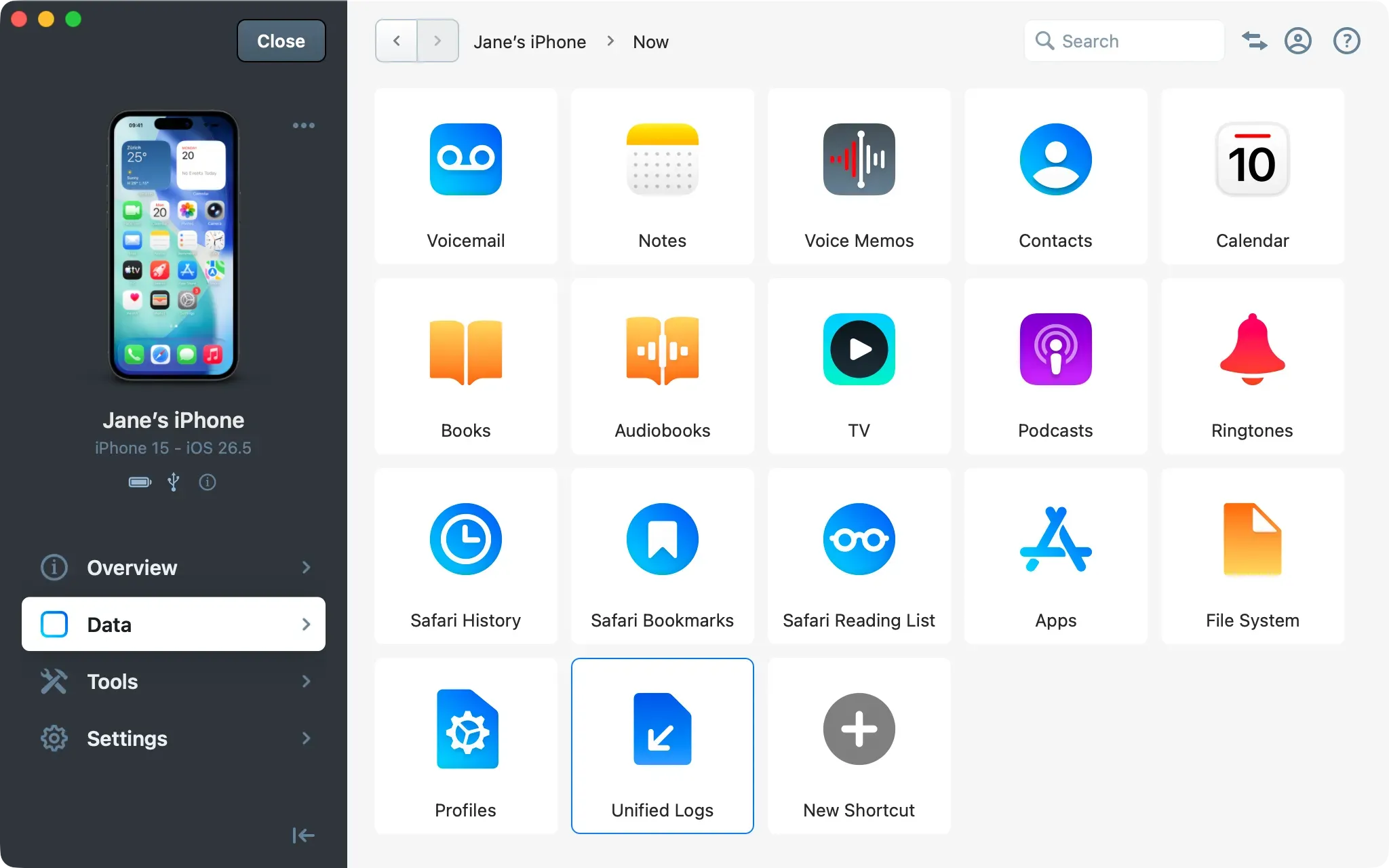
In the Device Screen, open the Data section and select Unified Logs. You can also access it from the Overview: click on More at the end of the data shortcuts row. Wait for the logs to load.
Tip: Connect over USB for this dataset. The Unified Logs transfer a large volume of data, so retrieval works over Wi-Fi but is noticeably slower.
Browse and inspect log entries
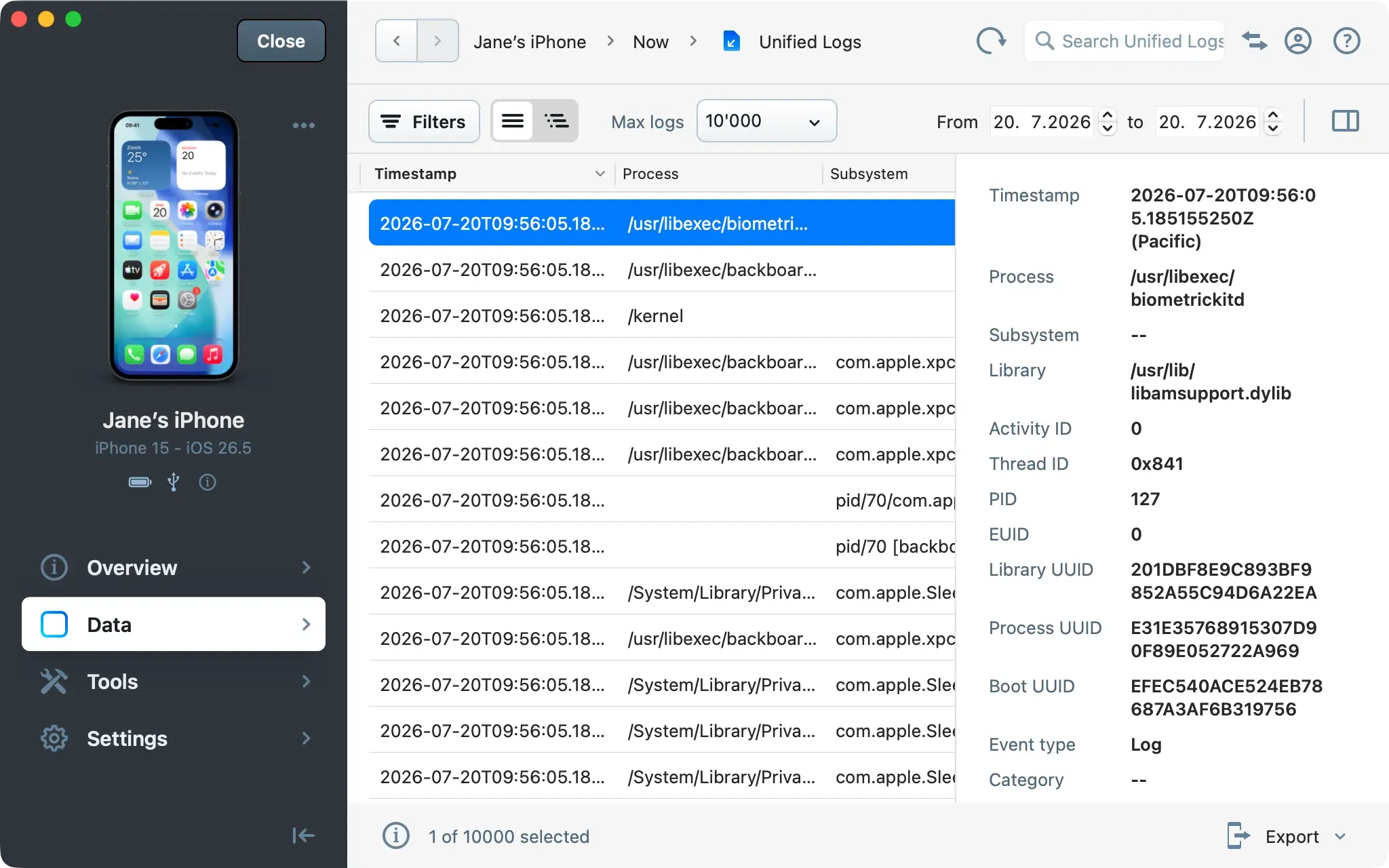
The main view lists entries in a table. Two view toggles in the toolbar switch between a flat list and a tree view. In tree view, log entries that have children are displayed hierarchically. Right-click on any column header to choose which columns are visible. This preference persists between sessions.
Tip: Collapse the left sidebar by clicking the icon to give the log table more horizontal space.
Select the panel toggle at the far right of the toolbar to open the detail panel. Select any entry to see its full metadata, including Process, Subsystem, Message, PID, Event type, and more. Click any field value to copy it to the clipboard.
Filter and search the logs
The toolbar provides several ways to narrow the list.
Tip: All users can browse Unified Logs with the default filter settings. Customizing filters and exporting logs require an iMazing Business subscription.
Set a date range and log limit
Use the From and to date pickers to restrict the time range. Use the Max logs dropdown to change how many entries iMazing loads (default: 10,000).
Setting a very high log limit can slow down iMazing and consume significant memory. iMazing displays a warning when the selected value is high.
Build filters
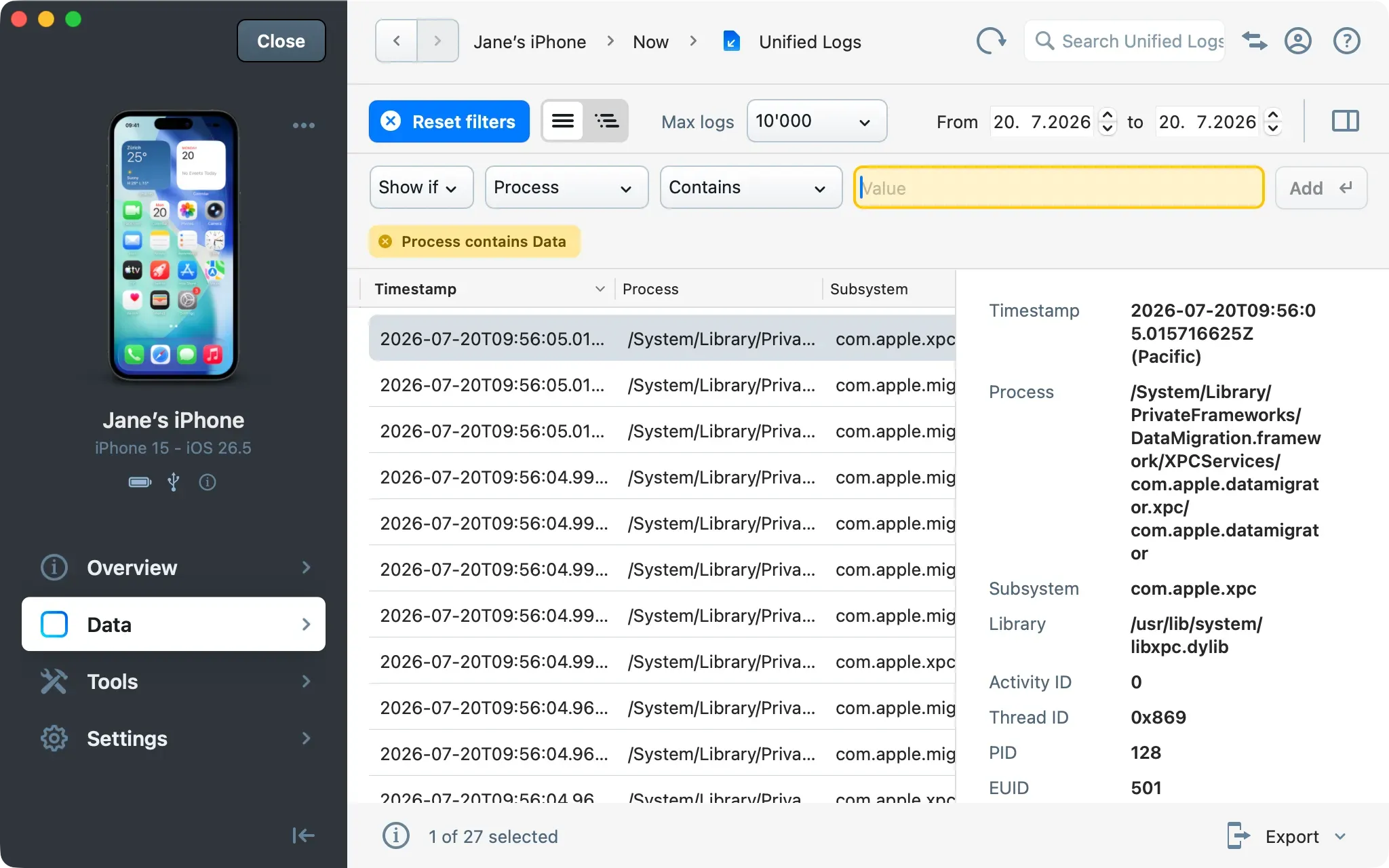
Select Filters to open the filter bar. Each filter has four parts:
- Show if or Hide if: choose whether matching entries are included or excluded.
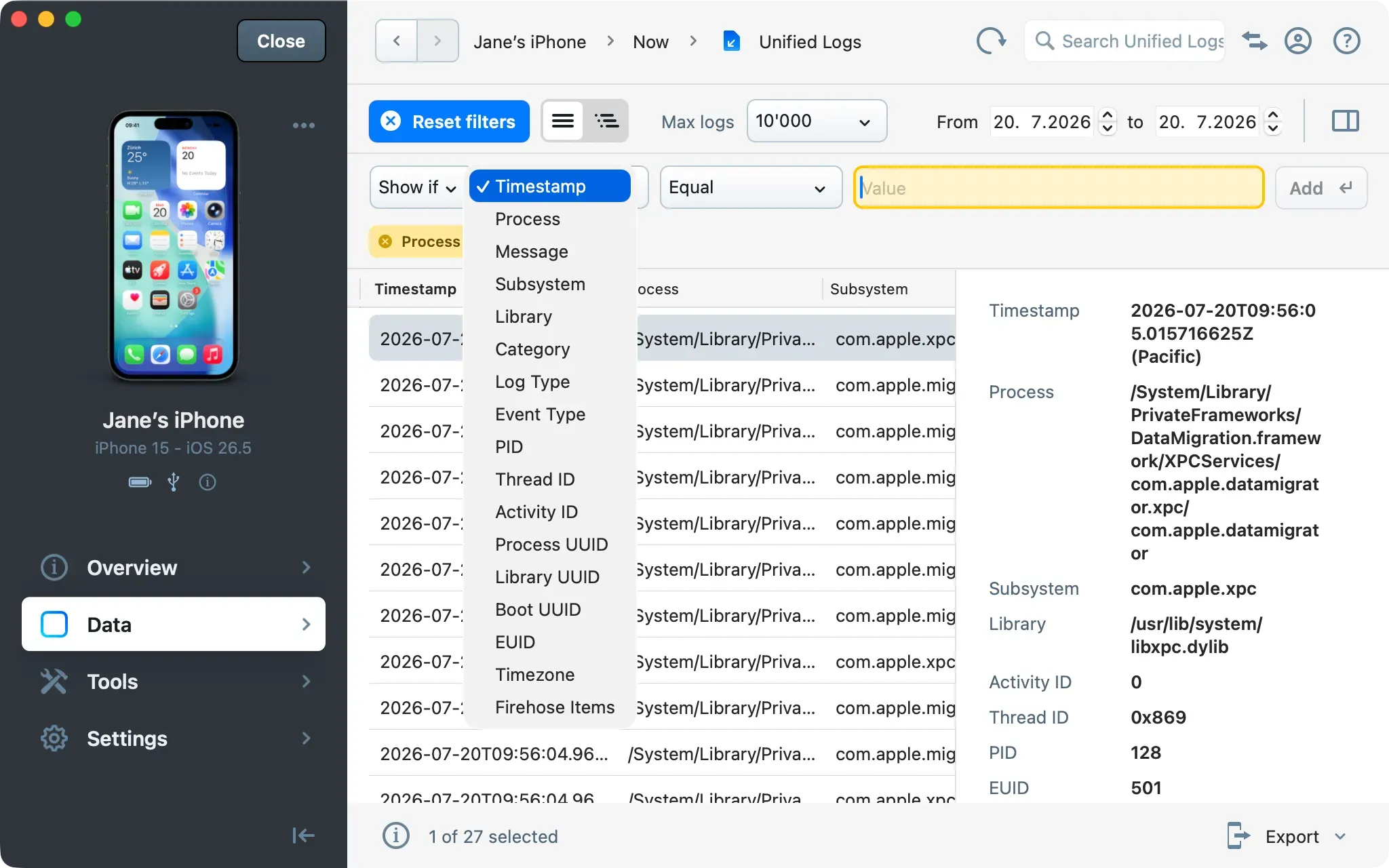
- Field: select the log field to filter on. Available fields: Timestamp, Process, Message, Subsystem, Library, Category, Log Type, Event Type, PID, Thread ID, Activity ID, Process UUID, Library UUID, Boot UUID, EUID, Timezone, and Firehose Items.
- Operator: choose a comparison. Numeric and date fields support Equal, Not equal, Less than, Less or equal, Greater than, and Greater or equal. Text fields support Contains, Does not contain, Begins with, and Ends with.
- Value: enter the value to match against. For Timestamp filters, you can be as broad or precise as needed: a year and month (2026-07), a full date (2026-07-08), or a date with time (2026-07-08T15:25).
Select Add to apply the filter. Active filters appear as removable pills below the filter bar. Each new filter stacks on top of the previous ones, so you can build compound conditions by mixing Show if and Hide if across different fields. Select Reset filters to clear them all.
Search
Enter a term in the Search Unified Logs field (top right) to match across the loaded entries.
Export the logs
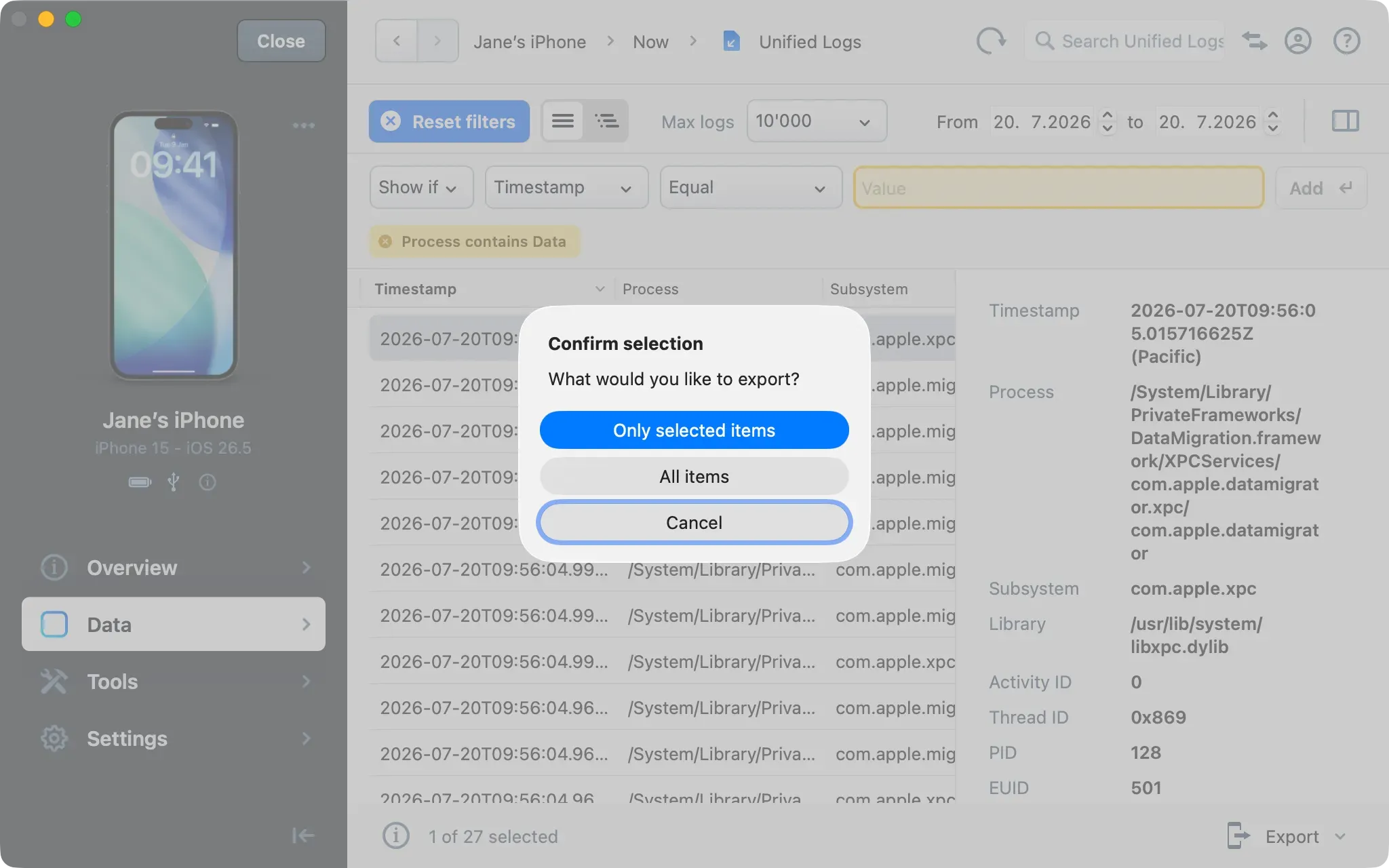
Select the Export dropdown at the bottom right and choose Excel or CSV.
iMazing asks what to export: Only selected items or All items. The status bar shows the current selection count.
What to keep in mind
- The Unified Logs dataset shows a snapshot of the system log over a time range, the equivalent of the macOS
log showcommand. For a live, real-time stream, use the device console instead: see our guide on Access an iPhone or iPad's Console Log. - The Advanced tool Export Unified Logs produces a
.logarchivefile to open in the Console app on macOS. The Unified Logs dataset keeps browsing, filtering, and search inside iMazing on both macOS and Windows. - Connect over USB for best performance. Wi-Fi works, but this dataset transfers a large volume of data and will be noticeably slower.
- Larger date ranges and higher Max logs values increase retrieval time.
- For a full investigative workflow, see our guide on Use iMazing for iOS digital forensic analysis and e-Discovery.