Backup: why iMazing backups appear larger than Apple's native backups
Updated on Aug 6, 2026
Reading time ~4 minutes
When you inspect your iMazing backup folder using macOS Finder or Windows File Explorer, the reported size may look significantly larger than what iTunes, Apple Devices (since Windows 11), or Finder (macOS Catalina 10.15 and later) would show for a comparable backup.
This is a display artifact. Finder and File Explorer both miscount the actual space used. The size iMazing reports within the app is accurate.
Finder on macOS and File Explorer on Windows calculate folder sizes by counting every file they find. When iMazing creates a snapshot of your backup, it uses hard links to reference unchanged files rather than duplicating them.
Hard links are directory entries that point to the same underlying data on disk (Inode). A file with two hard links appears in two places, but occupies space only once. Finder and File Explorer count each appearance separately, which inflates the reported total.
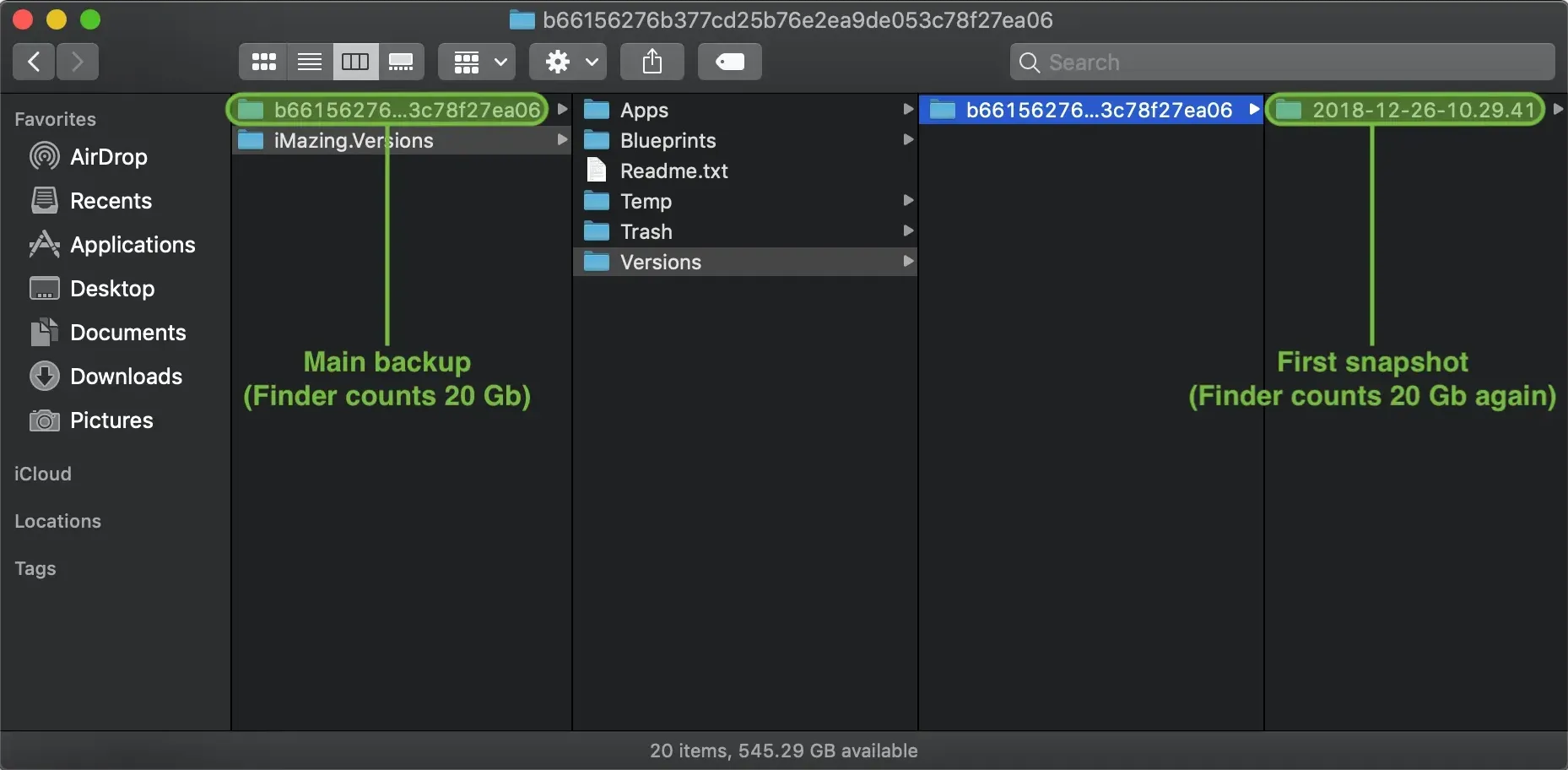
With your first snapshot, Finder and File Explorer count each hard-linked file twice, making the backup appear to occupy roughly twice the space of an equivalent native backup. In reality, it occupies the same space. As subsequent snapshots accumulate, the apparent size keeps growing: each new snapshot adds its own set of hard links, which are all counted again. This is why the apparent discrepancy grows more dramatic over time, not less.
Note: The size displayed inside iMazing accounts for hard links correctly and reflects the actual disk space used. This is the easiest way to verify how much disk space your backups actually consume.
How iMazing stores backup snapshots (backup history)
iTunes or Apple Devices (since Windows 11) and Finder (macOS Catalina 10.15 and later) all maintain a single backup per device. Each new backup overwrites the previous one.
iMazing keeps an incremental history of snapshots. Each snapshot contains only the files that changed since the previous backup. Unchanged files are referenced via hard links rather than copied again.
Your backup folder is organized as follows:
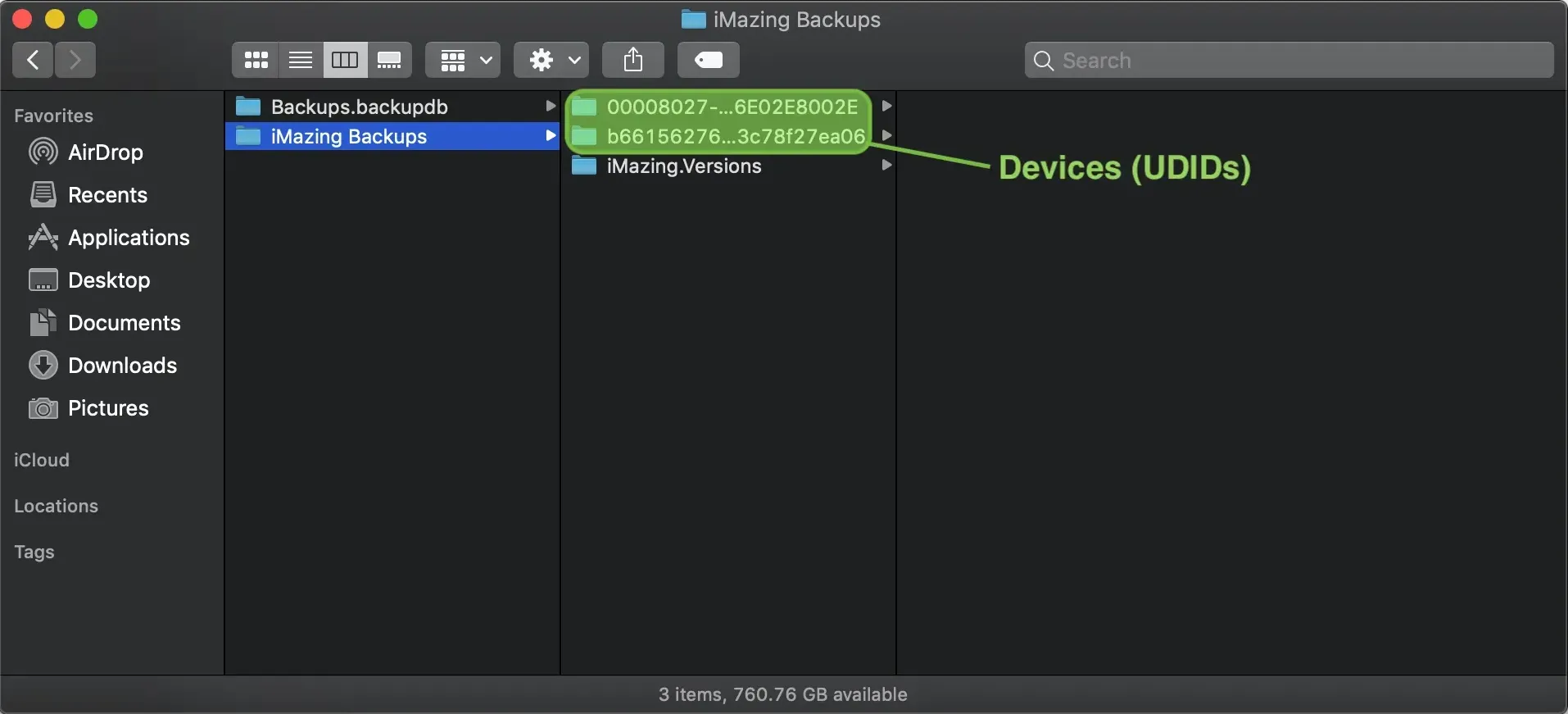
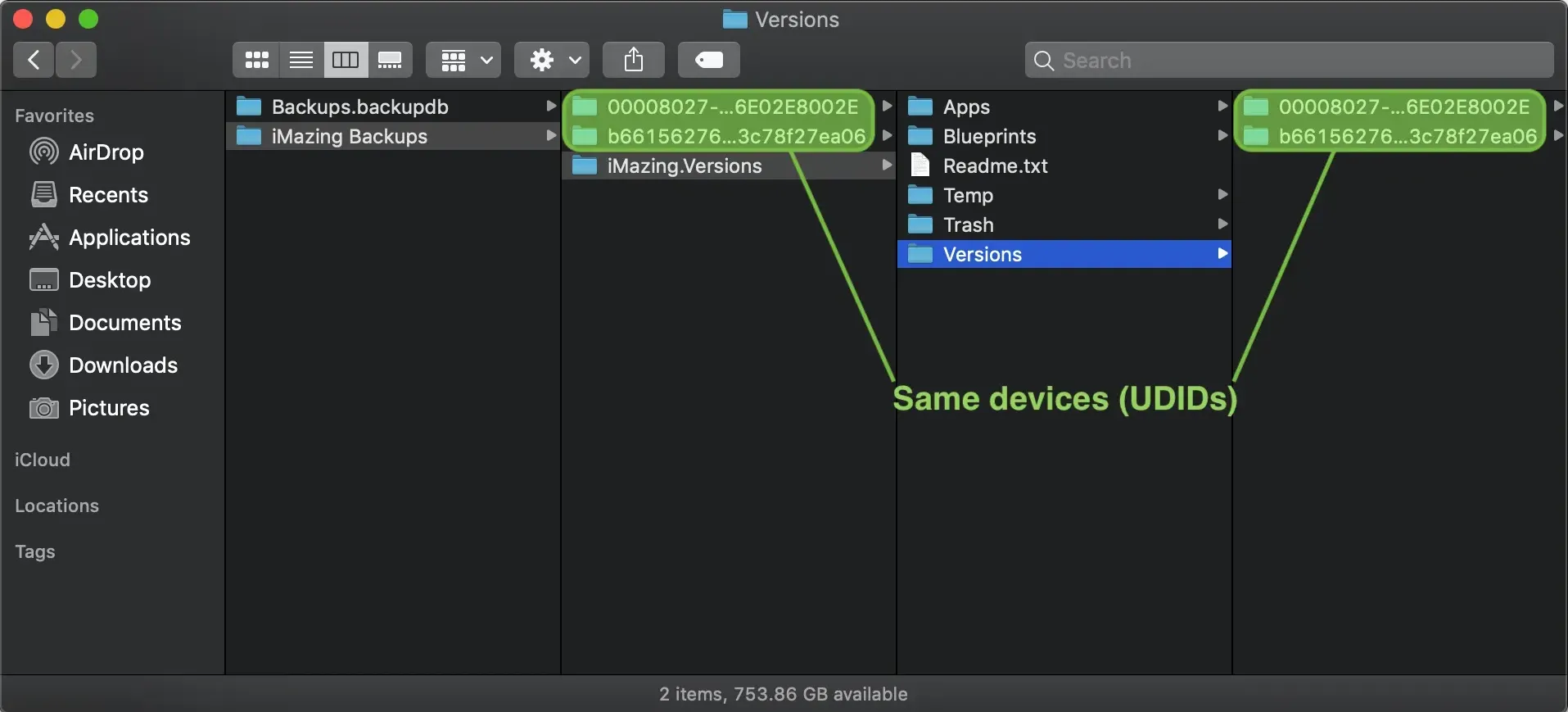
A folder named after each device's UDID (Unique Device Identifier), containing the most recent backup.
A subfolder named iMazing.Versions, containing one timestamped snapshot per backup run.
The first snapshot looks like a full copy of the backup folder. Because all files are new at that point, each one has a hard link in the iMazing.Versions folder. Finder and File Explorer count those links as duplicate files, doubling the apparent size.
Subsequent snapshots are small: only modified or new files are added. The historical record grows incrementally, not exponentially.
Important: Never manually transfer, copy, or move files in the backup location since iMazing keeps multiple snapshots of a device. All actions must be performed through iMazing to maintain snapshot chain integrity and prevent backup corruption.
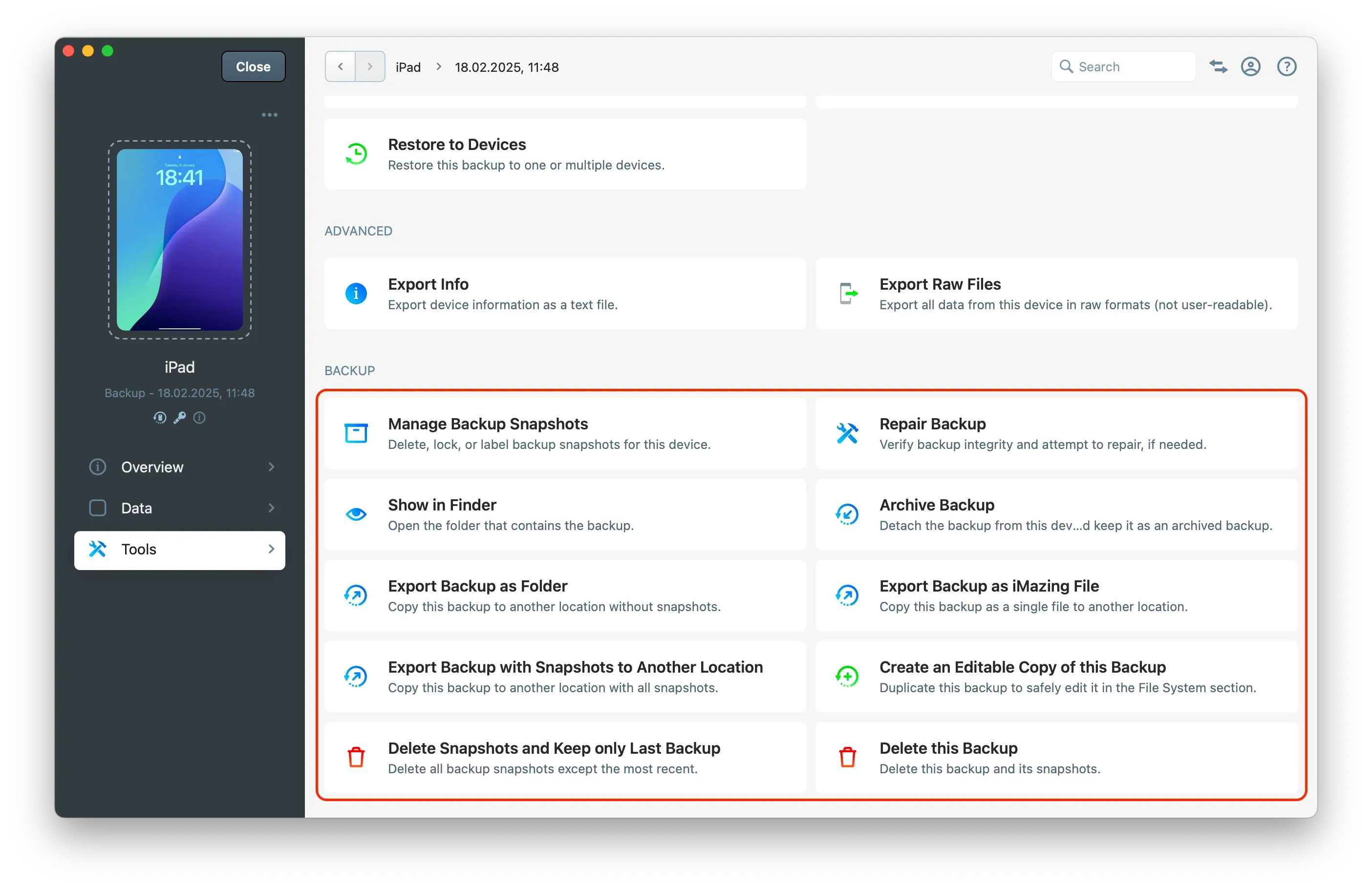
Tip: To manage disk usage, open the device in iMazing on macOS or Windows, select Tools in the device sidebar, then Backup > Manage Backup Snapshots. You can delete older snapshots individually while preserving the rest of your history.
What hard links are and how they work
A hard link is a pointer to a file's data on disk. Multiple directory entries can point to the same data (Inode). The data itself is stored once, regardless of how many links reference it.
When iMazing creates a snapshot, files that have not changed since the last backup are not copied. Instead, a new hard link is created in the snapshot folder, pointing to the existing data. No additional space is consumed.
This mechanism is what makes iMazing's snapshot history space-efficient: preserving five or ten snapshots costs far less disk space than five or ten independent full backups.
Verify the true size yourself
You can measure the actual disk usage using a method that correctly accounts for hard links. On macOS, this means a Terminal command. On Windows, a dedicated tool is required.
macOS
Open Terminal and navigate to your iMazing backup folder. The folder to target is the device UDID (Unique Device Identifier) named folder at the root of your backup location. Running du -sh on a subfolder (such as iMazing.Versions) would give a partial and misleading result. Run:
du -sh
The output shows the true size, with hard links counted once.
Windows
File Explorer and native Windows commands like dir do not offer correct hard link accounting for a NTFS file system, so they do not provide a reliable figure.
For an accurate reading on Windows, use TreeSize Free (free download from JAM Software). TreeSize correctly handles NTFS hard links and displays the real disk usage in a graphical interface.