Transfer contacts from a Mac or PC computer to an iPhone or iPad
Updated on Mar 24, 2026
Reading time ~2 minutes
Apple's built-in sync tools handle contacts in bulk, with no way to selectively import individual entries. iMazing lets you bring specific contacts from your computer directly to your iPhone or iPad: choose from your Mac or Windows Contacts app, or import from a vCard file, without iCloud and without syncing.
iMazing supports importing contacts from:
Mac Contactsapp
Windows Contacts
vCard (.vcf) files
Here's how to transfer contacts from a Mac or PC computer to an iPhone or iPad:
Click on Devices in the left pane. From the Devices view you will see all the devices previously connected and paired to your computer. Click to select a device.
Access Contacts
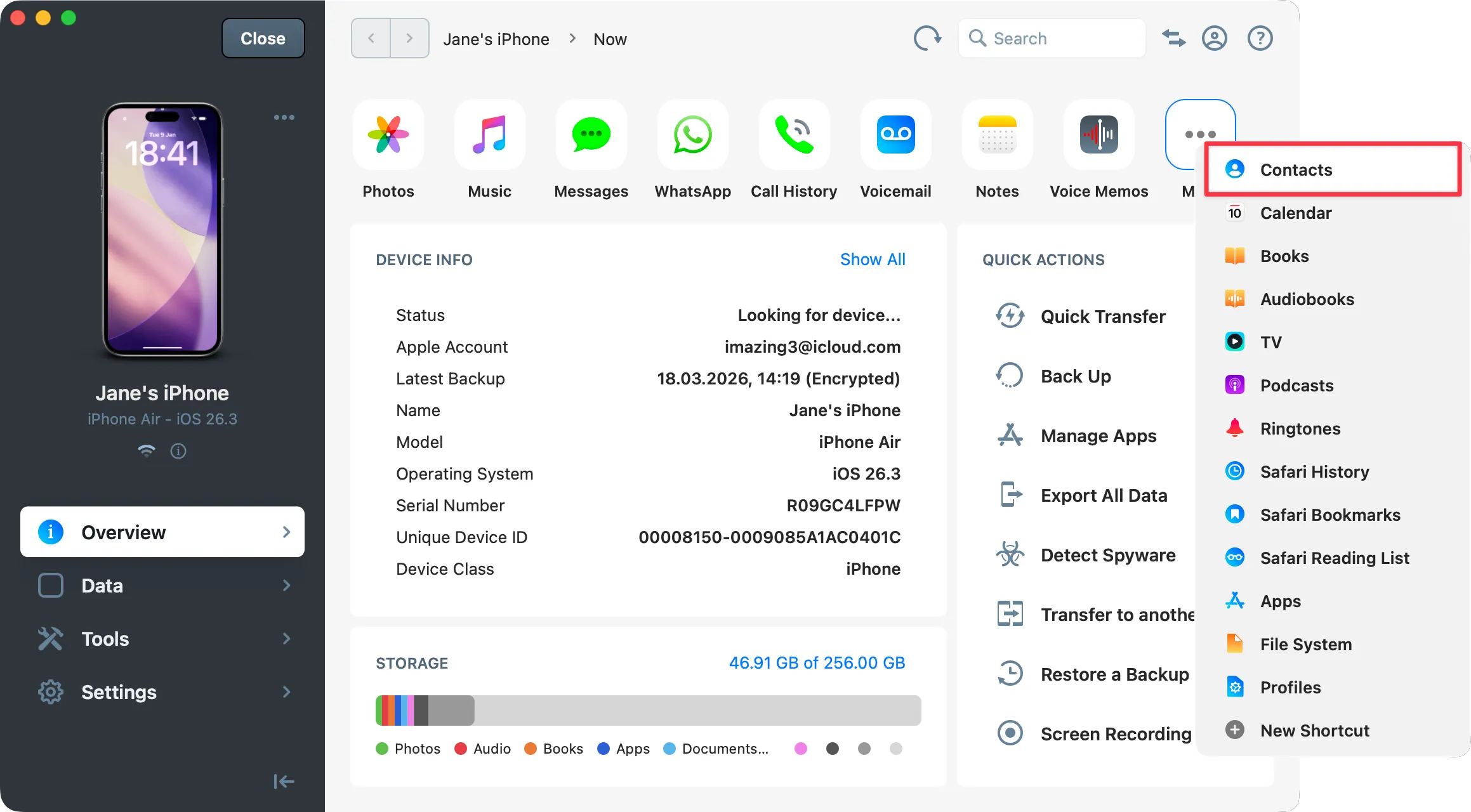
In the Overview section, click More in the Data shortcuts bar, then select Contacts.
Note: If this is your first time connecting your device, iMazing will prompt you to run a backup to be able to access your contacts. You can choose to do a full backup or a partial backup: a data-only extraction that is not restorable. If a backup already exists, iMazing will offer to use its existing data or take a new snapshot instead.
Import your contacts
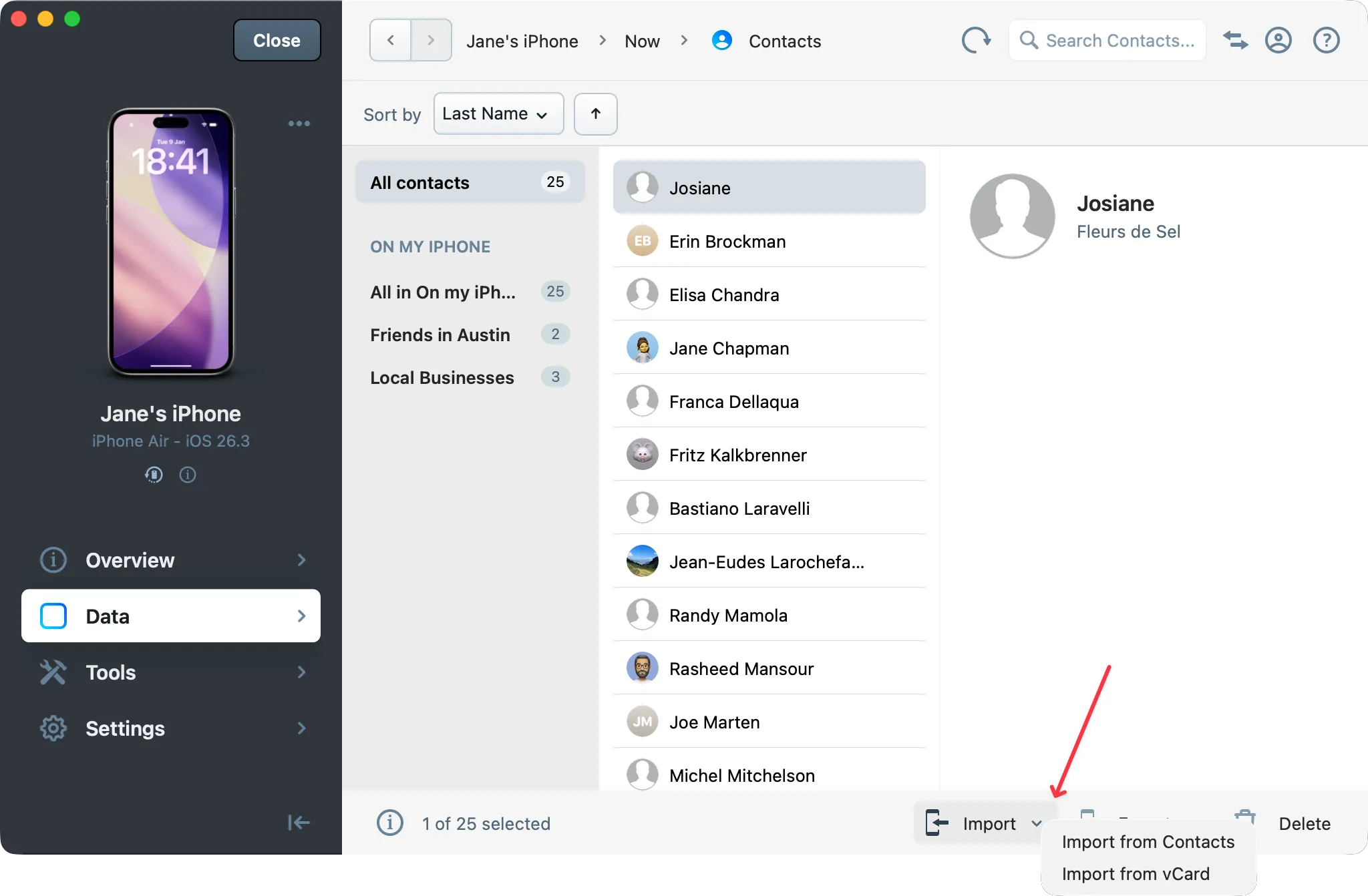
In the bottom toolbar, click one of the Import buttons.
Choose your import source:
Mac or Windows contacts
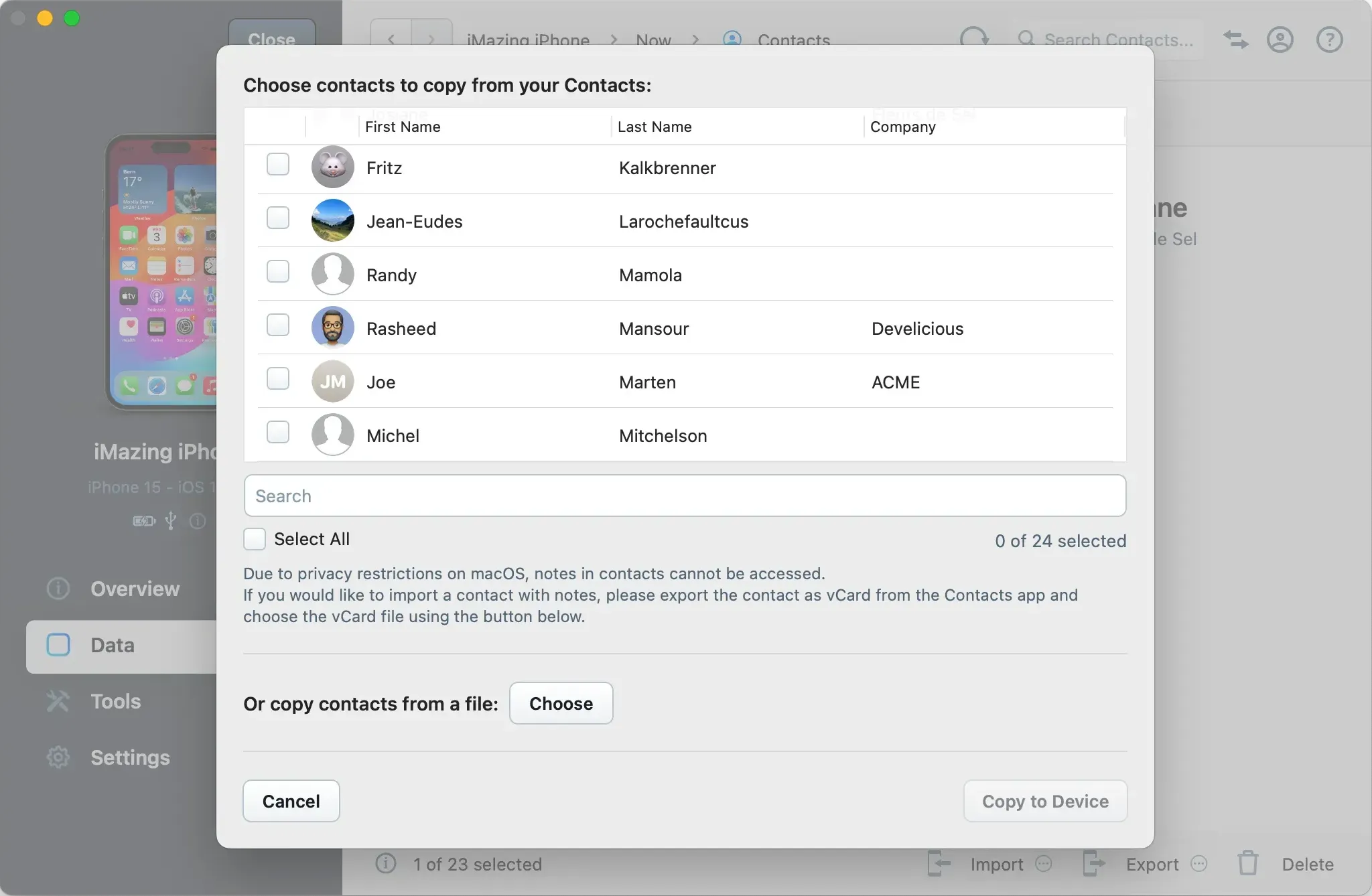
The Contacts Import Wizard opens. Select the contacts you want to copy from your Contacts app.
Click Copy to Device. Your contacts will start being transferred.
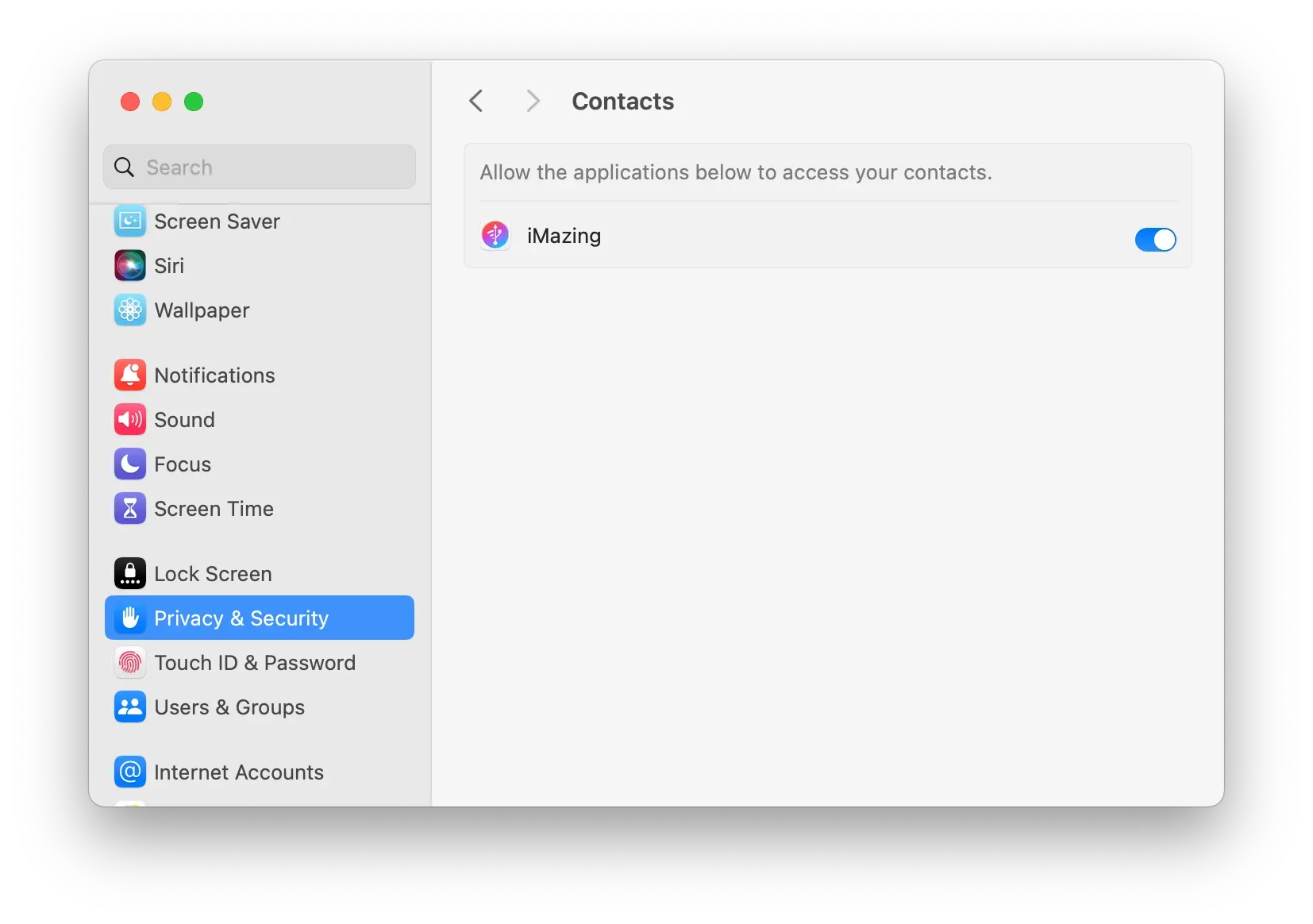
Important: On macOS, if iMazing warns that it cannot access Contacts, go to System Settings > Privacy & Security > Contacts and enable access for iMazing.
vCard file
Click Choose. A file dialog opens.
Select the .vcf file you want to import and click Choose. Your contacts will start being transferred.
Tip: You can also drag and drop a .vcf file directly onto iMazing's Contacts view to import it.