


Transfer music from an iPhone, iPad, or iPod to your Mac or PC
Your music may have taken years to collect: albums ripped from CDs, tracks bought from independent labels. If the computer that held it has crashed or been stolen, your iPhone, iPad, or iPod may be the only place it still exists. Finder and iTunes offer no way to transfer music back to your computer if it did not come from the iTunes Store.
iMazing gives you full access to your device's music library and transfers it to a folder on your computer or an external drive, keeping each track's name, artwork, rating, and play count. To add your music to iTunes or the Music app instead, see Transfer music from an iPhone, iPad, or iPod to iTunes or Music.
Here's how to transfer music from an iPhone, iPad, or iPod to your Mac or PC.
Select Music
At the top of the device's Overview screen, click Music.
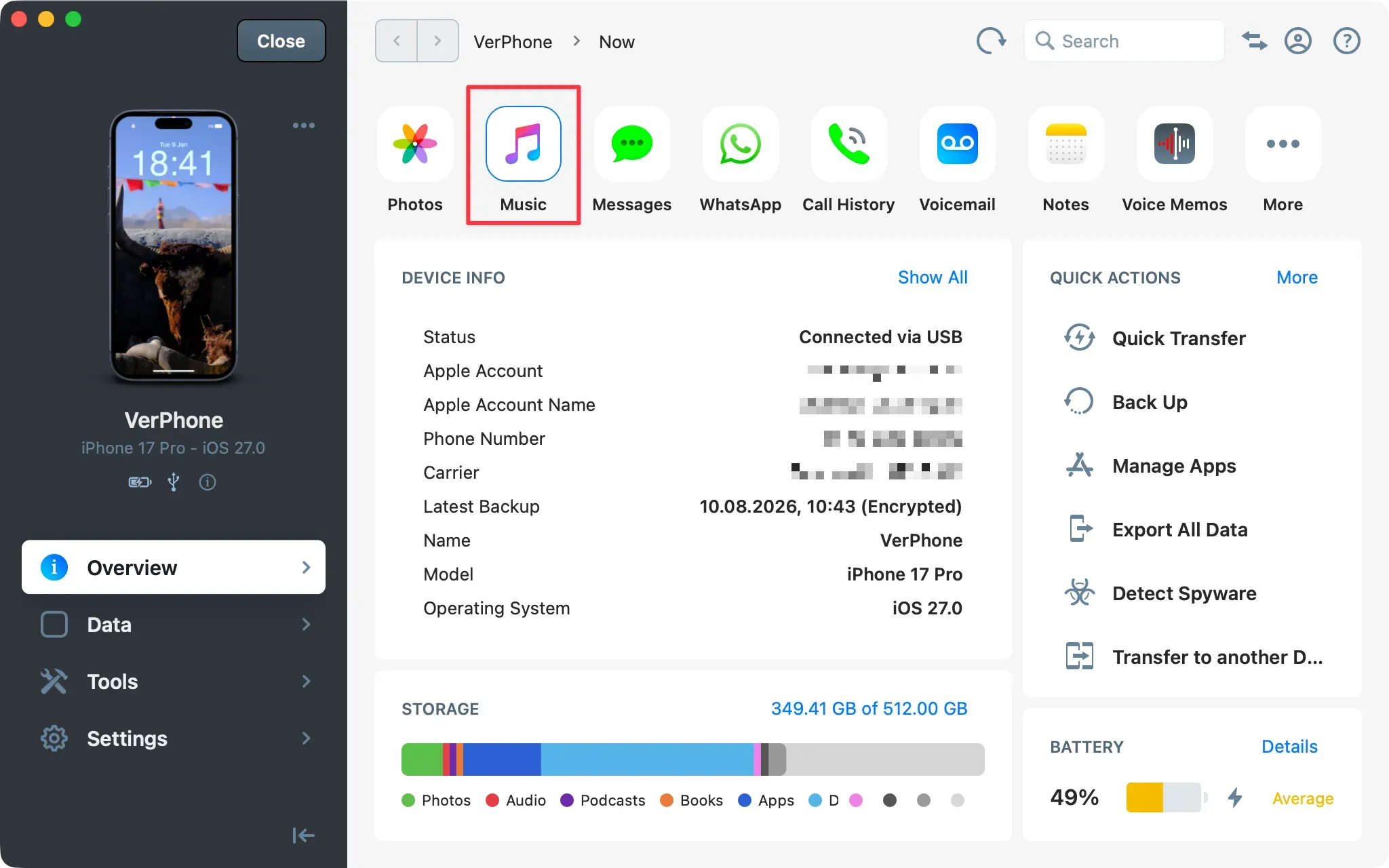
Tip: Alternatively, click Data in the sidebar, then select Music.
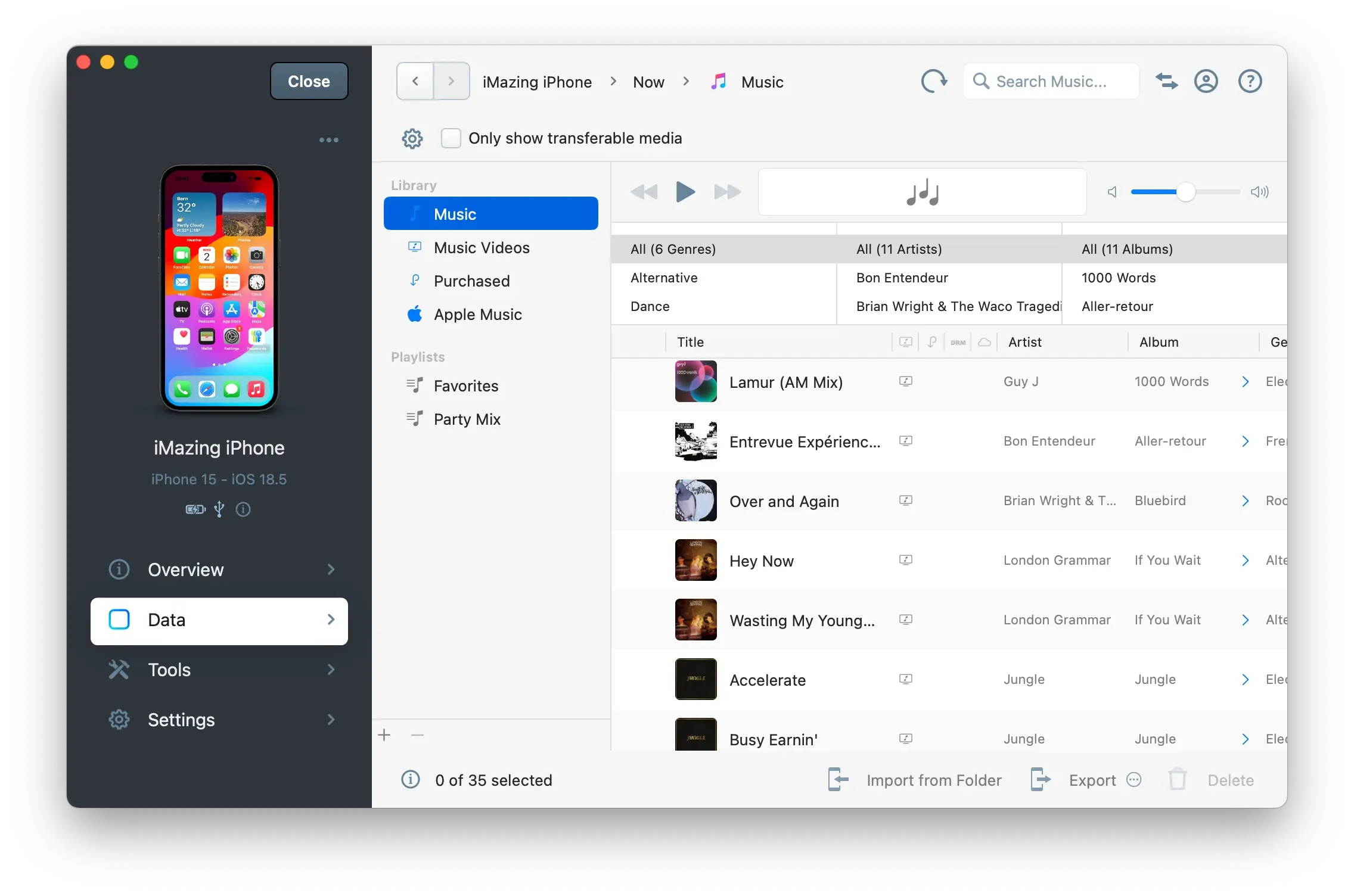
iMazing loads the device's music library. Depending on its size, this may take a few seconds. Once loaded, the view displays your playlists, along with filters for albums, genres, and artists.
Choose the tracks to export
Select the tracks, albums, or playlists you want to transfer. Three approaches are supported:
- Specific tracks or albums: use the genre, artist, and album filters and the search bar to narrow the list, then select the items you want.
- A playlist: select it in the left sidebar. Do not select individual tracks.
- Your entire library: leave everything unselected and continue with the next step.
Note: When no tracks are selected, iMazing treats your selection as all tracks matching the current filters. You can review your selection in the export options window before starting the transfer.
Tip: To export a small number of tracks, drag them directly from iMazing onto your desktop. No further steps required.
Configure the export
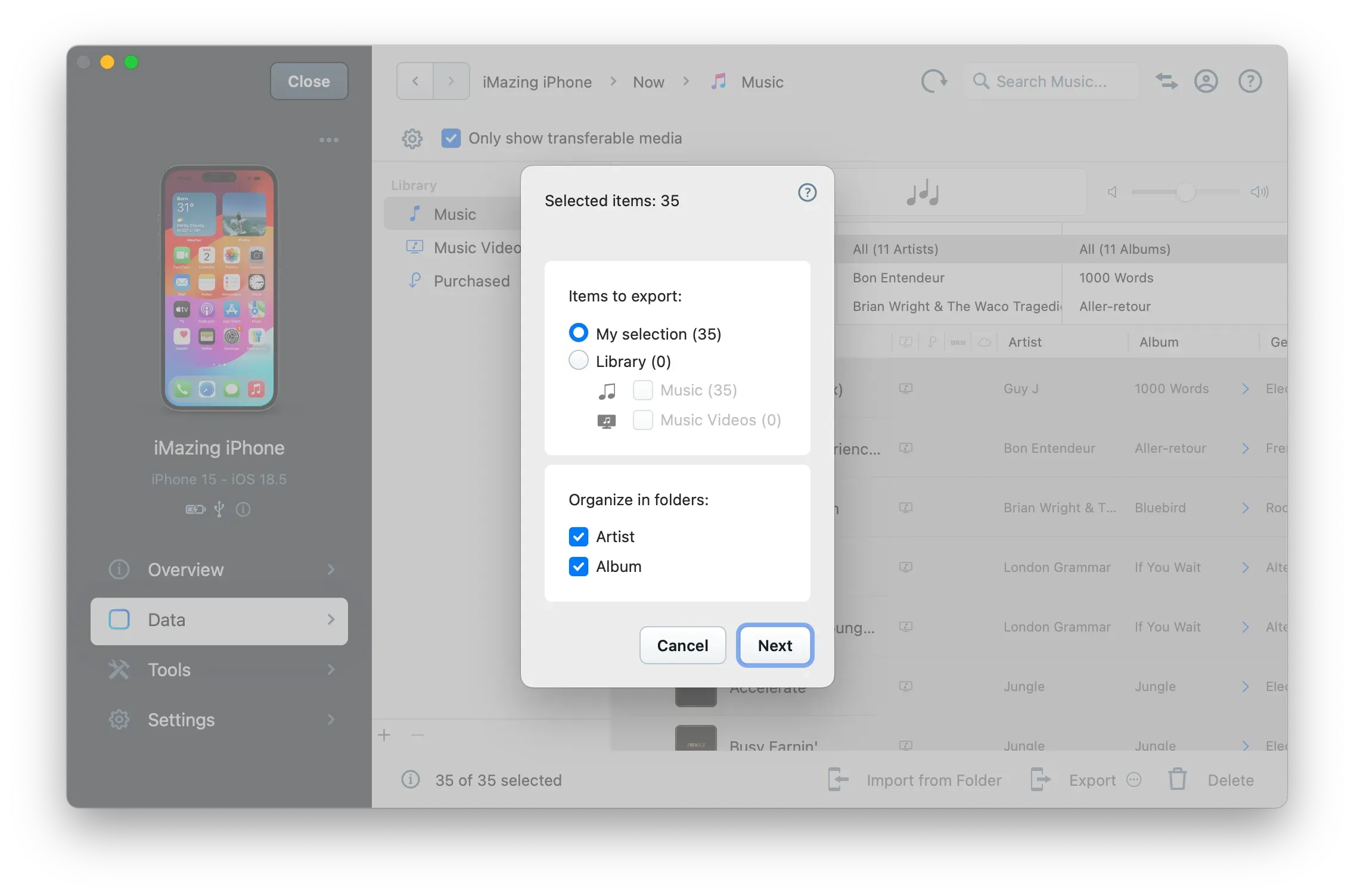
Click Export in the bottom-right corner, then select Export to Folder. iMazing displays the export options window.
Review your selection
The top section shows how many items are selected and how many will be exported. To export the full library instead, click Library rather than My Selection, then check the types of items you want to include.
Choose how to organize files
The lower section configures the folder structure for the exported files. By default, iMazing organizes tracks by artist and album:
- Artist: creates one folder per artist.
- Album: creates one subfolder per album inside each artist folder.
Keep the default options unless you want a flat file list. With both options enabled, the exported folder structure looks like this:
- Artist 1
- Album 1
- Track 01
- Track 02
- Album 2
- Track 01
- Artist 2
Start the transfer
Click Next in the export options window. iMazing prompts you to choose the destination folder.
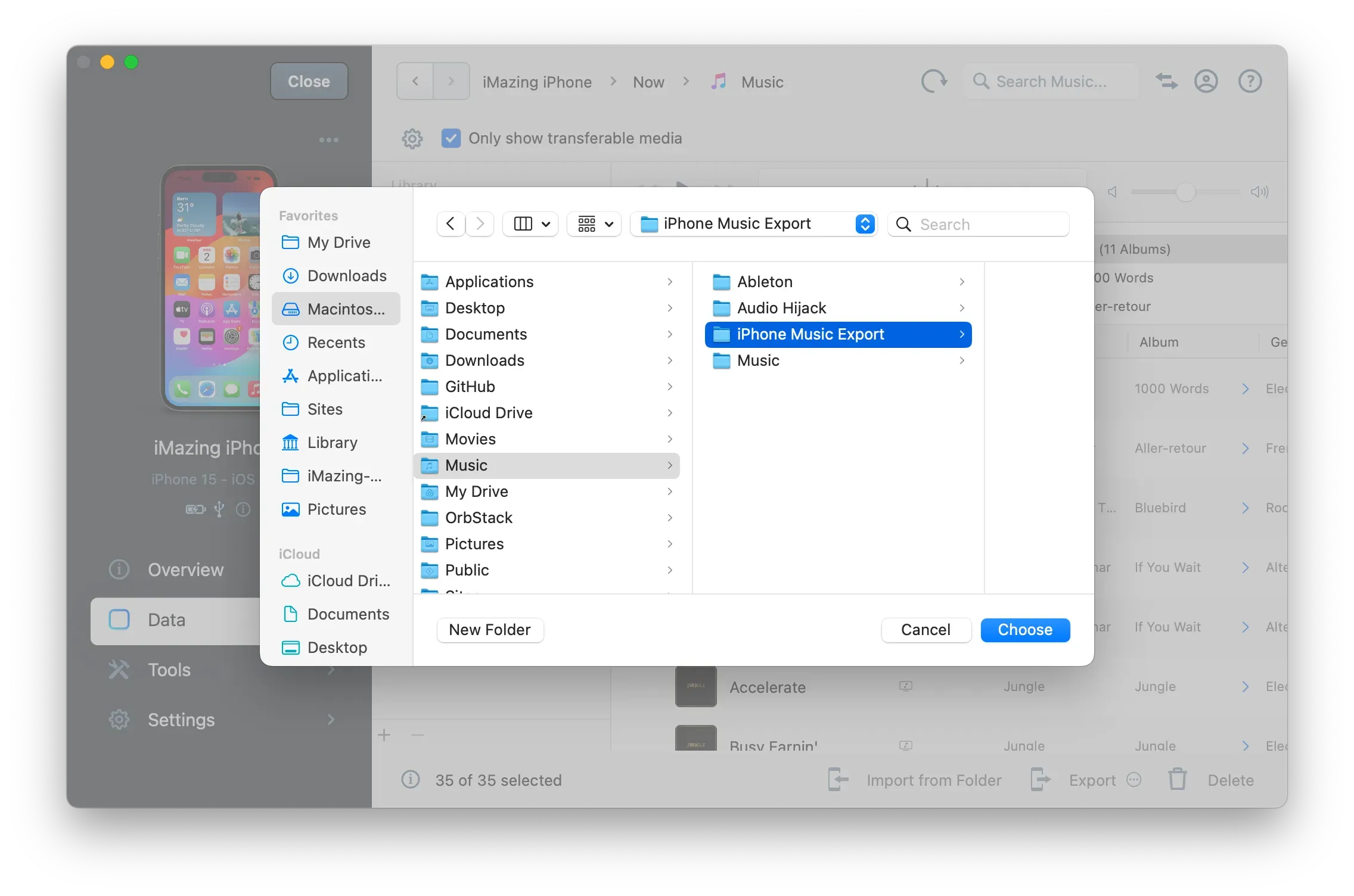
Select a folder and confirm. iMazing begins transferring your music files to that location. Transfer time depends on the number of tracks selected.
Note: Progress is reported in the Operations Panel. Let iMazing complete the transfer before accessing the destination folder.
What to keep in mind
- iMazing hides non-transferable tracks by default. Disable Only Show Transferable Media, above the toolbar, to display the full library, including tracks that cannot be exported. Non-transferable tracks appear in grey.
- Tracks from your iCloud Music Library that are not downloaded to your device cannot be exported, because they are not stored on the device. Download them to your device first, or access them through iCloud Music on your computer. These tracks are identified by a cloud icon.
- Apple Music subscription tracks are DRM-protected and cannot be transferred. iMazing lists them as non-transferable. These tracks are identified by an Apple logo.
- Older tracks purchased from the iTunes Store may also be DRM-protected, though this is rare since all iTunes Plus purchases are now DRM-free. If a selected track is DRM-protected, iMazing displays a warning.
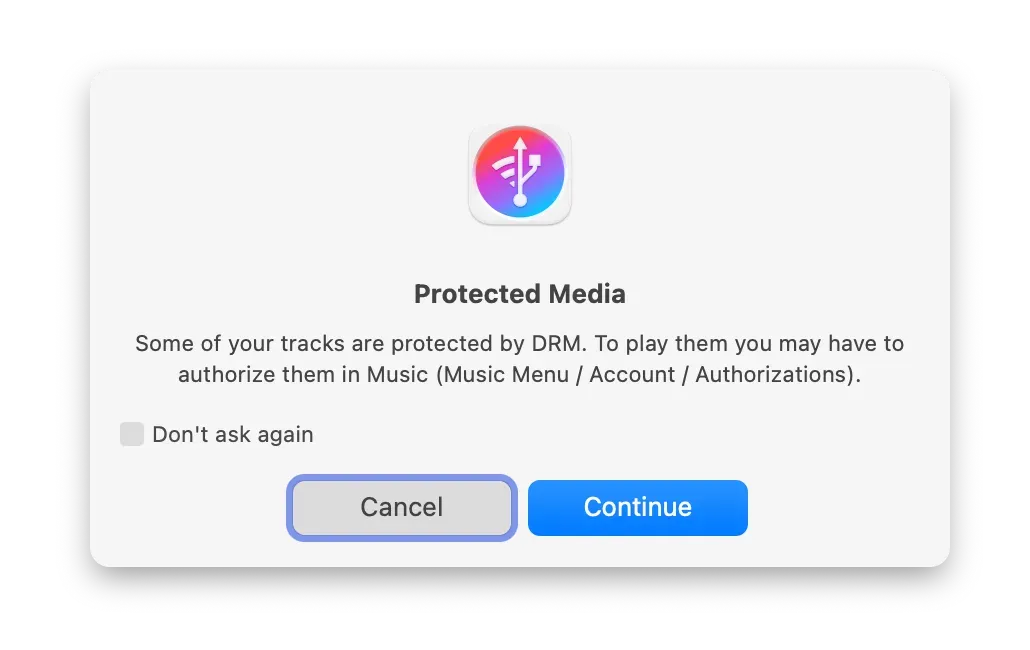
Important: Although DRM-protected tracks are transferred to your computer, iMazing does not circumvent DRM protection. These tracks will not be playable unless the computer is authorized with the Apple ID that matches their original iTunes Store account.