


Backup: automatic backups have stopped working
Updated on Apr 22, 2026
Reading time ~4 minutes
iMazing Mini performs automatic backups over Wi-Fi while your device is connected to the same local network as your computer. When automatic backups stop working, the cause is almost always one of a few specific conditions that prevent iMazing from reaching the device or triggering the backup at the scheduled time.
Note: We recommend making your first backup using a USB cable. After the first full backup completes, incremental backups usually take only a few minutes and use minimal system resources over Wi-Fi.
Diagnose the issue
Open iMazing Mini, select your device from the list, and open the Notifications tab. A history of recent notifications is available there, with details on why each backup did not occur.
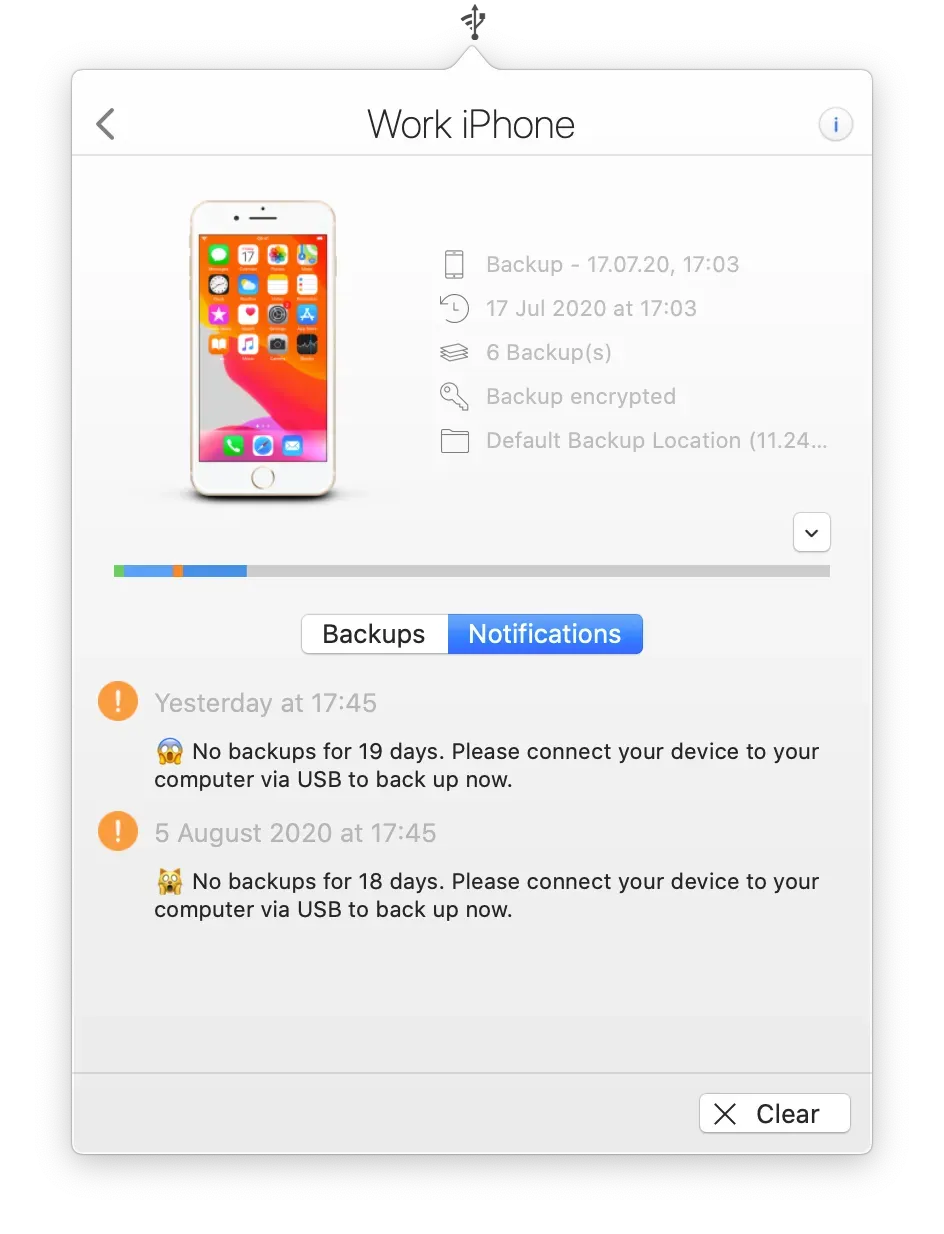
Use the list below to identify your situation and determine which step to follow next:
- Last backup completed less than 24 hours ago. iMazing will not trigger a new backup until the interval has elapsed, so no action is needed. Note that manually triggering a backup in iMazing or iMazing Mini, or accessing data such as your latest messages in iMazing, will create a new backup. In that case, iMazing Mini won’t launch another automatic backup that day.
- Backup timeframe is too short. iMazing did not have enough time to retry after a failed attempt. Proceed to step 3.
- Device inactive or locked for more than 24 hours. The device must be unlocked at least once per day for automatic backups to run.
- Device was rebooted and not unlocked afterward. This can happen after a manual restart, a battery drain, or an iOS update. Unlock the device to restore connectivity.
- Device entered emergency mode. This occurs when the power button is pressed five times. Unlock the device to exit this mode.
- Device and computer have not communicated in more than 30 days. Pairing has expired. Connect your device to your computer using a USB cable to reestablish pairing. Connect your device to iMazing & pair it with your computer
- Computer went to sleep during the scheduled backup window. Adjust your computer's sleep settings or your backup schedule to avoid overlap. Proceed to step 3.
- Backup over Wi-Fi isn’t occurring or is failing. Proceed to step 2.
Restore Wi-Fi Connectivity
If the notification history indicates a Wi-Fi connectivity issue, follow these steps:
- Unlock your device.
- Connect it to your computer with a USB or Lightning cable.
- Disconnect the cable, then trigger a manual backup over Wi-Fi to confirm connectivity is restored.
If iMazing is still unable to connect over Wi-Fi, refer to the Wi-Fi connection troubleshooting guide for additional steps.
Adjust the backup schedule
If the backup timeframe is too short, iMazing may not have enough time to retry after a failed attempt.
Open iMazing Mini, select your device, and open the Settings tab. Review the Backup Schedule section:
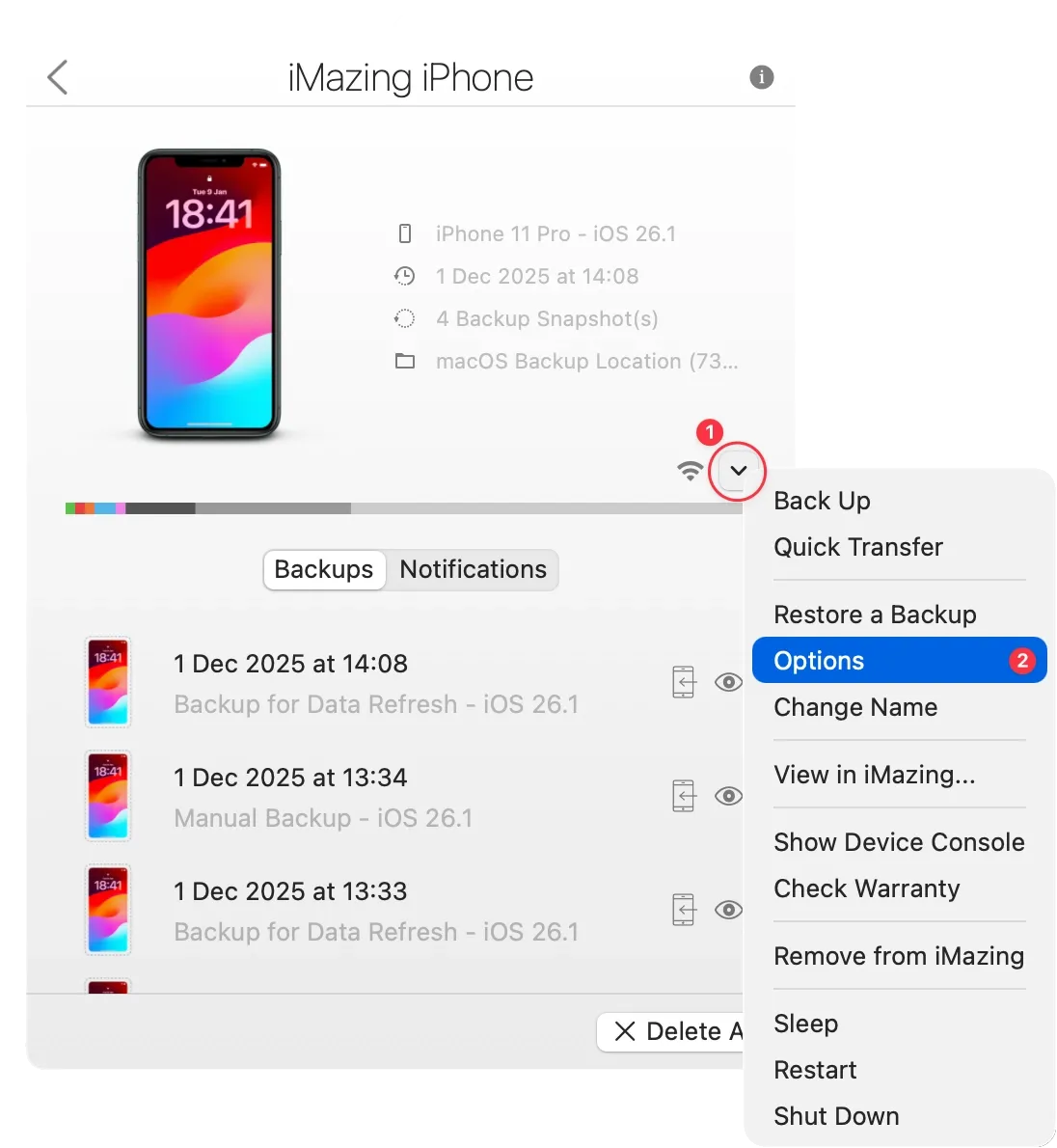
- Set a minimum timeframe of 4 hours between backups.
- If the issue persists, remove the timeframe restriction entirely and observe whether backups resume.
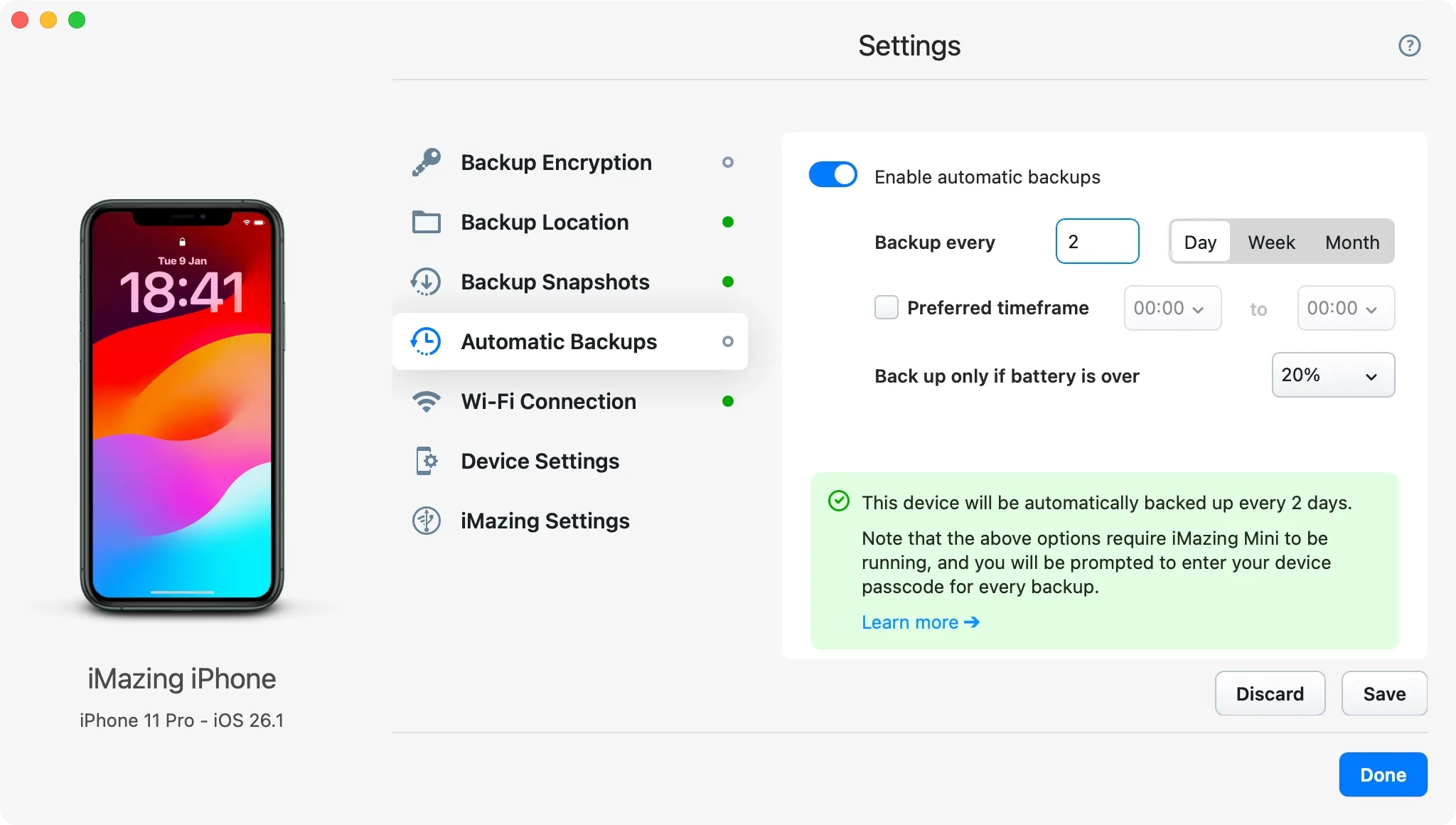
iOS backup passcode prompt
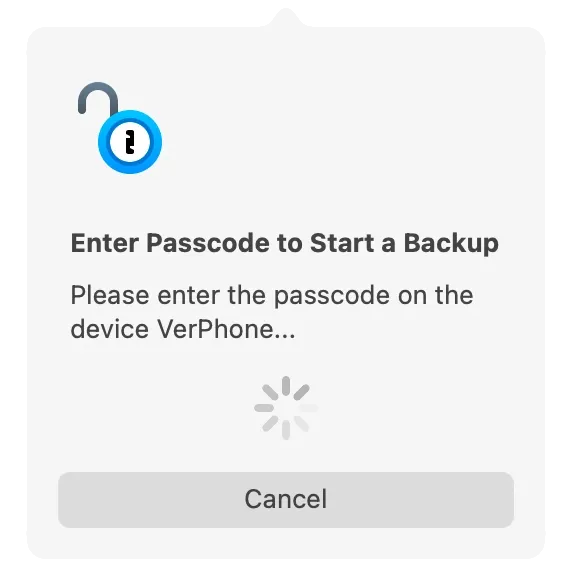
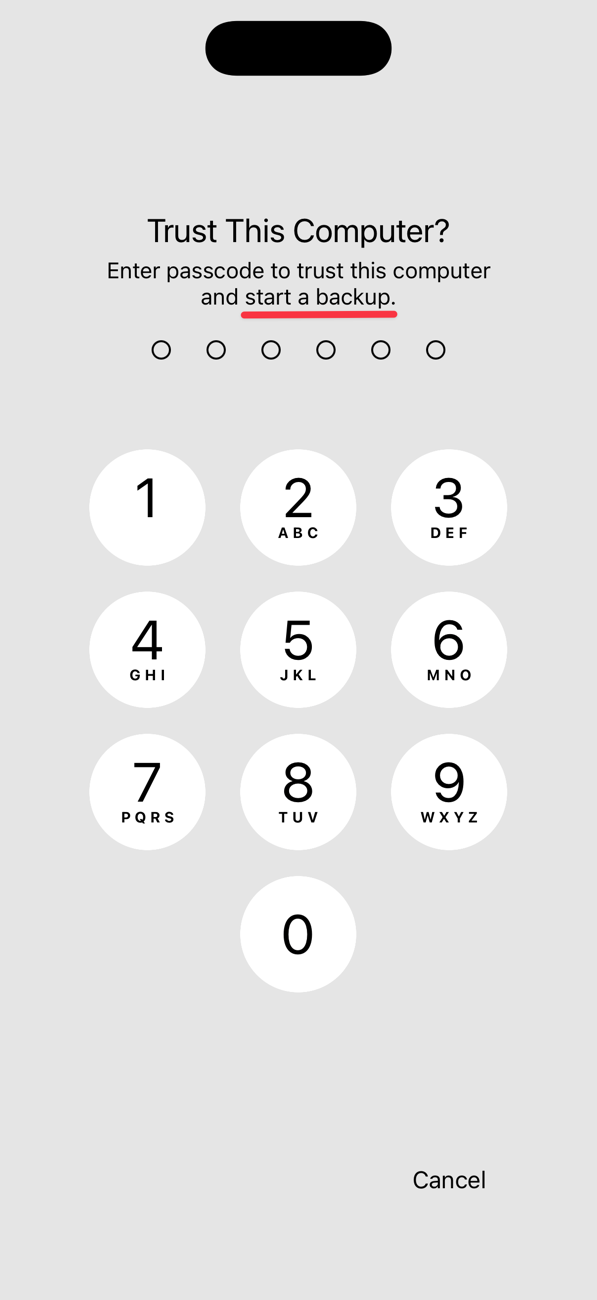
Since iOS 16.1, Apple requires the user to enter the device passcode to start a backup. This is a security measure. When iMazing Mini detects your device and a scheduled backup is due, it will prompt you to enter the passcode. If you don't enter the backup passcode, iMazing won't be able to start the backup.
- iMazing Mini is preparing to perform a scheduled backup and informs you that you'll need to enter your passcode on your device.
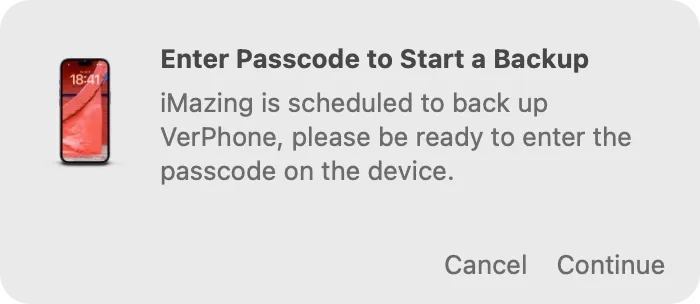
- iMazing Mini has started the process and is waiting for you to enter your passcode on your device.
- On your device, you'll see this screen when you're asked to enter your passcode to start a backup.
More details: Why is it required to enter the device passcode to back up an iPhone or iPad?
Troubleshoot slow backups
Please read our dedicated guide: Understanding & fixing slow iPhone or iPad backups