


Transfer iPhone, iPad or iPod touch notes to your Mac or PC computer
A note on an iPhone or iPad can contain text, images, and other attachments, from family recipes to meeting minutes. The Notes app exports one note at a time, so saving a large collection means repeating the process for each note. Notes saved to the On My iPhone or On My iPad account are stored only on the device and in its backups, not in iCloud.
With iMazing, you can transfer multiple notes to your computer as text files, save their attachments, and export individual notes as PDFs.
You can also browse and extract notes from any iOS backup, including those made with iTunes, Finder, or Apple Devices. With iMazing's Snapshot List, you can view earlier versions of your notes without connecting your device, using snapshots created exclusively by iMazing.
Here's how to transfer iPhone, iPad or iPod touch notes to your Mac or PC computer.
Select Notes
iMazing displays the Overview screen for the selected device. The top row shows the most commonly used datasets, such as Messages, Photos, and Music. Click Notes. If you do not see it, click More to display every dataset available for the device.
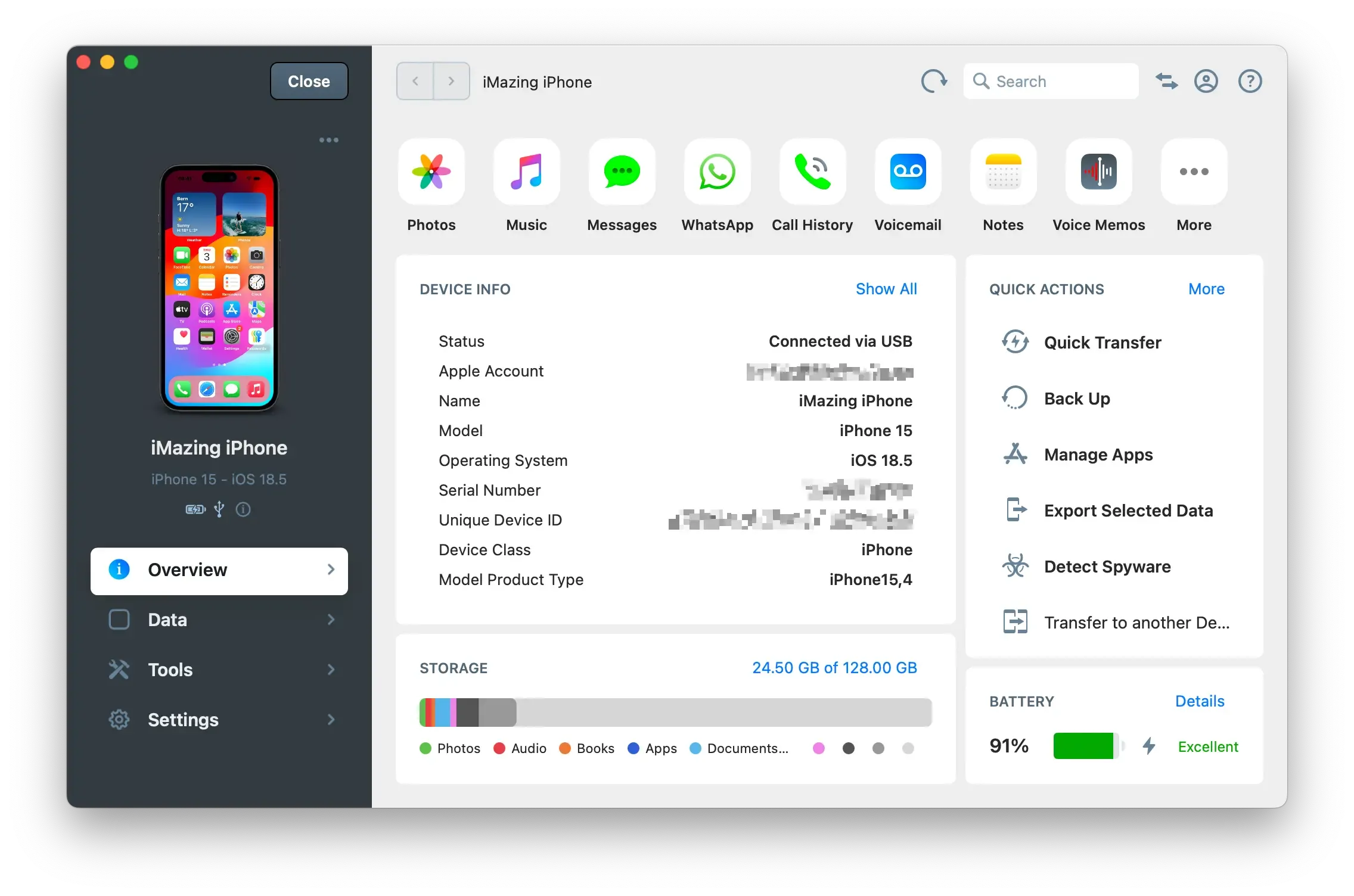
Tip: Alternatively, click Data in the left sidebar to see every dataset available for the device, including shortcuts to third-party apps such as VLC.
Choose how to load your data
iMazing needs to create a backup to extract data from your device. You can choose whether you only need access to your notes, or whether you want to create a full, restorable backup of the device. A partial backup uses much less storage, but both options take about the same amount of time because all files are streamed from your device to your computer during the process. iMazing cannot control which files are streamed.
Click Start to launch the operation. iMazing prompts you to enter the passcode on the device.
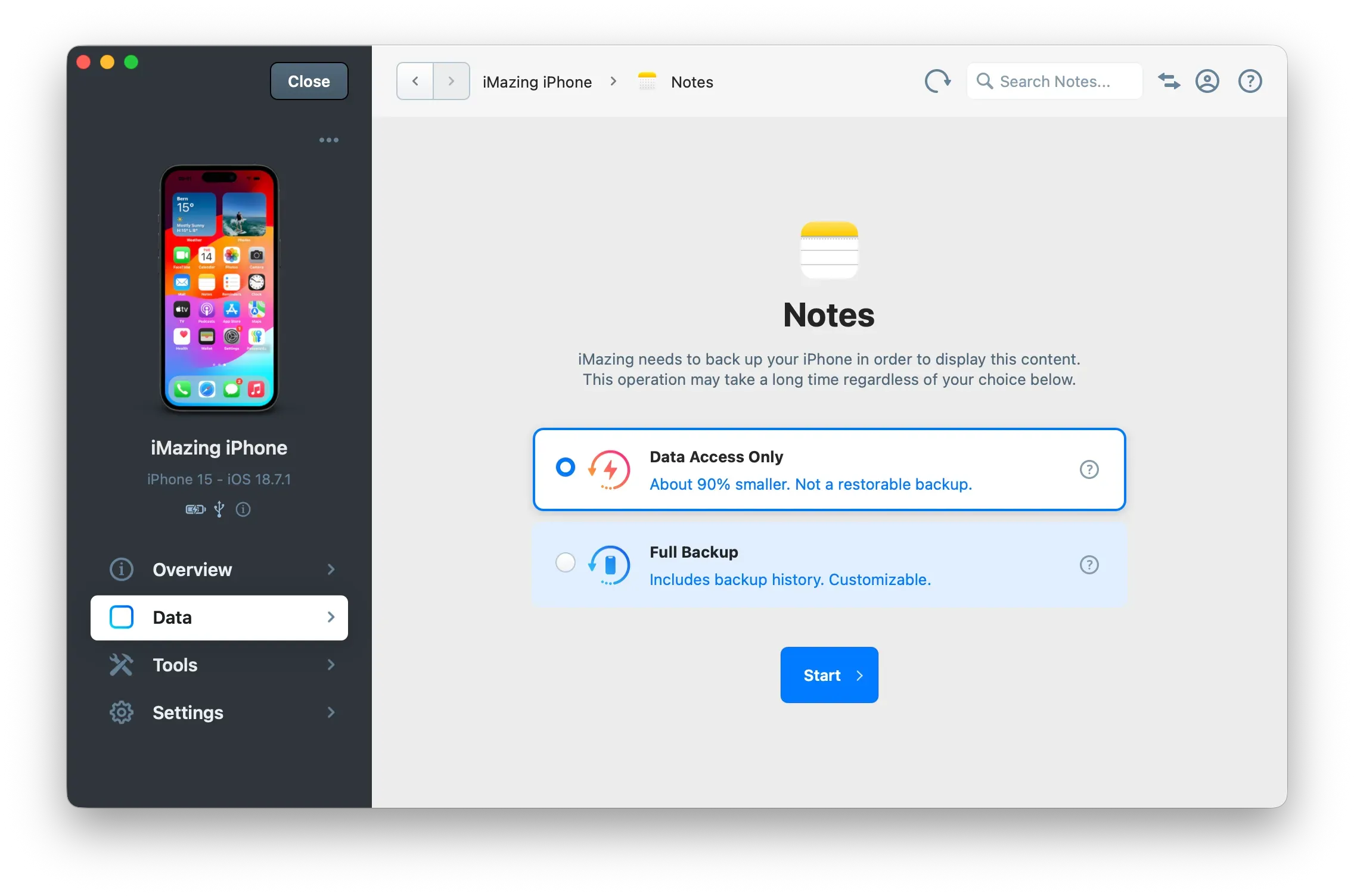
Important: The first time you back up a device with iMazing, the process may take 30 minutes or more, depending on how much data is stored on the device. USB speed (whether your device supports USB 3.1 or 2.0) and the backup location (for example, a NAS or external drive) can also affect the time it takes. Please be patient. Learn more about data access and full backup options.
For more details on backup performance, see: Understanding & fixing slow iPhone or iPad backups
If a backup of the device already exists, iMazing shows the following prompt instead. Choose whether to open the existing backup or run a subsequent backup to refresh the contents.

Tip: Subsequent backups are incremental and much faster. You can request a newer backup at any time with the Refresh button (the circular arrow) in the top toolbar.
Browse your notes
Once iMazing finishes loading the data, it displays your notes in the main window.

Browse an existing backup
You can browse your notes without connecting your iPhone, as long as iMazing already holds a backup of the device. iMazing can also open backups made with iTunes, Finder, or Apple Devices once you add them to iMazing.
- On the Home Screen, open the Backups section to see every backup iMazing manages.
- Select the backup you want to open. iMazing opens it so you can browse its content, no device connection is required.
- On the backup Overview, click Notes in the datasets row.
Note: When browsing from a backup, iMazing reads only the stored backup, so no new backup is created. For more on browsing and extracting data, see the Manage your backups with iMazing guide.
Browse from a previous snapshot
Each time iMazing backs up your device, it keeps a timestamped snapshot, so you can open your notes as they existed at an earlier date. This works like macOS Time Machine, applied to your iOS or iPadOS backups.
By default, iMazing shows the current state of your device or the latest backup. To reach an earlier state:
- Select your device or a backup from the Home Screen.
- In the upper toolbar, click the Now button to open the Snapshot List.
- Select an earlier snapshot. iMazing reloads the Notes view with the notes contained in that snapshot.
A gray checkmark marks the state you are currently viewing. Select Now again to return to the current state.
Tip: For details on snapshot labels and management, see the Backup Snapshot List in iMazing guide.
Filter and select your notes
You can narrow down and organize the notes list with these tools:
- Search Notes…: Find a note by a word or phrase.
- From and to: Show only the notes from a specific period.
- Sort by and the order button: Sort your notes by Date edited or Title, in either order.
- The folders of each account and All Notes: Focus on one account, such as iCloud, or on one folder, then select All Notes to see every note again.
- The expand button: Read a long note in a larger view.
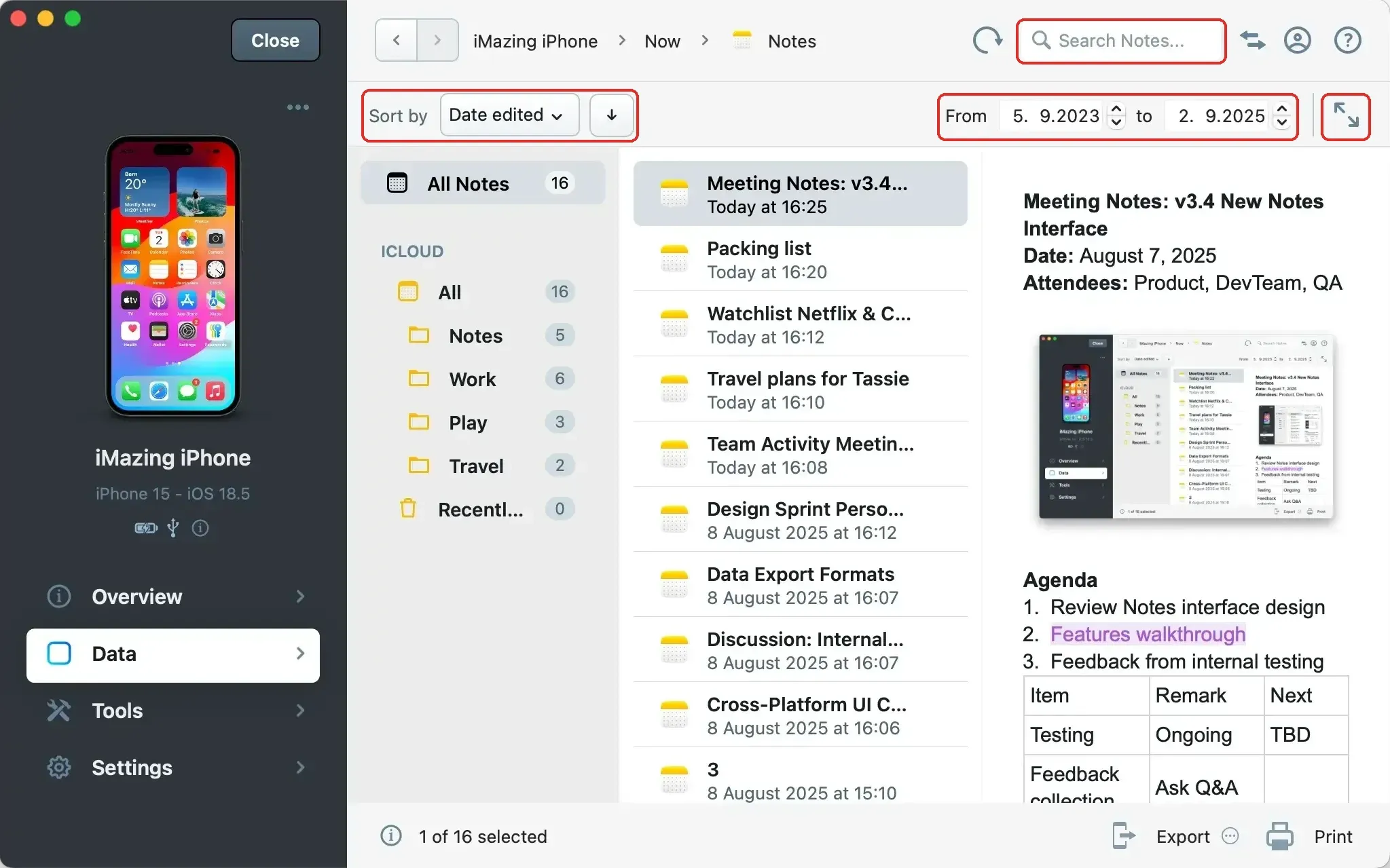
Select the notes to export.
Tip:
- Hold Ctrl (Windows) or Command ⌘ (macOS) and click to add or remove individual items from your selection.
- Hold Shift and click the first and last item to select a range.
- Use Ctrl+A (Windows) or Command ⌘+A (macOS) to select all items.
Note: The notes list may also include deleted notes, grayed out.
Export your notes
Click Export in the bottom right corner of the window, then choose a format. To print the selected note, click Print.
Tip: If images or other attachments are missing from a note, see the Notes: missing attachments guide.
Single note
- Export Attachments: iMazing exports the images of the note, without its text.
- Export to PDF: iMazing exports the note as a PDF file.
- Export to Text: iMazing exports the note as a plain text file, with mentions of images or attachments, but without the actual images or attachments.
Multiple notes

- Export Attachments: iMazing exports all images in separate folders matched to their notes, without the text of the notes.
- Export to Text: iMazing exports each note as an individual text file, with mentions of images or attachments, but without the actual images or attachments.
Export to PDF is not available when several notes are selected.
Tip: To transfer all your notes to another device, create a backup of your current device, then restore that backup to the new device.