


Repair iOS backups with iMazing
Updated on May 7, 2026
Reading time ~5 minutes
Repair Backup is an iMazing tool available on macOS and Windows. It scans any iOS backup, detects missing or inconsistent files, and cleans the backup's index to make it structurally valid. No device connection is required.
Because iOS generates the backup on the device itself and streams it to the computer, all iOS backups share the same underlying structure, regardless of the software that received them: iMazing, iTunes (Windows and macOS Mojave or earlier), Finder (macOS Catalina and later), or Apple Devices (Windows 11). Repair Backup can process any of them.
Here's how to repair iOS backups with iMazing:
Before you begin
Understand what Repair Backup does
Repair Backup scans the backup and reconciles its Manifest.db index with the actual files on disk. When an inconsistency is found, iMazing removes the references to corrupted or missing files from the Manifest. The backup becomes structurally valid again.
Files that cannot be recovered are dereferenced from the Manifest and no longer appear in the repaired backup. Healthy files and snapshots remain intact. The next incremental backup re-streams the missing files from your device. Because some content may be lost from the backup, export it before running Repair Backup.
Repair Backup is an offline operation. No device connection is required. It works on any iOS backup: iMazing, iTunes, Finder, or Apple Devices.
iMazing prompts you to run Repair Backup when it shows the error iMazing has found corrupted or missing files in your backup snapshot. The error blocks any backup or restore operation on the affected backup: iMazing cannot append new data to an invalid backup nor restore it to a device. You can also launch Repair Backup manually at any time from the Tools panel.
Errors that Repair Backup can detect and fix:
- A file referenced in the
Manifest.db(the backup index) is missing in the device's backup location. - A file hash in the
Manifest.dbentry does not match the hash calculated by iMazing for the corresponding file in the device's backup location. - There is no encryption key for a file referenced in the
Manifest.dbwhen the backup is encrypted.
Run Repair Backup
Select your device or backup in iMazing from the iMazing Devices or Backups section, then follow the steps below.
Note: If you select your device, iMazing can repair its latest backup.
Select Tools
From the device/backup sidebar, select Tools. The Tools panel opens and displays several sections, including Backup, Data, and General.
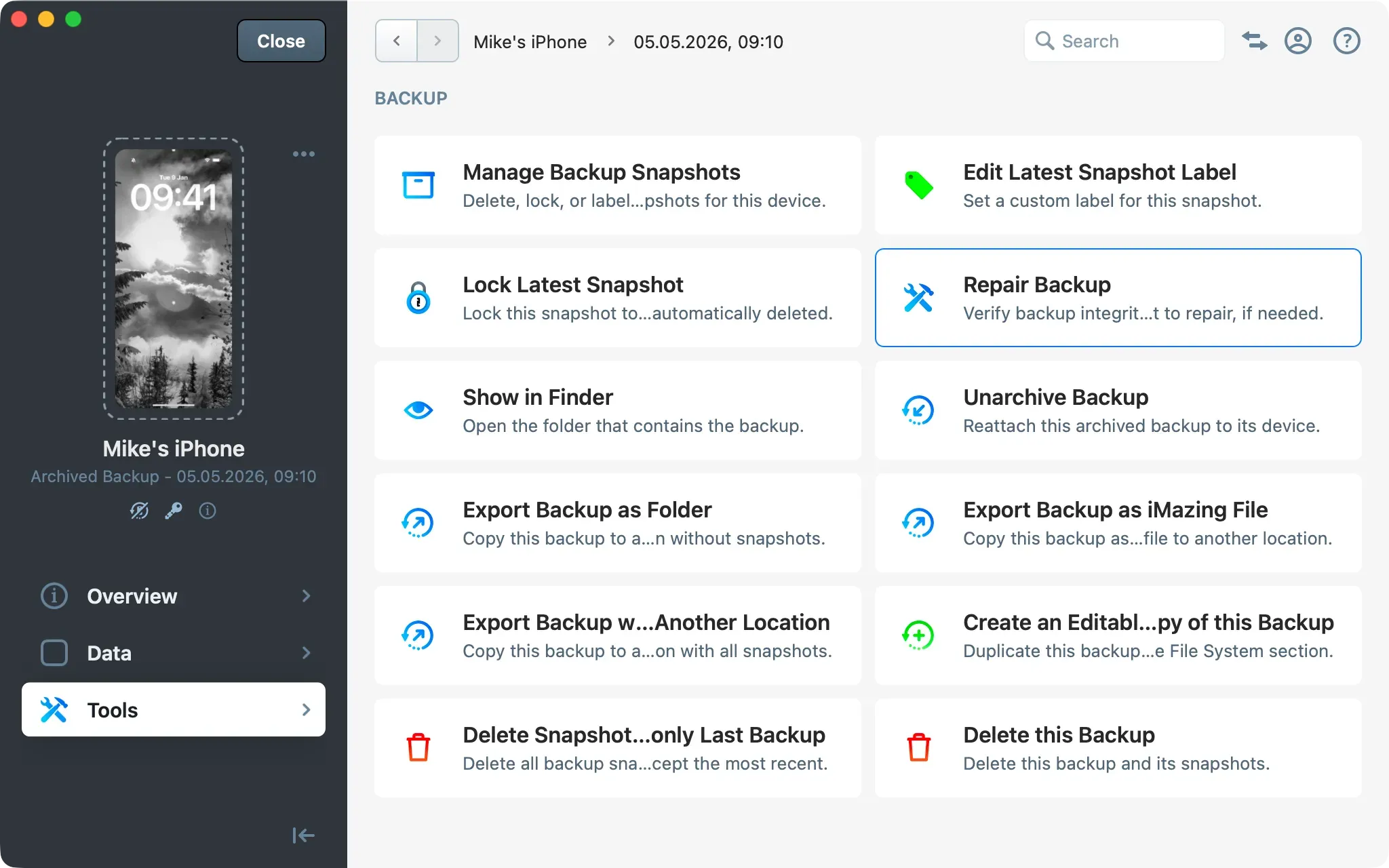
Click Repair Backup
In the Backup section, click Repair Backup. iMazing launches an analysis of your backup.
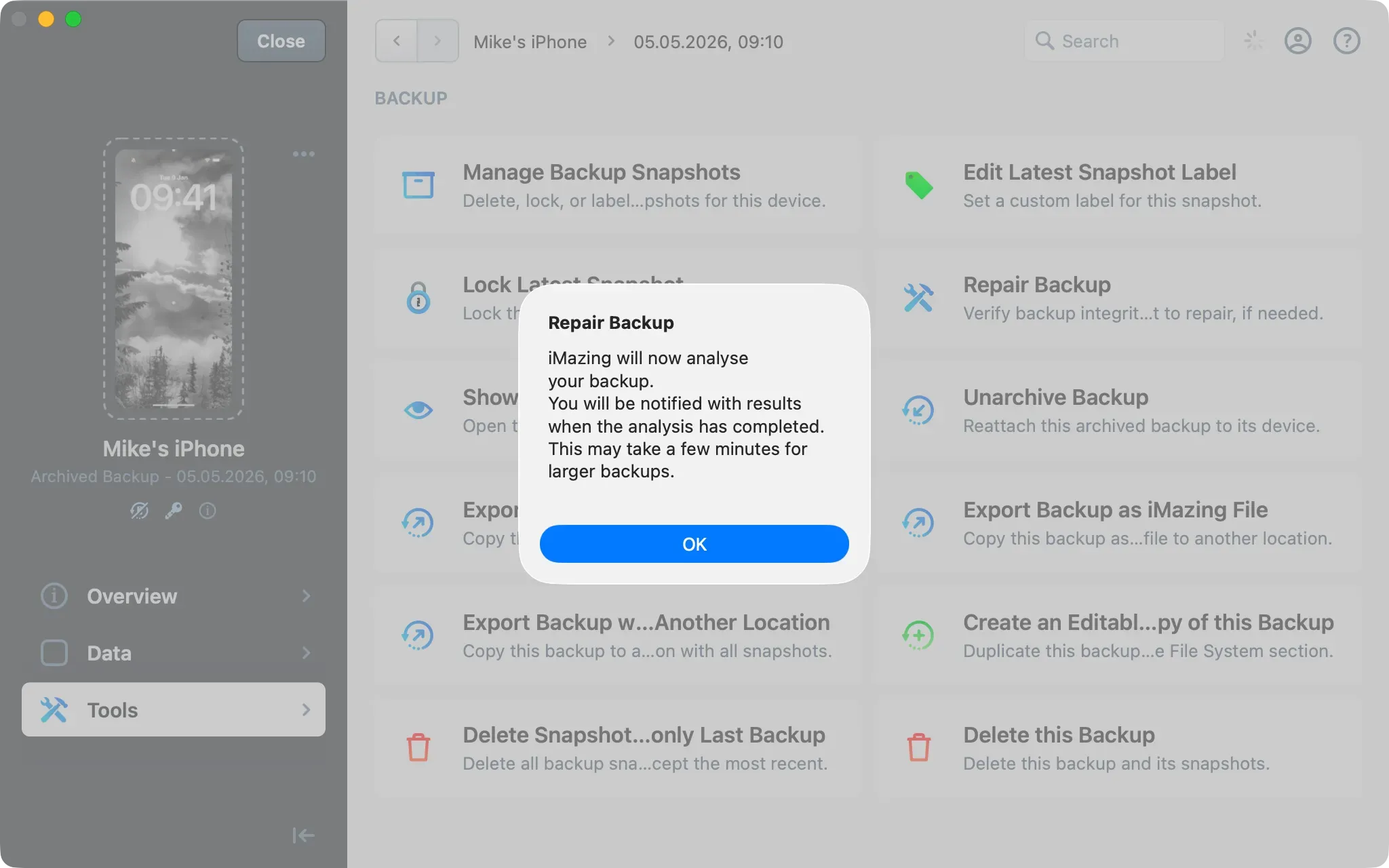
Review errors and confirm
When the analysis completes, iMazing displays the number of errors detected and asks if you want to repair them.
Tip: For added security, before confirming the repair, consider exporting your backup. See Export Backup as Folder in the Manage Backups guide.
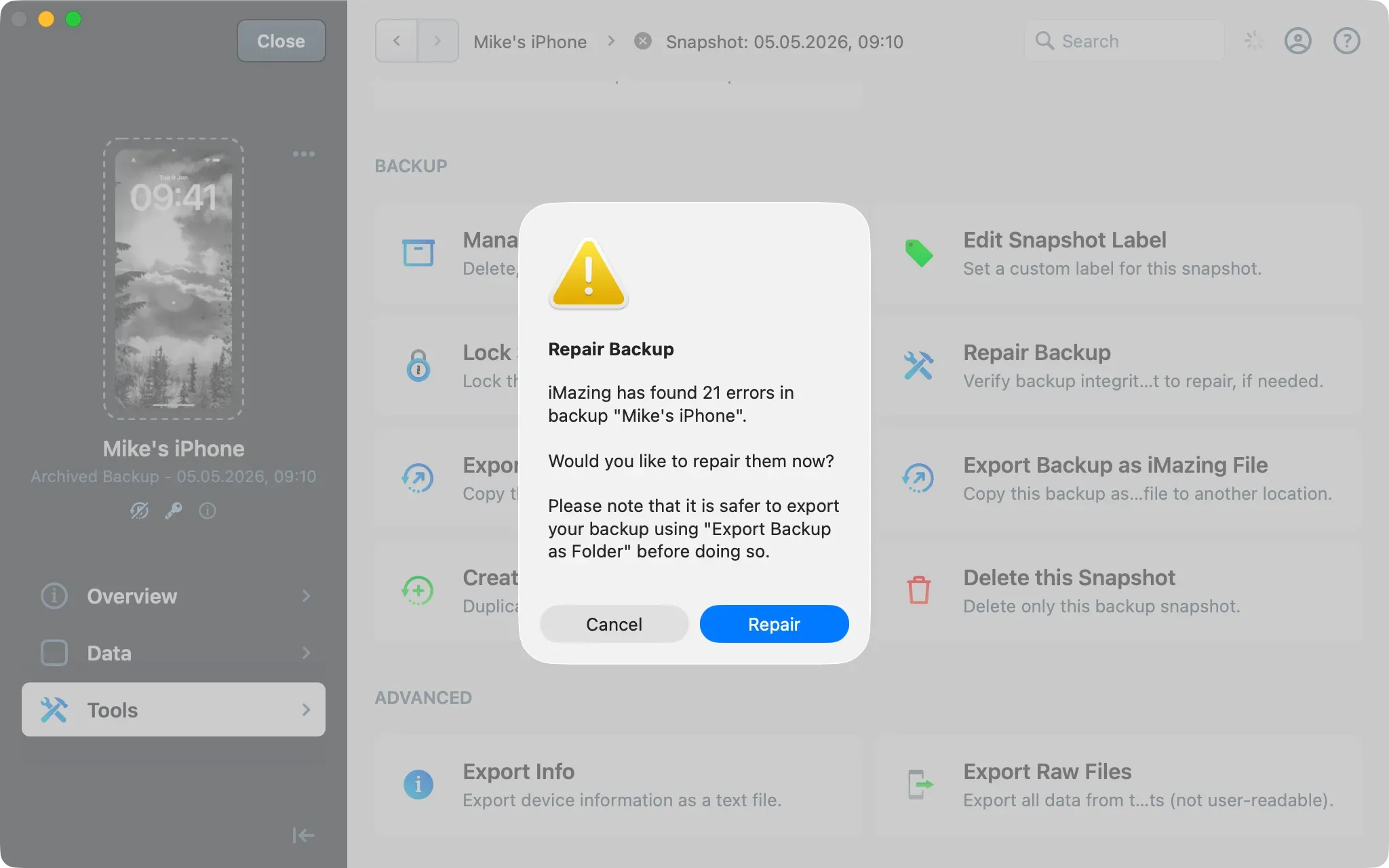
Click Repair to start the repair, or Cancel to abort.
Monitor progress
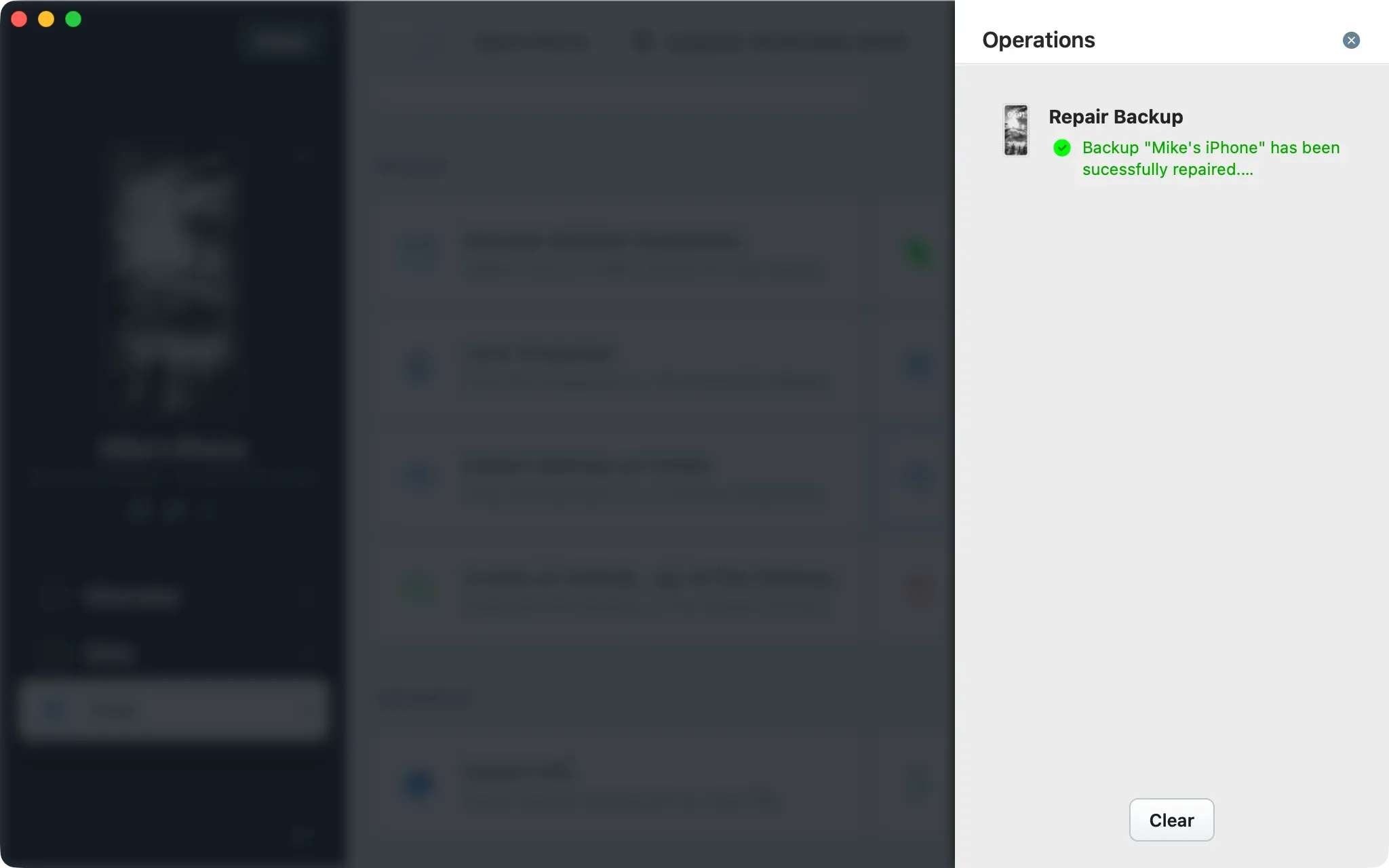
The Operations Panel in the toolbar shows repair progress. When the operation completes, iMazing displays a confirmation dialog with the number of repaired errors.
If repair fails: delete the most recent snapshot
Tip: If the backup remains non-restorable after a first Repair Backup, running the operation a second time may resolve the issue.
If iMazing reports that the repair could not fix all issues, the most recent snapshot may be too damaged to recover. Deleting only that snapshot preserves all older snapshots.
- Export the snapshot before deleting it. See How to export a backup? in the “Manage Backups with iMazing” guide.
- Delete the most recent snapshot. See How to manage backup snapshots? in the “Manage Backups with iMazing” guide.
iMazing removes the corrupted snapshot. The next backup operation creates a new snapshot from the device.
If the issue persists: delete the entire backup
If problems persist after deleting the most recent snapshot, the backup structure itself may be damaged. Deleting the entire backup and starting fresh is a last resort, if you still have the device and your goal is to back it up (not to restore a backup to it).
Important: Deleting the entire backup removes all snapshots for this device. If you have not exported the backup in step 3, do so before proceeding. See How to export a backup? in the Manage Backups guide.
- Delete the entire backup. See How to delete a backup? in the Manage Backups guide.
- Create a new backup. See How to back up your device? in the Manage Backups guide.
iMazing performs a full backup and creates a new first snapshot for this device.
What to keep in mind
- iMazing backup snapshots are independent from backups created by iTunes, Finder, or Apple Devices. Repairing or deleting a backup stored in the “iMazing Backup Location” does not affect any Apple-native backups stored on your computer (Find the location of your iTunes, Finder or Apple Devices Backup.)
- After a repair or deletion, the next scheduled or manual backup creates a new snapshot automatically. No additional actions or configurations are needed.
- If corrupted backups recur, check the destination drive for storage errors. A failing or nearly full drive is a common cause of repeated backup corruption.