


Export or print iPhone Messages and WhatsApp chats for e-Discovery and legal purposes
Messaging apps like WhatsApp and Apple Messages have changed the way people communicate, steadily phasing out classic alternatives like email and post. But in many scenarios, a person could still need to put things on paper. Court cases are a good example of this.
Submitting iPhone messages as evidence in legal matters is becoming a more and more frequent occurrence. iMazing provides an affordable solution for viewing, exporting, and printing iPhone messages on macOS and Windows, with support for SMS, RCS, iMessage, WhatsApp, and WhatsApp Business. Winner of the TechnoLawyer 2021 Top Product Award.

In this guide, you will learn how your can easily personalize, export and print your iPhone texts for submission in legal matters. The instructions provided here feature screenshots from the Messages section of iMazing, but can be applied to print conversations from WhatsApp or WhatsApp Business in the exact same way.
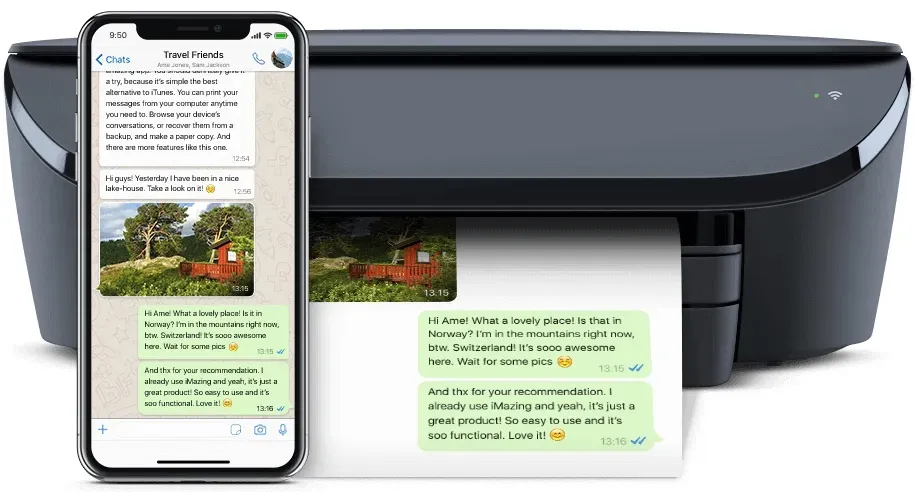
Here's how to export or print your iPhone messages and Whatsapp chats:
Select Messages or WhatsApp
Once your device is selected, at the top of the device's Overview screen, click Messages.
To work with WhatsApp instead, click WhatsApp. Every following step is identical.
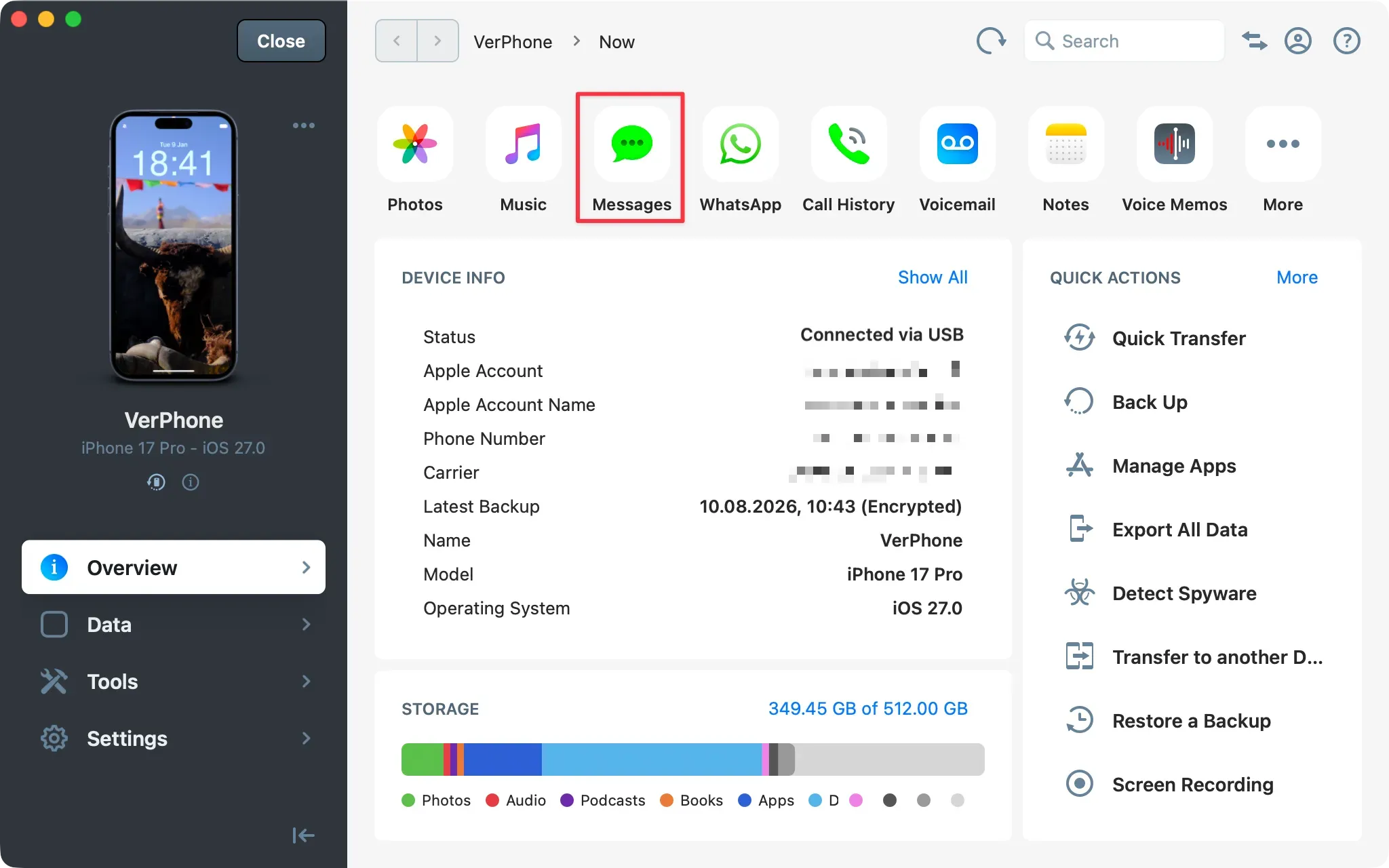
Tip: Once your device is connected and paired, you can access any dataset or tool directly in iMazing:
- Click Data to view all available datasets for that device.
- Click Tools to view all available tools.
Choose how to load your data
iMazing needs to create a backup to extract data from your device. You can choose whether you only need access to your messages and conversations, or whether you want to create a full, restorable backup of the device. A partial backup uses much less storage, but both options take about the same amount of time because all files are streamed from your device to your computer during the process. iMazing cannot control which files are streamed.
Click Start to launch the operation. iMazing prompts you to enter the passcode on the device.
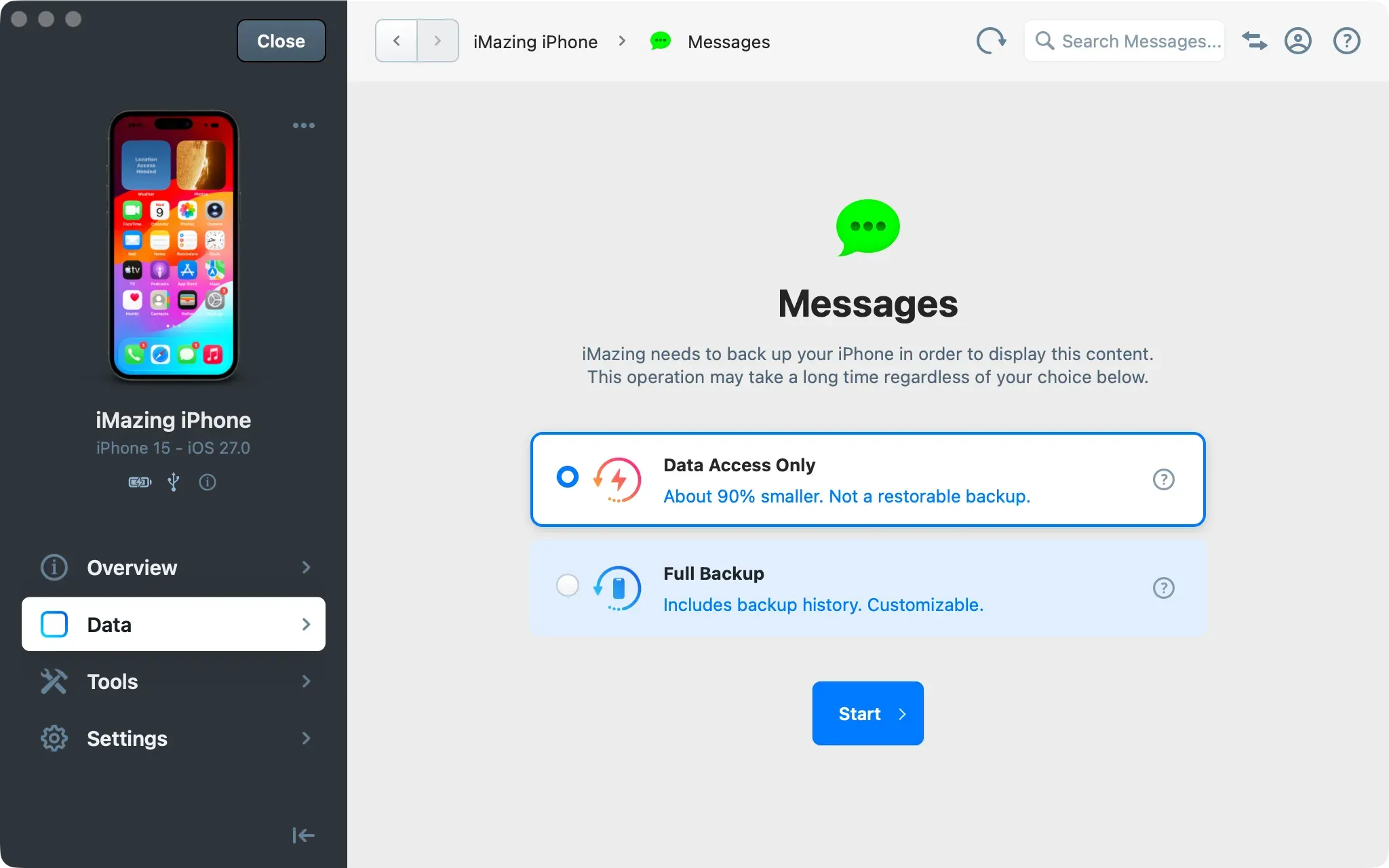
Important: The first time you back up a device with iMazing, the process may take 30 minutes or more, depending on how much data is stored on the device. USB speed (whether your device supports USB 3.1 or 2.0) and the backup location (for example, a NAS or external drive) can also affect the time it takes. Please be patient. Learn more about data access and full backup options.
For more details on backup performance, see: Understanding & fixing slow iPhone or iPad backups
If a backup of the device already exists, iMazing shows the following prompt instead. Choose whether to open the existing backup or run a subsequent backup to refresh the contents.
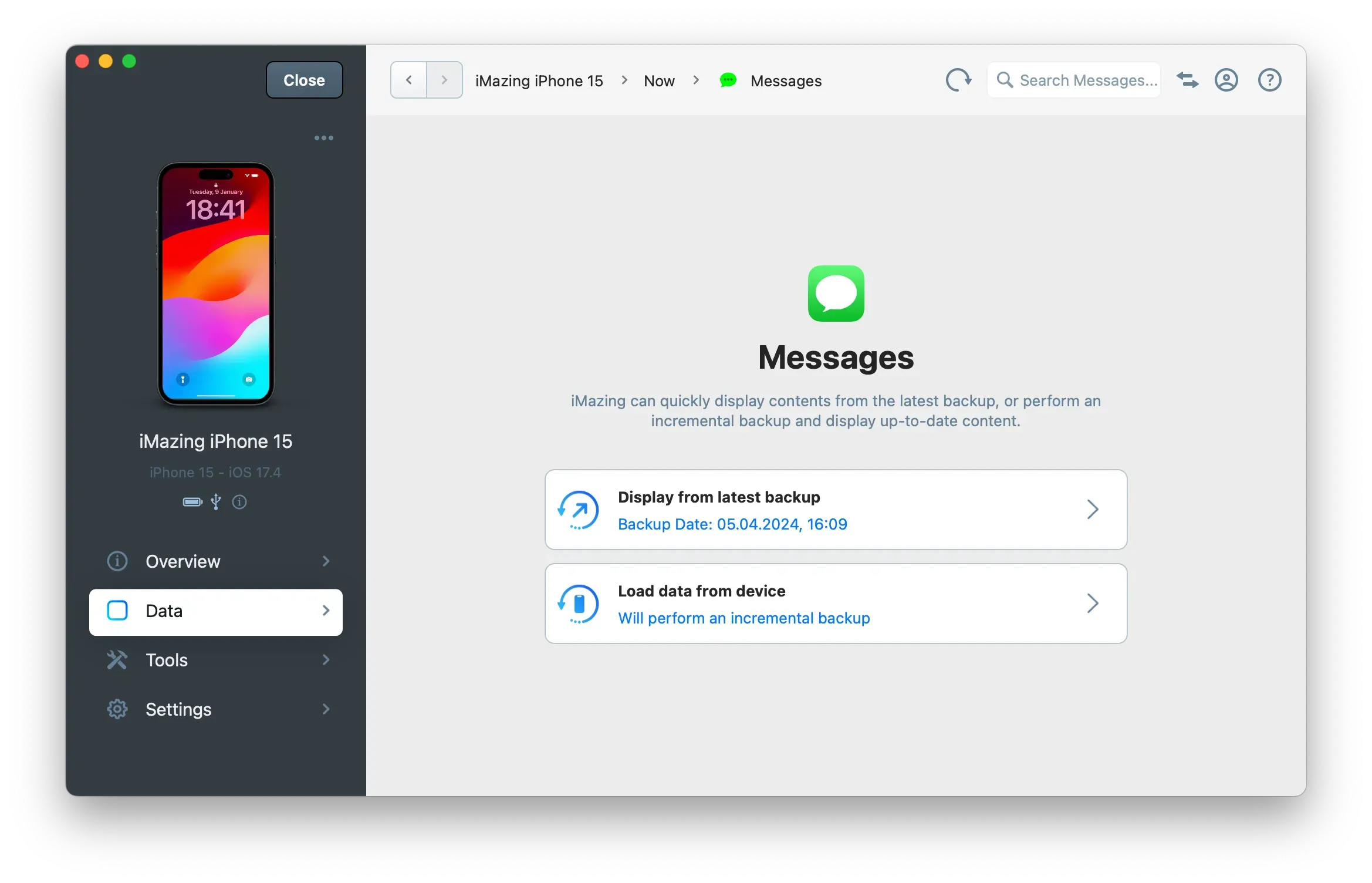
Tips: Subsequent backups are incremental and much faster. You can request a newer backup at any time with the Refresh button (the circular arrow) in the top toolbar.
Browse your messages
Once iMazing finishes loading the data, it displays your conversations in the main window.
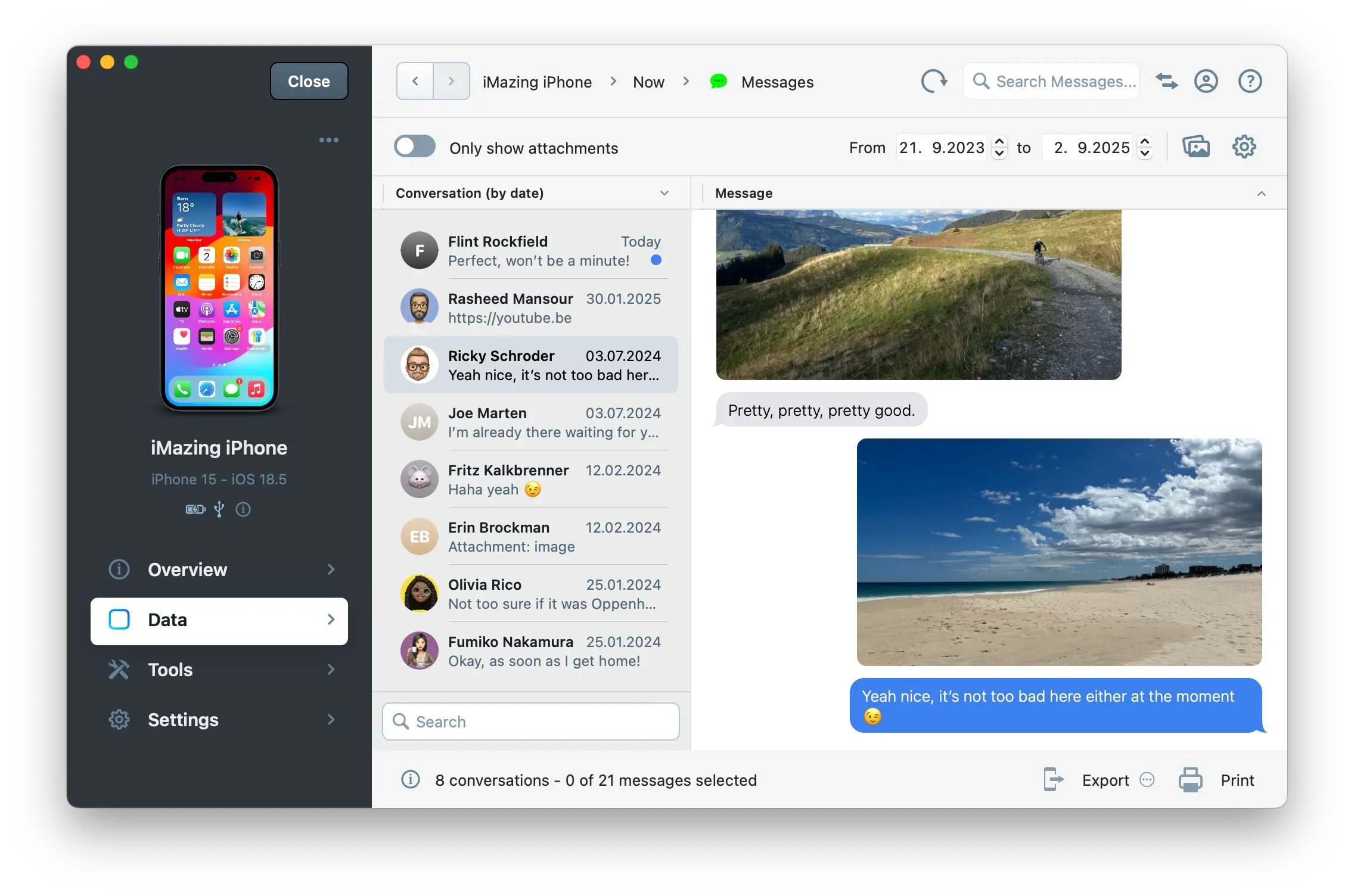
Browse an existing backup
You can browse your messages without connecting your iPhone, as long as iMazing already holds a backup of the device. iMazing can also open backups made with iTunes, Finder, or Apple Devices once you add them to iMazing.
- On the Home Screen, open the Backups section to see every backup iMazing manages.
- Select the backup you want to open. iMazing opens it so you can browse its content, no device connection is required.
- On the backup Overview, click Messages or WhatsApp in the datasets row.
Note: When browsing from a backup, iMazing reads only the stored backup, so no new backup is created. For more on browsing and extracting data, see the Manage your backups with iMazing guide.
Browse from a previous snapshot
Each time iMazing backs up your device, it keeps a timestamped snapshot, so you can open your messages as they existed at an earlier date. This works like macOS Time Machine, applied to your iOS or iPadOS backups.
By default, iMazing shows the current state of your device or the latest backup. To reach an earlier state:
- Select your device or a backup from the Home Screen.
- In the upper toolbar, click the Now button to open the Snapshot List.
- Select an earlier snapshot. iMazing reloads the Messages or WhatsApp view with the messages contained in that snapshot.
A gray checkmark marks the state you are currently viewing. Select Now again to return to the current state.
Tip: For details on snapshot labels and management, see the Backup Snapshot List in iMazing guide.
Configure how messages are displayed
Click the gear button at the top left of the Messages view to reveal the display options. These control what appears in your export or printout.
For legal exports, enable Show contact details and Show time for all messages. This details every message with the sender's phone number, the date and time, and the timezone from which the message was sent, increasing the legal value of your printout.
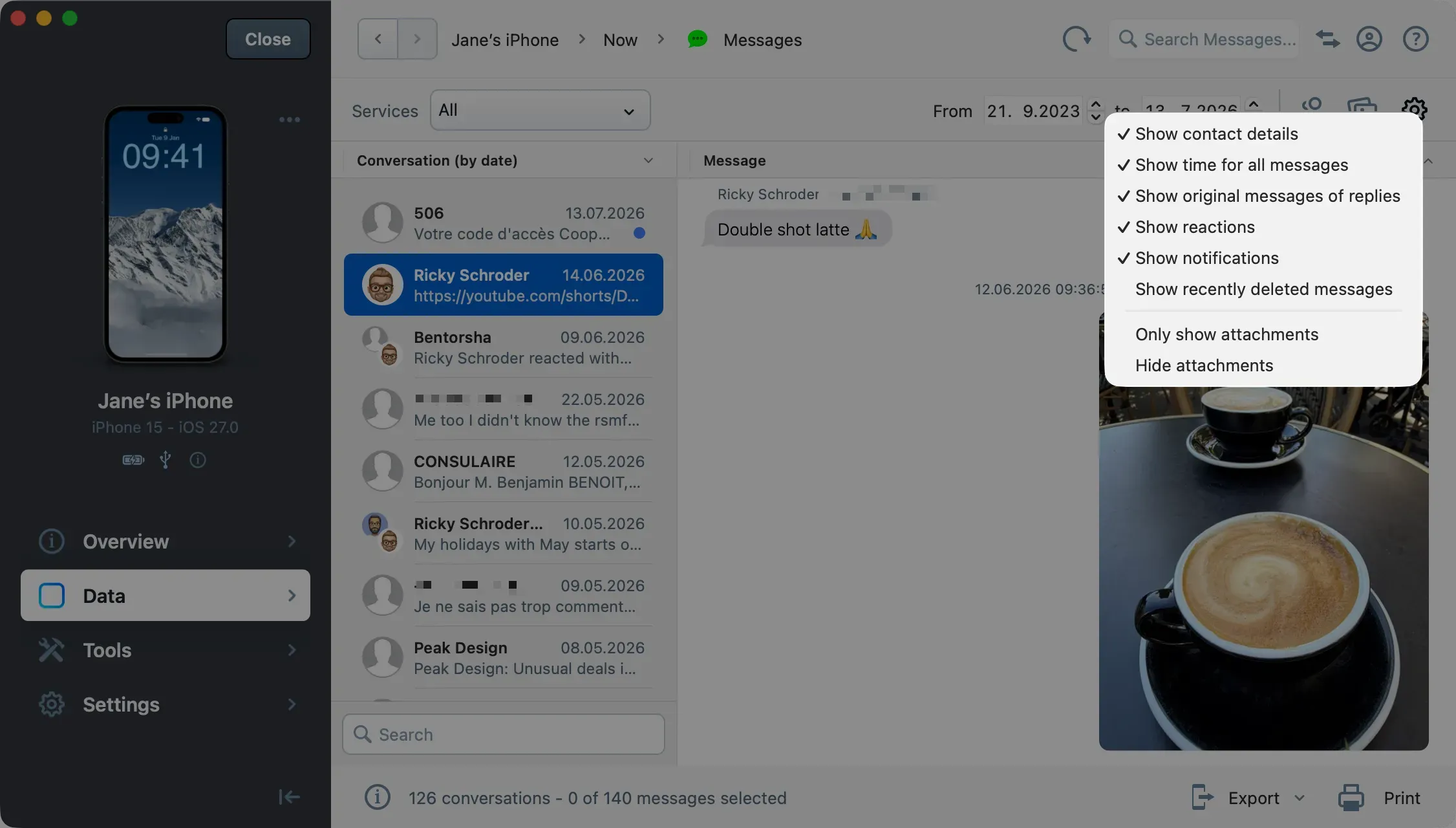
The following options are available:
- Show contact details: display the phone number or contact details of each participant.
- Show time for all messages: show a timestamp on every message.
- Show original messages of replies: display the message each reply refers to.
- Show reactions: include Tapbacks and other reactions.
- Show notifications: show system events, such as when someone joins or leaves a group chat.
- Show recently deleted messages: include messages the device has marked as recently deleted.
- Only show attachments: display attachments on their own, without message text.
- Hide attachments: display message text without attachments.
Important: If you need to include deleted messages, make sure Show recently deleted messages is enabled before exporting.
Choose messages to be exported or printed
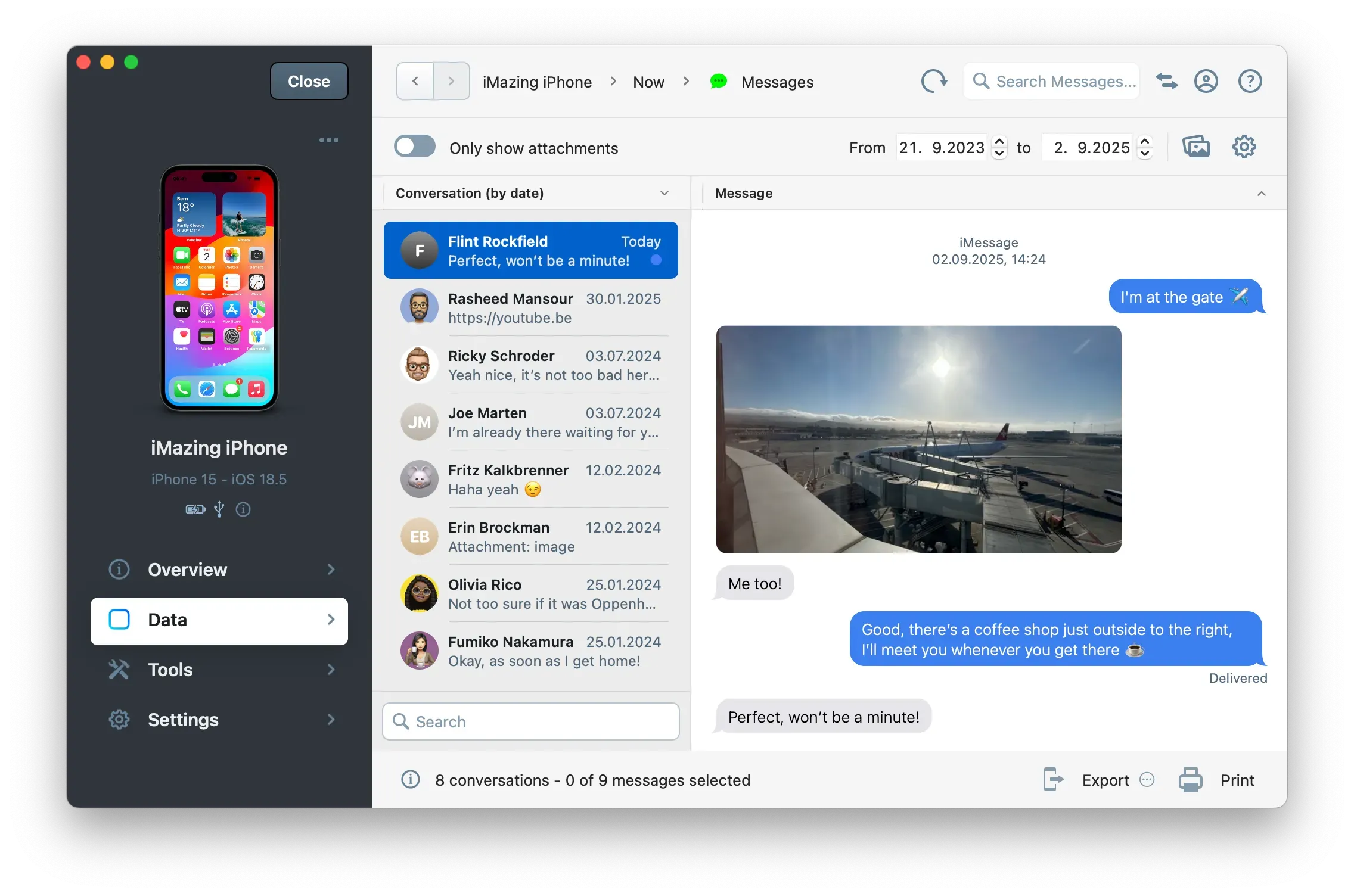
When you select a conversation in the left column, you'll see it's corresponding messages and attachments displayed. If you only want to save certain messages, select them now. If you need to export multiple conversations in bulk, you can select them now too.
Tips:
- To select all items in the list of chats or messages, simply select one item, then hold the CTRL key (Windows) or Command key (Mac) and press A.
- To select non-contiguous items, hold the CTRL key (Windows) or Command key (Mac), and then click each item.
- To select multiple sequential items, click one item, scroll down, and select another one while holding the Shift key.
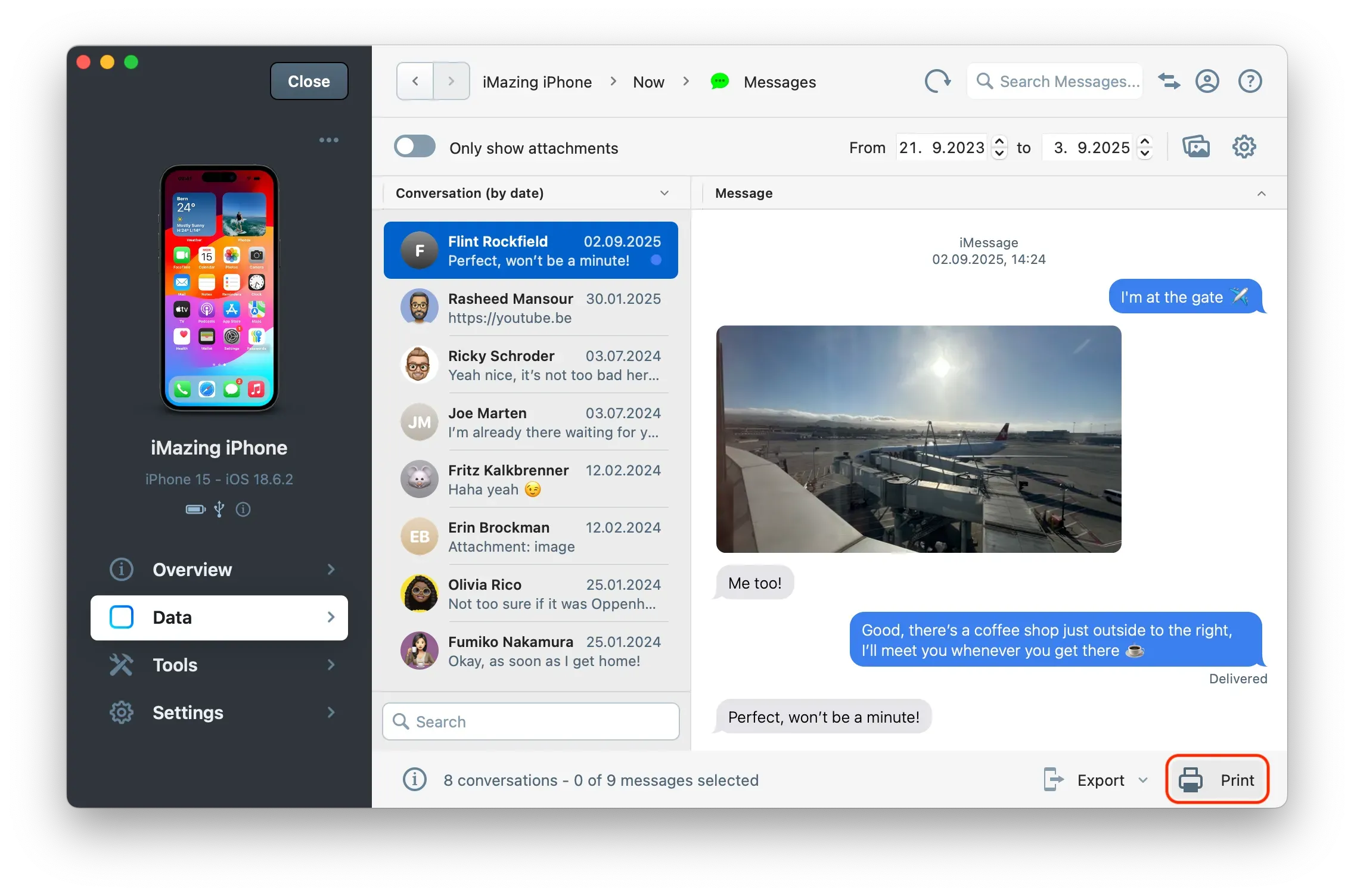
You can select as many messages or conversations as you want in this way, and then click the Print button at the bottom right.
iCloud Messages
iCloud sync of Messages, introduced in iOS 11.4, can affect the completeness of a legal export. When it is enabled, iOS may offload some older attachments (including shared photos and videos) to iCloud, making them unavailable to iMazing. Message text is never affected, but where an attachment has been offloaded, iMazing displays an Attachment stored in iCloud message in its place, and that attachment will be absent from your export.
Important: Before considering an export complete, confirm that no Attachment stored in iCloud placeholders remain in the conversations you are exporting. If any remain, recover the attachments first, then export again.
To recover offloaded attachments, download them back to the device using either method:
- Open each attachment on the iPhone or iPad in the Messages app: this downloads that single item on demand.
- Turn off iCloud sync for Messages: this downloads the full message history back to the device.
To turn off iCloud sync and download everything back:
- Open Settings on the iPhone or iPad.
- Tap the Apple Account name at the top.
- Select iCloud.
- Tap See All (or Show All) under the apps using iCloud.
- Tap Messages.
- Turn off Sync this iPhone (labeled Use on this iPhone on older versions of iOS).
- Tap Disable and Download to download the messages onto the device.
Wait a few hours for the download to complete, then click the Refresh button in iMazing on your Mac or PC to reload the messages before exporting again.
Click Export or Print
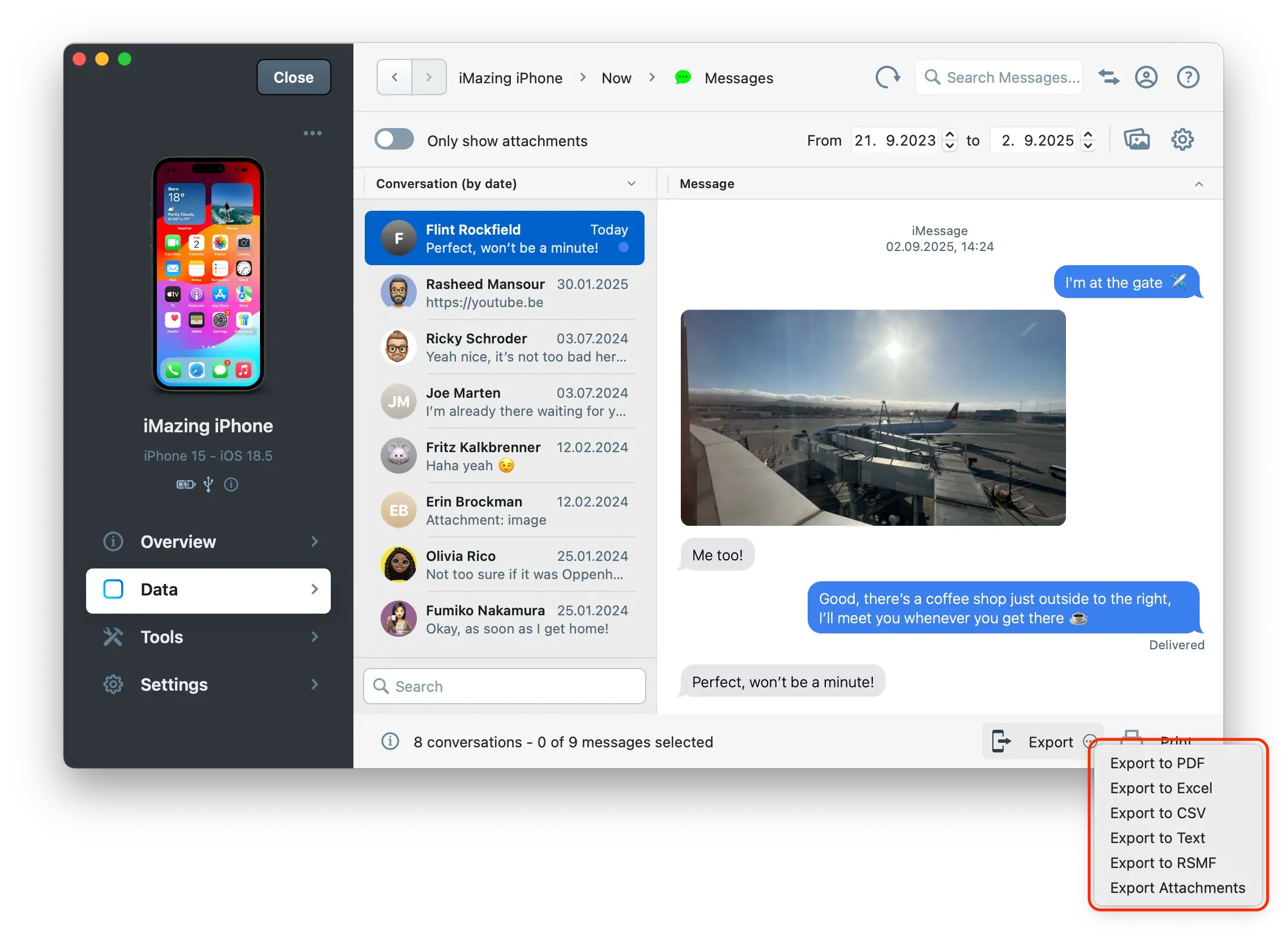
Click either the Export or Print button. If you choose Export, you'll see the following format options:
- PDF: preserves Apple Messages (SMS, RCS, iMessage) and WhatsApp iconic visual styles, including text bubbles, emojis, and graphics, a format typically preferred by lawyers and courts
- Excel or CSV: exports messages in spreadsheet format compatible with Excel, Numbers, and Google Sheets
- Text: provides clean, unformatted text output
- RSMF: specialized format for e-discovery, archiving, forensics, and data analysis (requires a Business subscription, read more about RSMF).
Tip: For advanced forensic workflows involving chain of custody and evidence integrity, see our dedicated Use iMazing for iOS forensic and e-Discovery guide.
Review export or printing options
When exporting to PDF or printing, this will open the Export/Print Options window. Note that the exact same options are available when printing WhatsApp chats. See below:
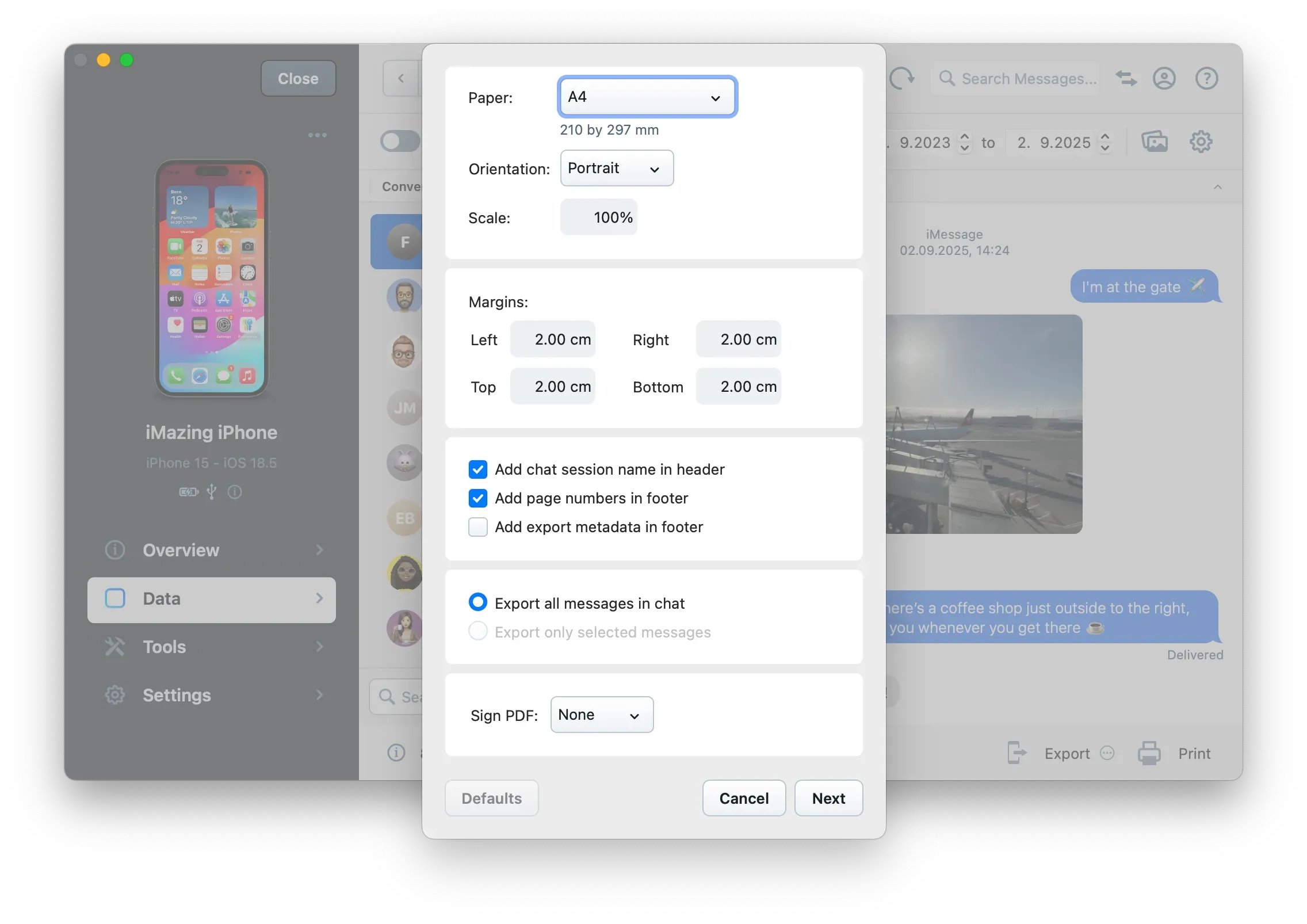
The Export/Print Options window offers the following settings:
- Printer lets you choose which printer to use for printing your messages
- Paper size and orientation
- Scale can be used to customize message font size as well as images from a range of 30% to 300%.
- Margins
- Add chat session name in header
- Add page numbers in footer
- Add export metadata in footer can be used to give more legal weight to exported messages. The footer of every page will include the iPhone's name and serial number, the date of the export, and the last modified date of the Messages database from which the data was extracted.
- Export all messages in chat or Export only selected messages
- Sign PDF: Add a digital certificate to verify the signer's identity and protect the file's integrity. You can select an existing certificate or create a new one.
Finally, click Next to export or Print
When exporting messages, you'll need to choose a destination folder on your computer and set a filename. If you choose to print instead, printing will begin automatically.
Going further
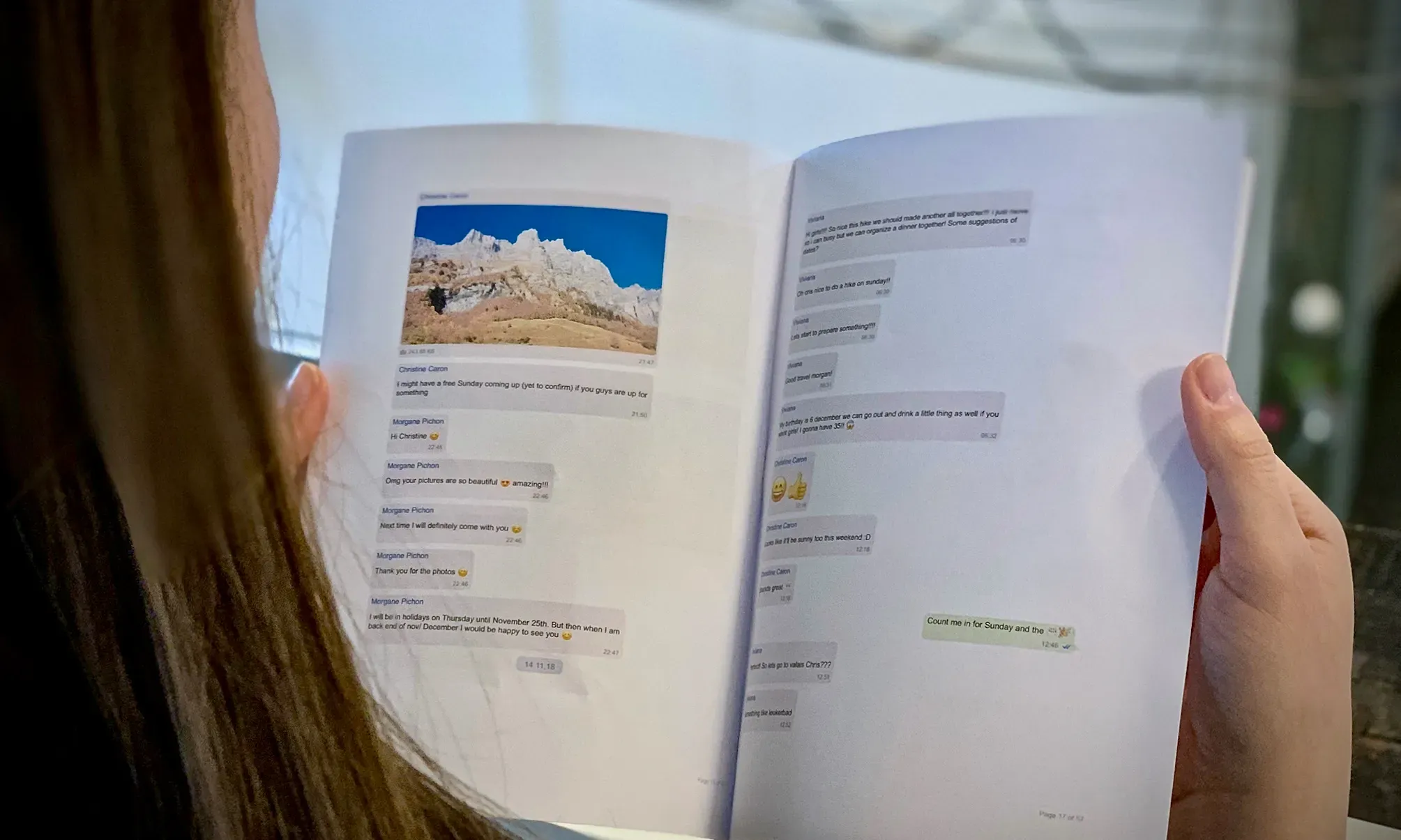
Chances are that you may need to print several very long chats or hundreds of messages in a same document. Here's an example workflow of how you can fit more information per page in order to save a bit of paper and improve the reading experience:
- Follow steps 1 through 4 above
- Click the Export to PDF button under the conversation view
- Customize your export, click Next and save to the location of your choice
- Now open the file in your favorite PDF reader and click File > Print
- Set your printout's settings to the booklet preset if it's available. If the preset doesn't exist, the following settings are a good starting point:
- Number of pages per sheet: 2
- Print on both sides: yes
- Page orientation: landscape
Searching for specific conversations
iMazing's Messages and Whatsapp views offer text search fields designed to help you find and recover content as quickly as possible.
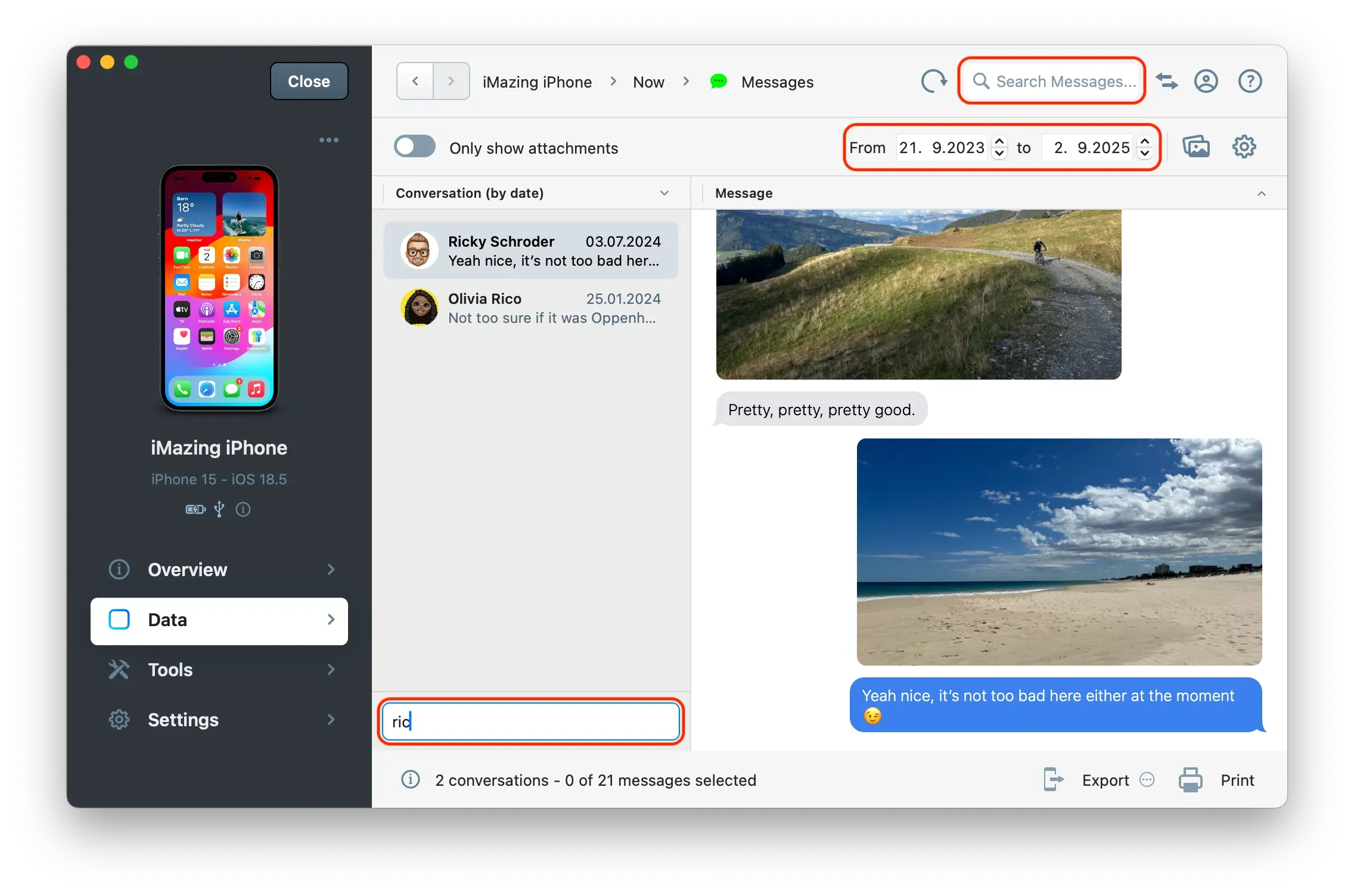
If you want to print a chat based on the context of a specific message:
- In the content search field, at the top of iMazing's window, type in a word or phrase you would like to find
- Select the relevant message bubble in the conversation view
- Clear the search filter. iMazing will stay focused on the selected message and put it back in its original context
- Select the texts you want to export and click Print
- Customize print options in step 6 above and confirm
If you are looking for messages in a particular date range:
- In the date range picker under the top left search bar, select the start and end days of the specific period you are looking for.
- Select the threads from the filtered list and click the Print button
- Customize print options in step 6 above and confirm
Tips:
- If no results are showing up, consider refreshing the backup (see backup options section above). There could be newer data that have been added since then if it's an older backup you are using.
- If you are looking for a specific single day, pick that same day in both fields.
If you are looking for group chats or chats involving a specific person:
- In the chat session search bar under the list of chats, type in the name of the group or person you would like to find
- Select the chat in the filtered list and click the Print button
- Customize print options in step 6 above and confirm
Tip: For advanced forensic workflows involving chain of custody and evidence integrity, see our dedicated Use iMazing for iOS Digital Forensic Analysis and e-Discovery guide.