


Export iPhone Messages (SMS, RCS, iMessage) to your computer in PDF, Excel, CSV, and RSMF formats
Your iOS device can hold thousands of messages, from fond memories and photos to critical information which your attorney may need to use in a legal case. With iMazing, you can export your messages on both Mac and PC and in several different formats:
- PDF: retain Messages' iconic visual identity, with text bubbles, Emoji and graphics all included
- Text: if pure unaltered text is all you need
- Excel or CSV: export all your messages to Excel, Numbers, or Google Sheets
- RSMF: a format for e-discovery, archiving, forensics, and data analysis.
iMazing can also export just the attachments to your messages, so you can save all the great photos your friends have sent you, and even print your messages.
Here's how to export iPhone messages to your computer in PDF, Excel, CSV, and RSMF formats.
Before you begin
Select your device
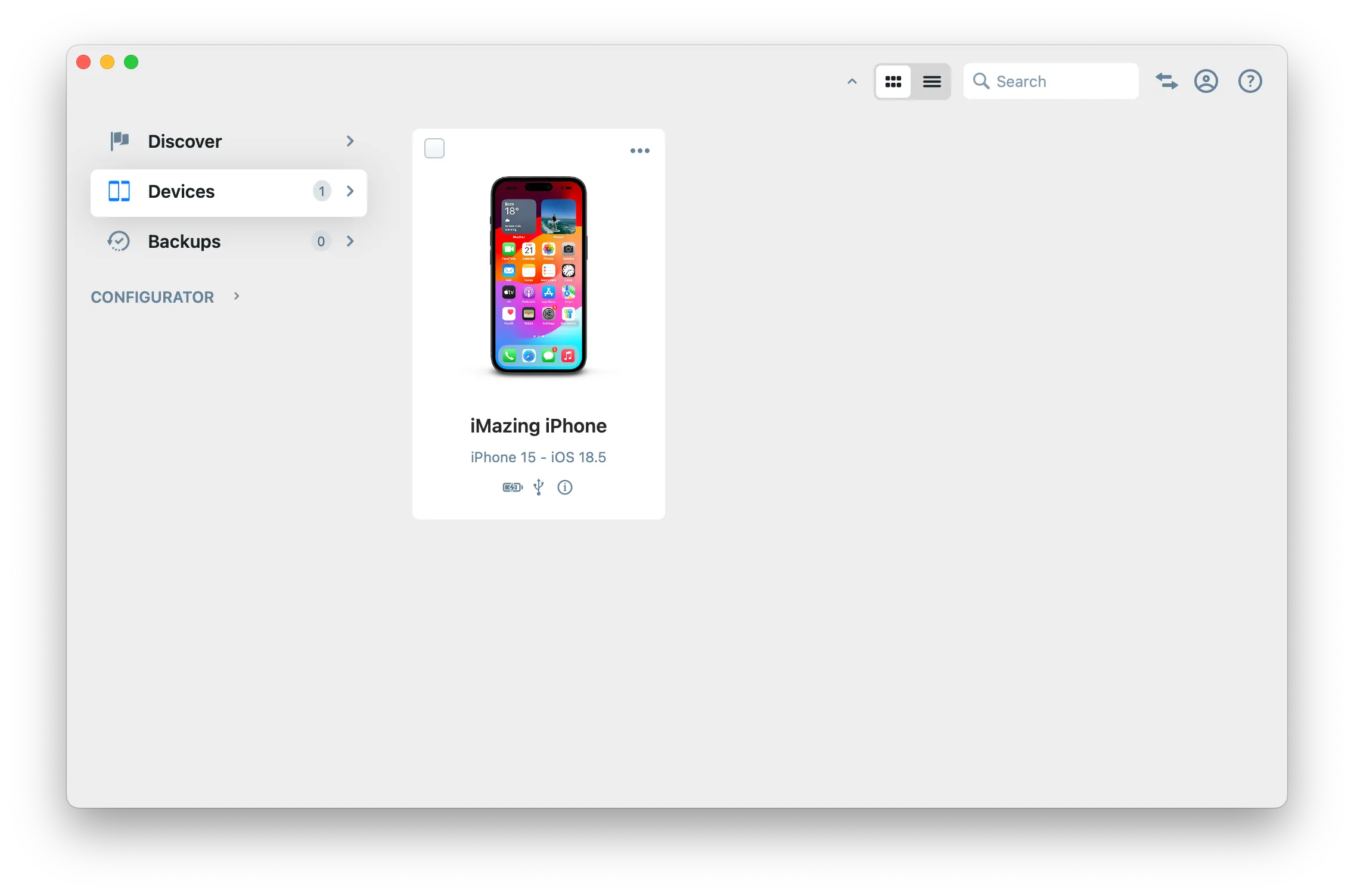
Open the Devices section in the left sidebar to see every device connected and paired to your computer. Click a device to select it.
Tip
Once your device is connected and paired, you can access any dataset or tool directly in iMazing:
Select Messages
iMazing displays the Overview screen for the selected device. The top row shows the most commonly used datasets, such as Messages, Photos, and Music. Click Messages. If you do not see it, click More to display every dataset available for the device.
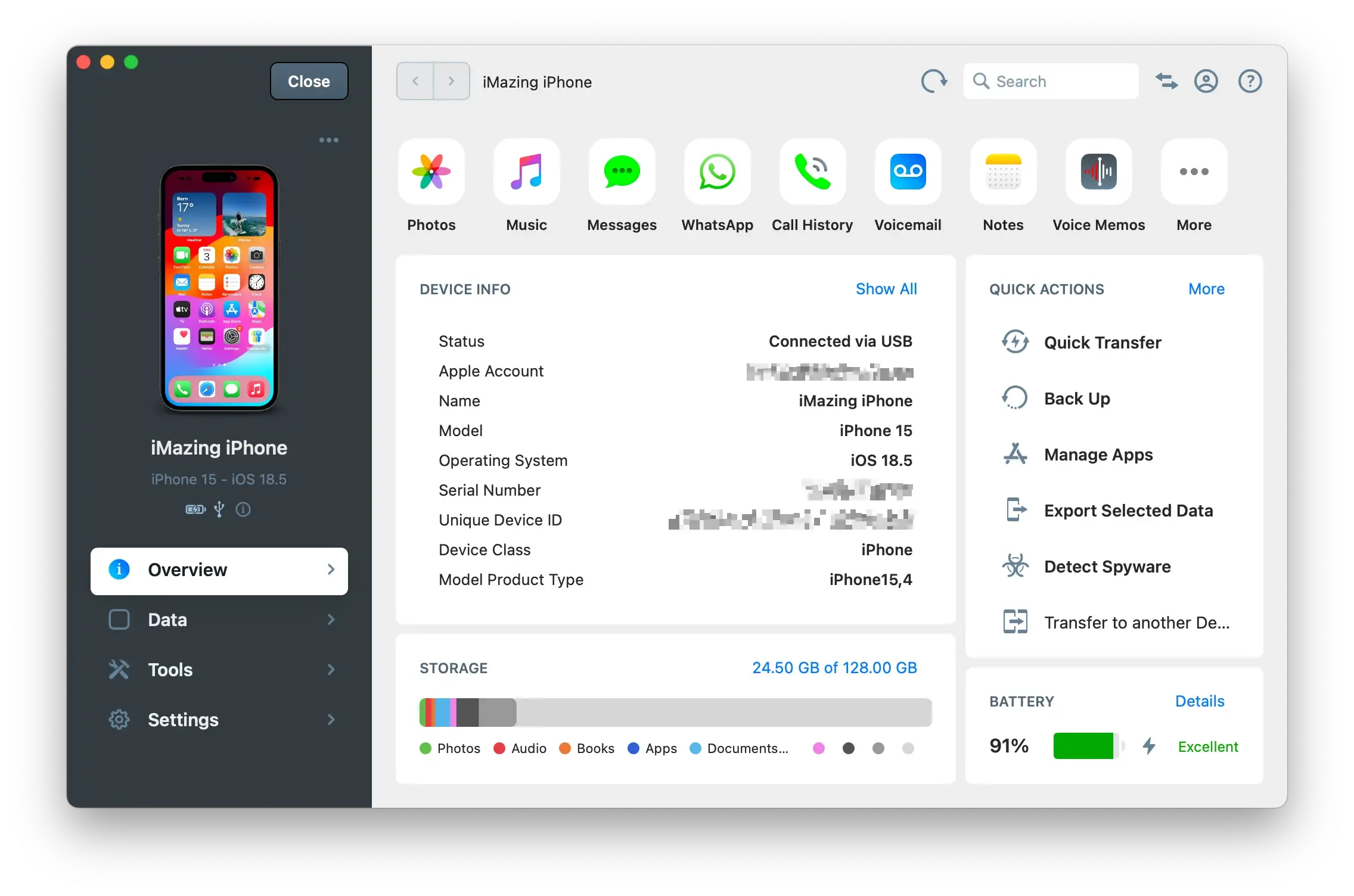
Tip: Alternatively, click Data in the left sidebar to see every dataset available for the device, including shortcuts to third-party apps such as VLC.
Choose how to load your data
iMazing needs to create a backup to extract data from your device. You can choose whether you only need access to your messages and conversations, or whether you want to create a full, restorable backup of the device. A partial backup uses much less storage, but both options take about the same amount of time because all files are streamed from your device to your computer during the process. iMazing cannot control which files are streamed.
Click Start to launch the operation. iMazing prompts you to enter the passcode on the device.
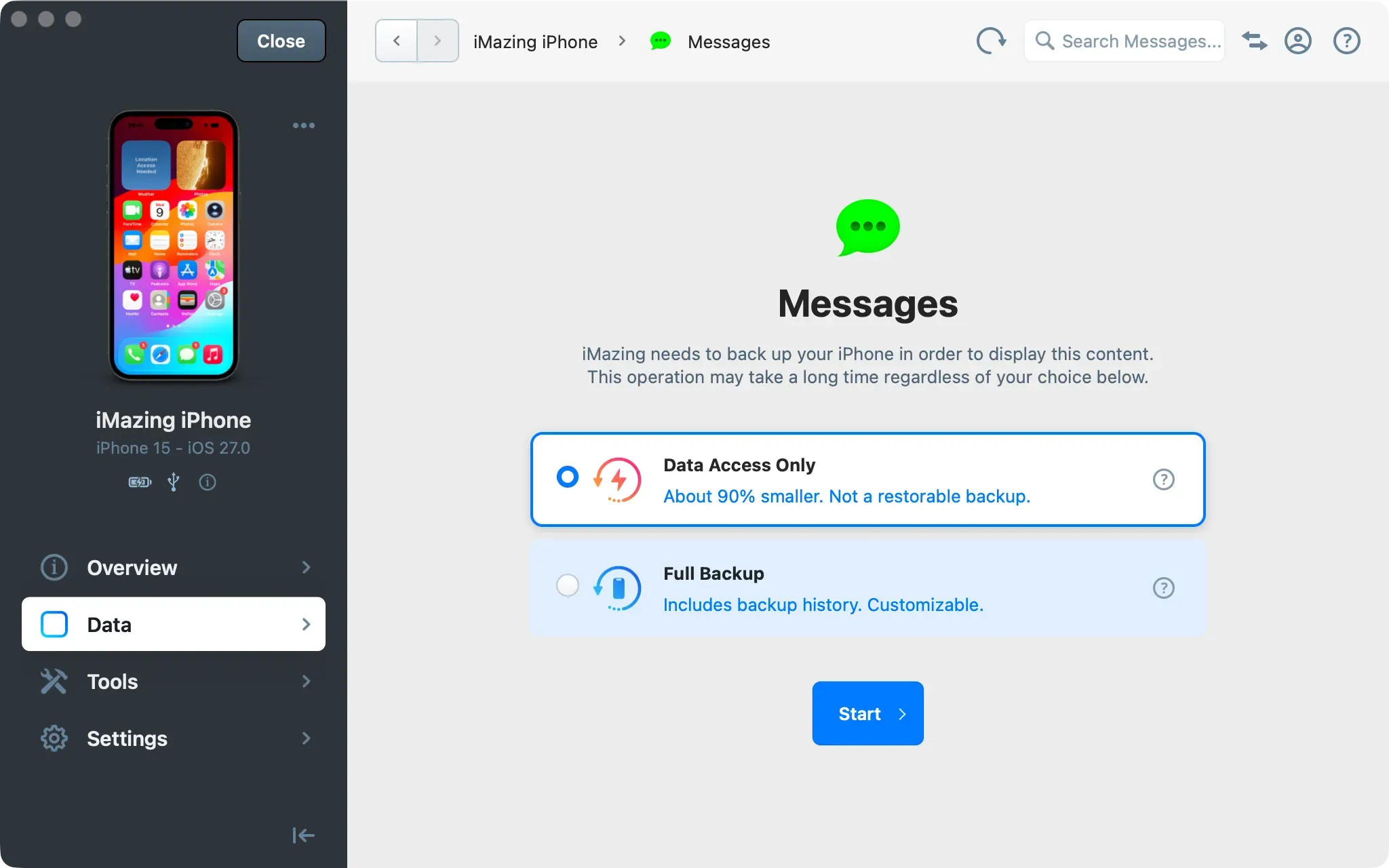
Important: The first time you back up a device with iMazing, the process may take 30 minutes or more, depending on how much data is stored on the device. USB speed (whether your device supports USB 3.1 or 2.0) and the backup location (for example, a NAS or external drive) can also affect the time it takes. Please be patient. Learn more about data access and full backup options.
For more details on backup performance, see: Understanding & fixing slow iPhone or iPad backups
If a backup of the device already exists, iMazing shows the following prompt instead. Choose whether to open the existing backup or run a subsequent backup to refresh the contents.
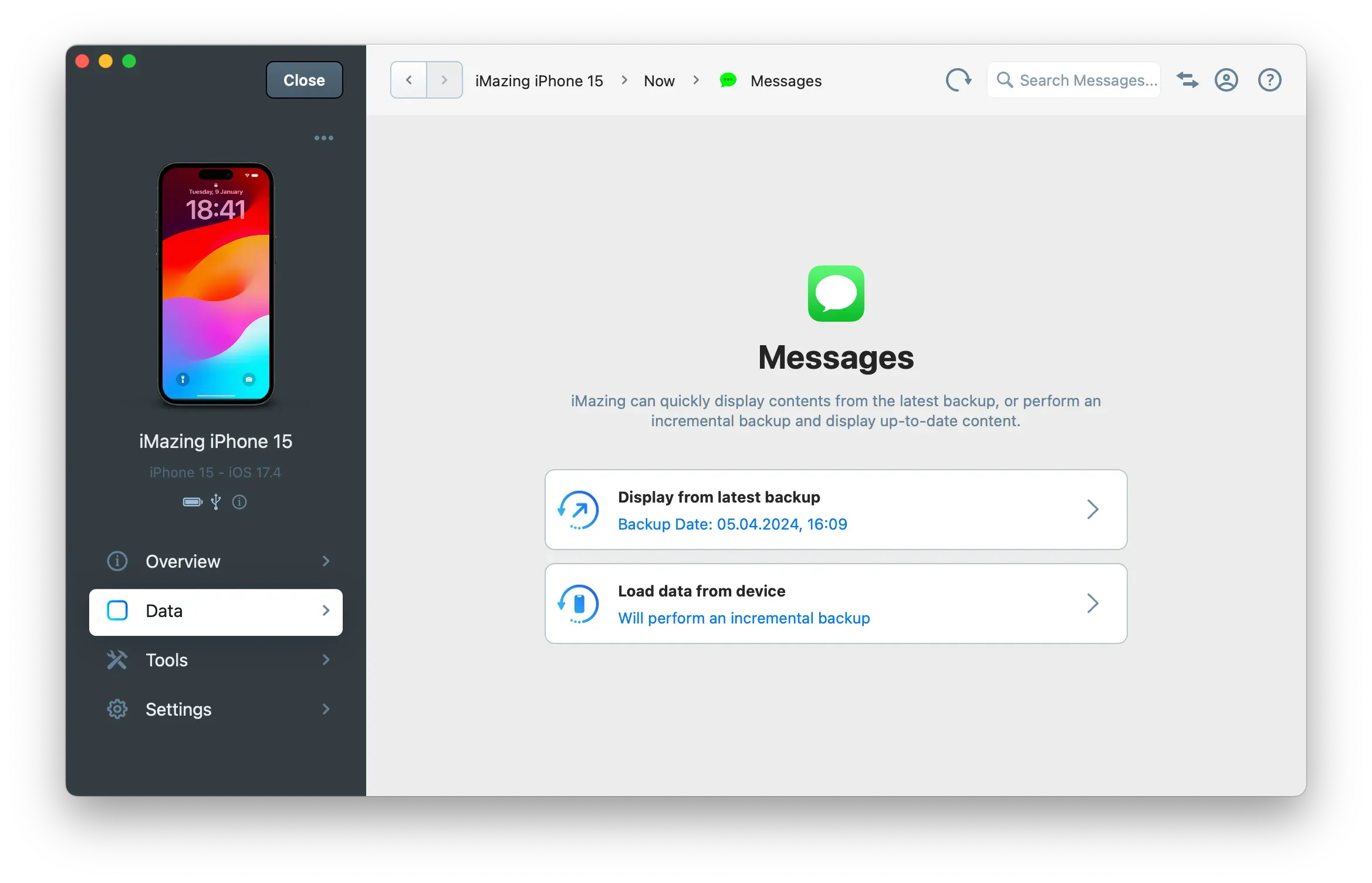
Tips: Subsequent backups are incremental and much faster. You can request a newer backup at any time with the Refresh button (the circular arrow) in the top toolbar.
Browse your messages
Once iMazing finishes loading the data, it displays your conversations in the main window.
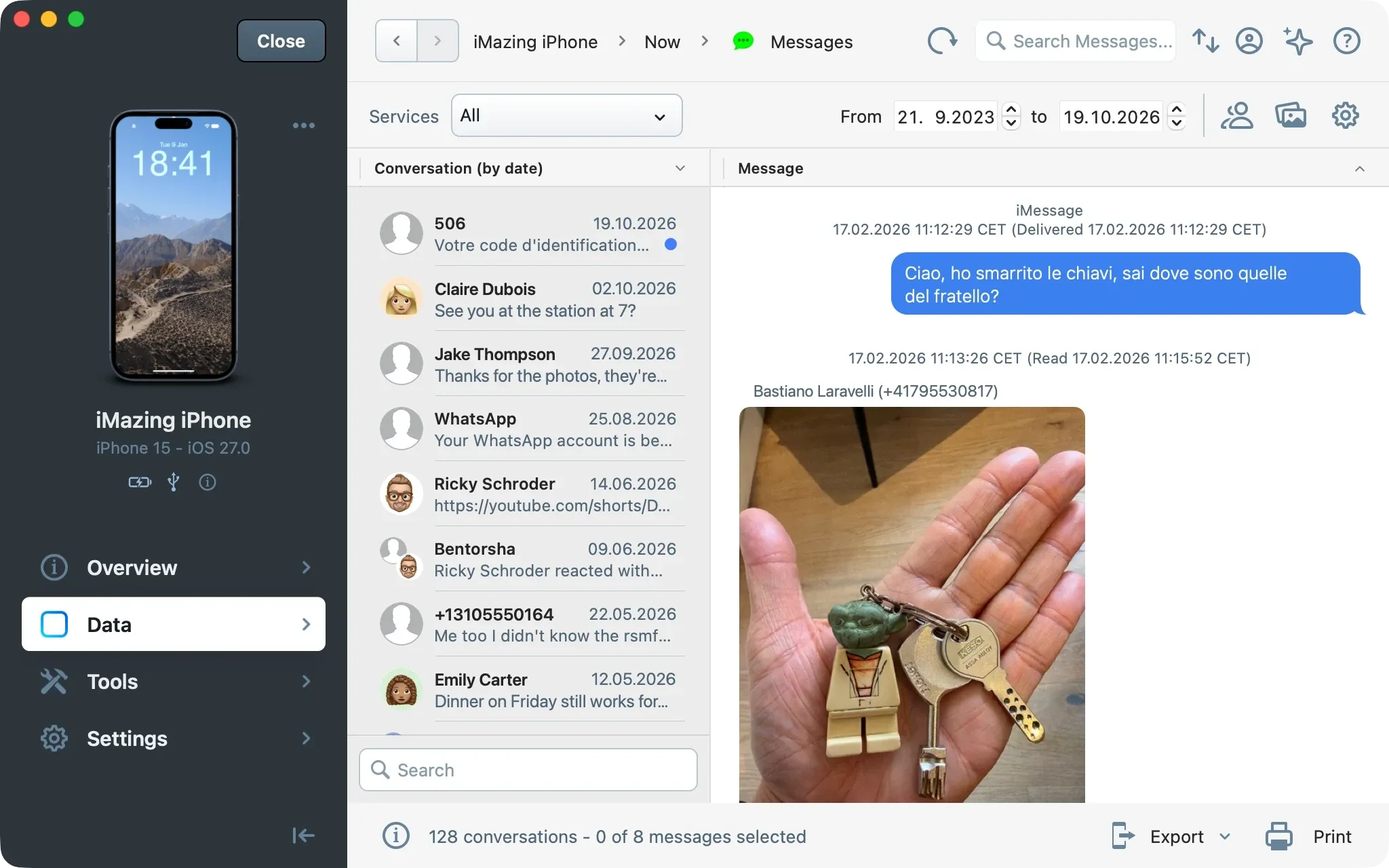
Browse an existing backup
You can browse your messages without connecting your iPhone, as long as iMazing already holds a backup of the device. iMazing can also open backups made with iTunes, Finder, or Apple Devices once you add them to iMazing.
- On the Home Screen, open the Backups section to see every backup iMazing manages.
- Select the backup you want to open. iMazing opens it so you can browse its content, no device connection is required.
- On the backup Overview, click Messages in the datasets row.
Note: When browsing from a backup, iMazing reads only the stored backup, so no new backup is created. For more on browsing and extracting data, see the Manage your backups with iMazing guide.
Browse from a previous snapshot
Each time iMazing backs up your device, it keeps a timestamped snapshot, so you can open your messages as they existed at an earlier date. This works like macOS Time Machine, applied to your iOS or iPadOS backups.
By default, iMazing shows the current state of your device or the latest backup. To reach an earlier state:
- Select your device or a backup from the Home Screen.
- In the upper toolbar, click the Now button to open the Snapshot List.
- Select an earlier snapshot. iMazing reloads the Messages view with the messages contained in that snapshot.
A gray checkmark marks the state you are currently viewing. Select Now again to return to the current state.
Tip: For details on snapshot labels and management, see the Backup Snapshot List in iMazing guide.
Configure how messages are displayed
Once iMazing loads your messages, click the Gear icon at the top right of the Messages view to control what appears in the conversation view and in your exports.
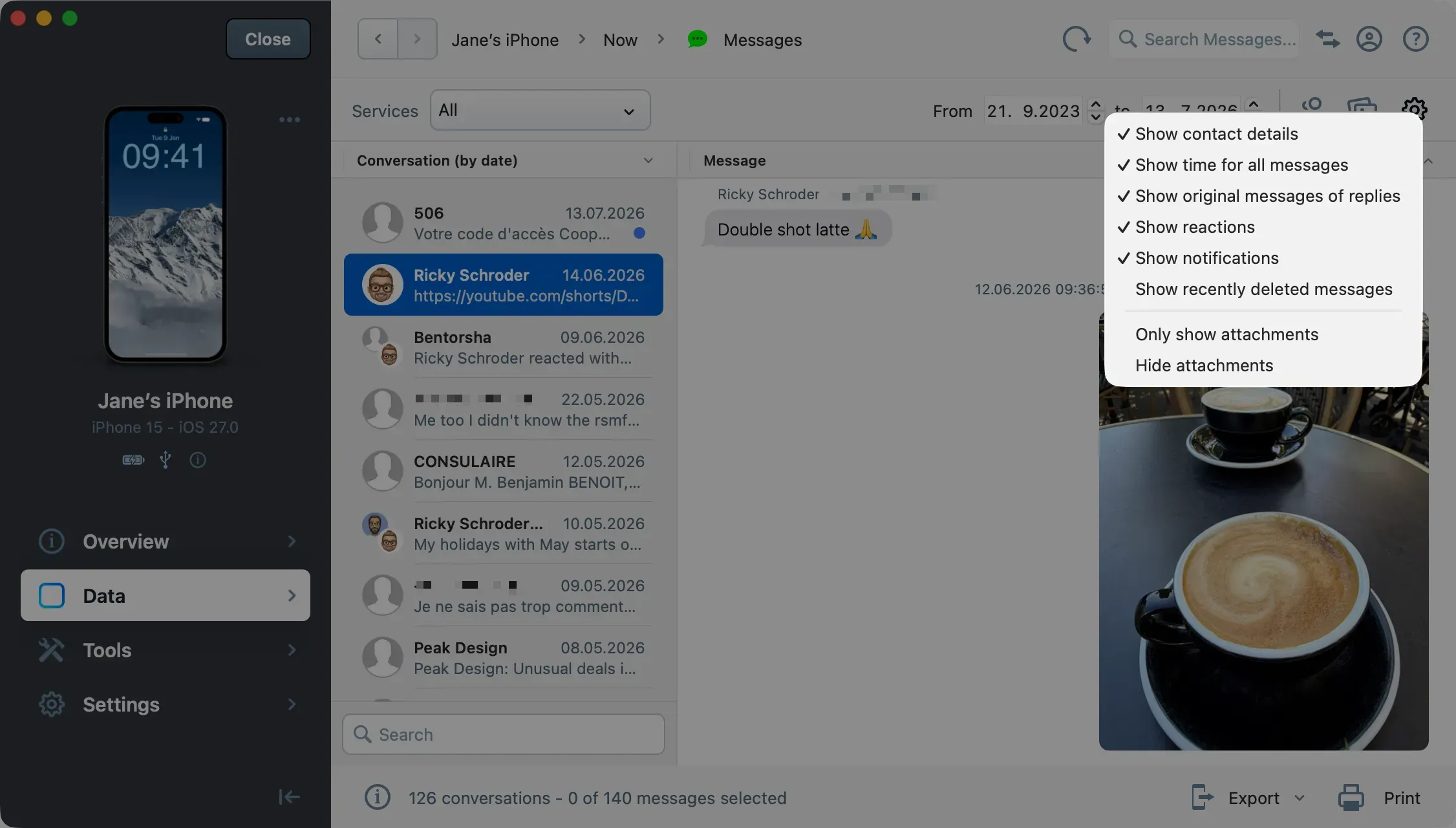
The following options are available:
- Show contact details: display the phone number or contact details of each participant.
- Show time for all messages: show a timestamp on every message.
- Show original messages of replies: display the message each reply refers to.
- Show reactions: include Tapbacks and other reactions.
- Show notifications: show system events, such as when someone joins or leaves a group chat.
- Show recently deleted messages: include messages the device has marked as recently deleted.
- Only show attachments: display attachments on their own, without message text.
- Hide attachments: display message text without attachments.
Important: Show recently deleted messages is unchecked by default. Enable it before exporting if you need to include deleted messages.
Tip: For legal exports, enable Show contact details and Show time for all messages so phone numbers, contact details, and timestamps appear in the exported file.
Search and filter your messages
You can narrow down and search the Messages list with these tools:
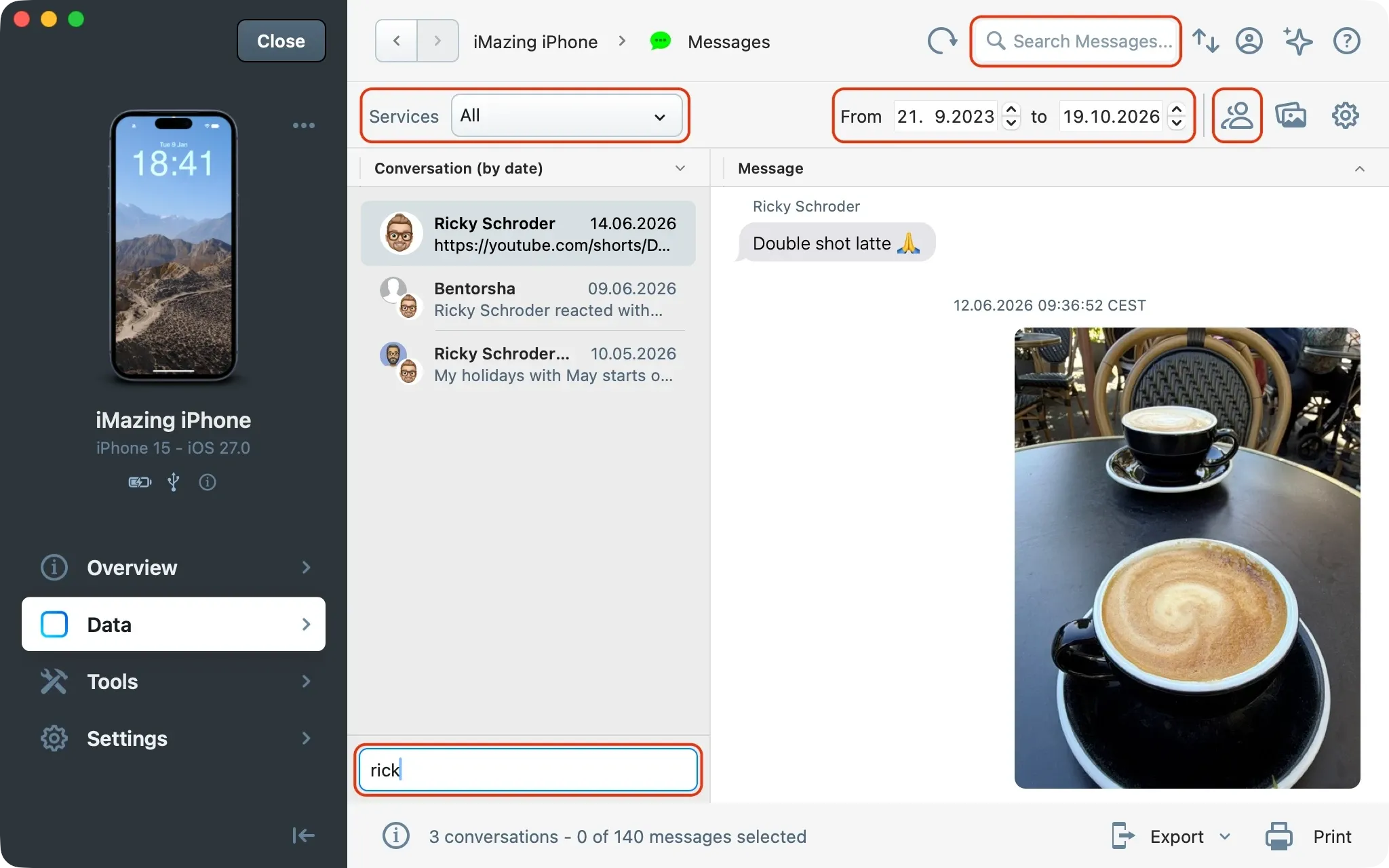
- Services: show only the conversations of one of your phone numbers or email addresses, from the menu above the conversation list. Each number and address used for Messages on the device appears separately, which covers devices with several SIM or eSIM lines. Select All to show every conversation again.
- From and to: limit the list to a precise time period. Only the messages and conversations from that time range are shown and exported.
- Person icon: show only the messages sent by specific people in the selected conversation, from the icon to the right of the to field. Your own phone numbers and email addresses appear first, then the other participants. All entries are checked by default.
- Search Messages...: look for a specific word or sentence in your entire Messages history, from the field at the top right of the iMazing window.
- Search: type a participant's name in the field under the conversation list to find the conversations that person took part in, including groups the person has left and conversations where the person only reacted.
To place a specific message back in its original context, select it and clear the Search field. iMazing keeps the message selected and displays it in context.
Select the messages or conversations to export
Select a conversation in the left column to display its messages and attachments.
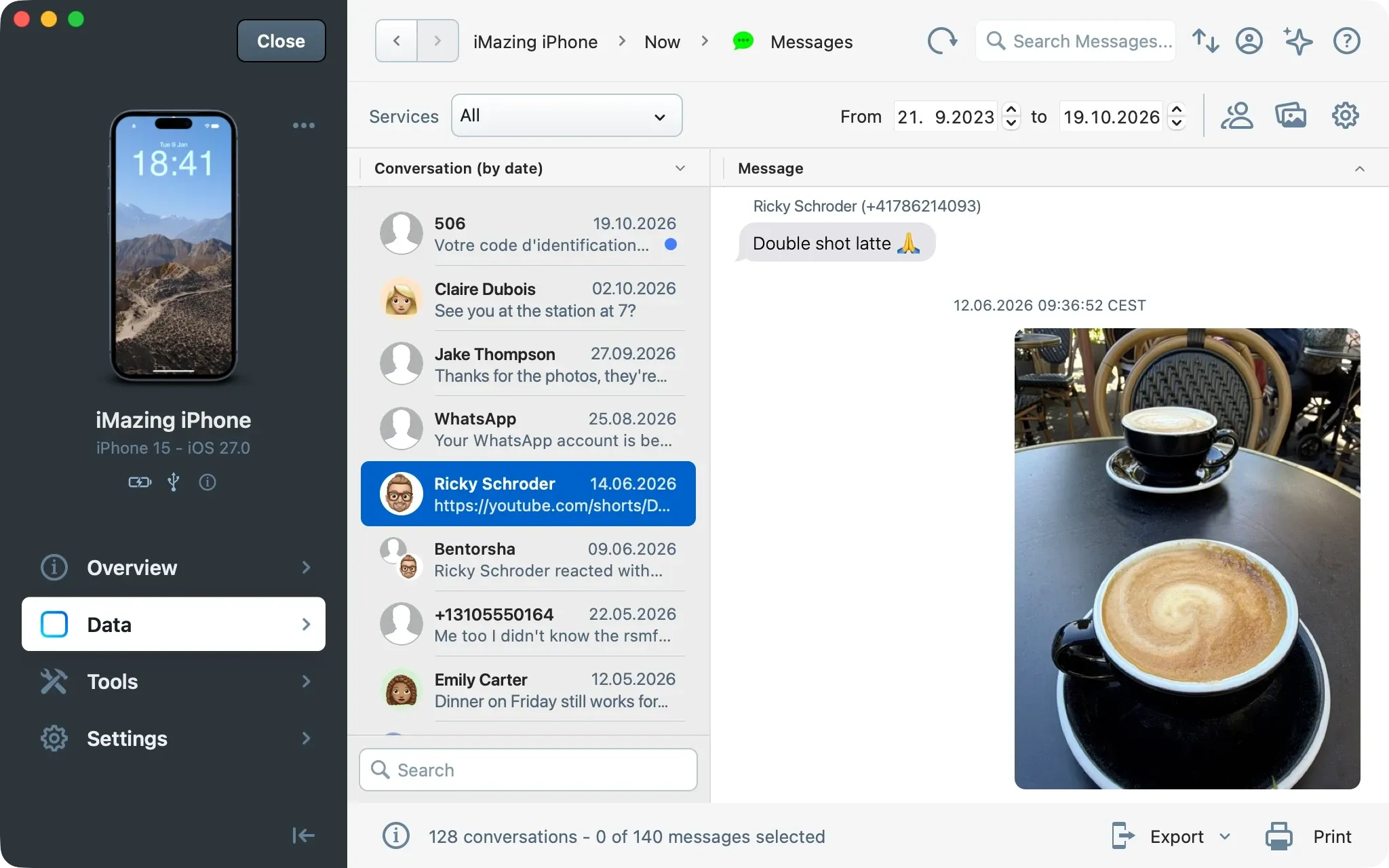
Select individual messages or entire conversations to export. You can select multiple conversations for a bulk export.
Tip:
- Hold Ctrl (Windows) or Command ⌘ (macOS) and click to add or remove individual items from your selection.
- Hold Shift and click the first and last item to select a range.
- Use Ctrl+A (Windows) or Command ⌘+A (macOS) to select all items.
iCloud Messages
Introduced in iOS 11.4, iCloud sync of Messages is an optional setting. When it is enabled, iOS may offload some of your older attachments (including shared photos and videos) to iCloud, making them unavailable to iMazing. Message text is never affected: you can still view and export every conversation.
When an attachment has been offloaded, iMazing displays an Attachment stored in iCloud message in its place.
To include those attachments in your export, bring them back to the device first, using either method:
- Open each attachment on your iPhone or iPad in the Messages app: this downloads that single item on demand.
- Turn off iCloud sync for Messages: this downloads your full message history back to the device.
To turn off iCloud sync and download everything back:
- Open Settings on your iPhone or iPad.
- Tap your Apple Account name at the top.
- Select iCloud.
- Tap See All (or Show All) under the apps using iCloud.
- Tap Messages.
- Turn off Sync this iPhone (labeled Use on this iPhone on older versions of iOS).
- Tap Disable and Download to download your messages onto the device.
Wait a few hours for the download to complete, then click the Refresh button in iMazing on your Mac or PC to reload your messages before exporting again.
Tip: You can turn iCloud sync for Messages back on afterward. Downloading your messages to the device does not delete anything from iCloud.
Export your messages
Click the Export menu at the bottom right of the iMazing window and select the file format you want.
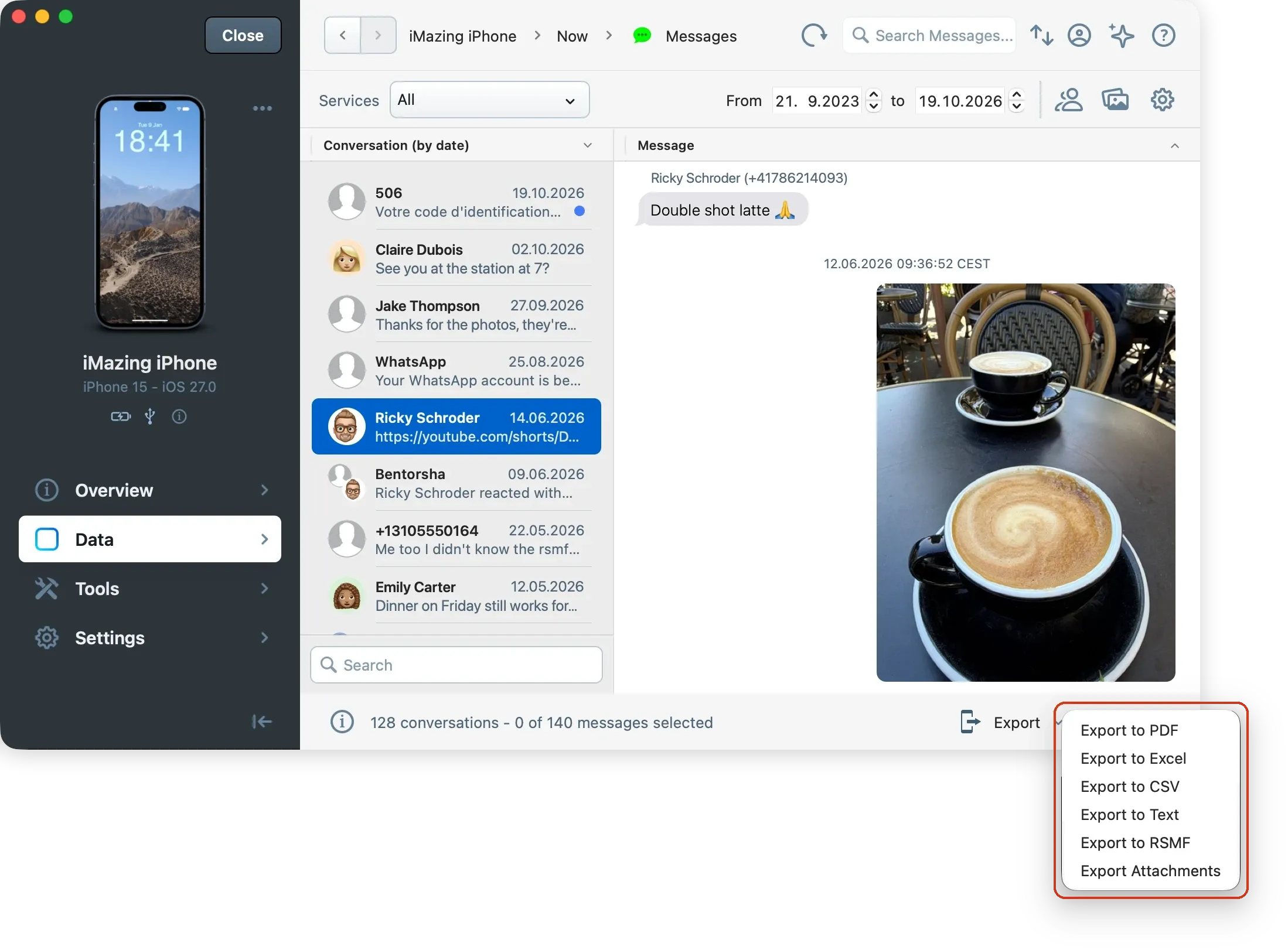
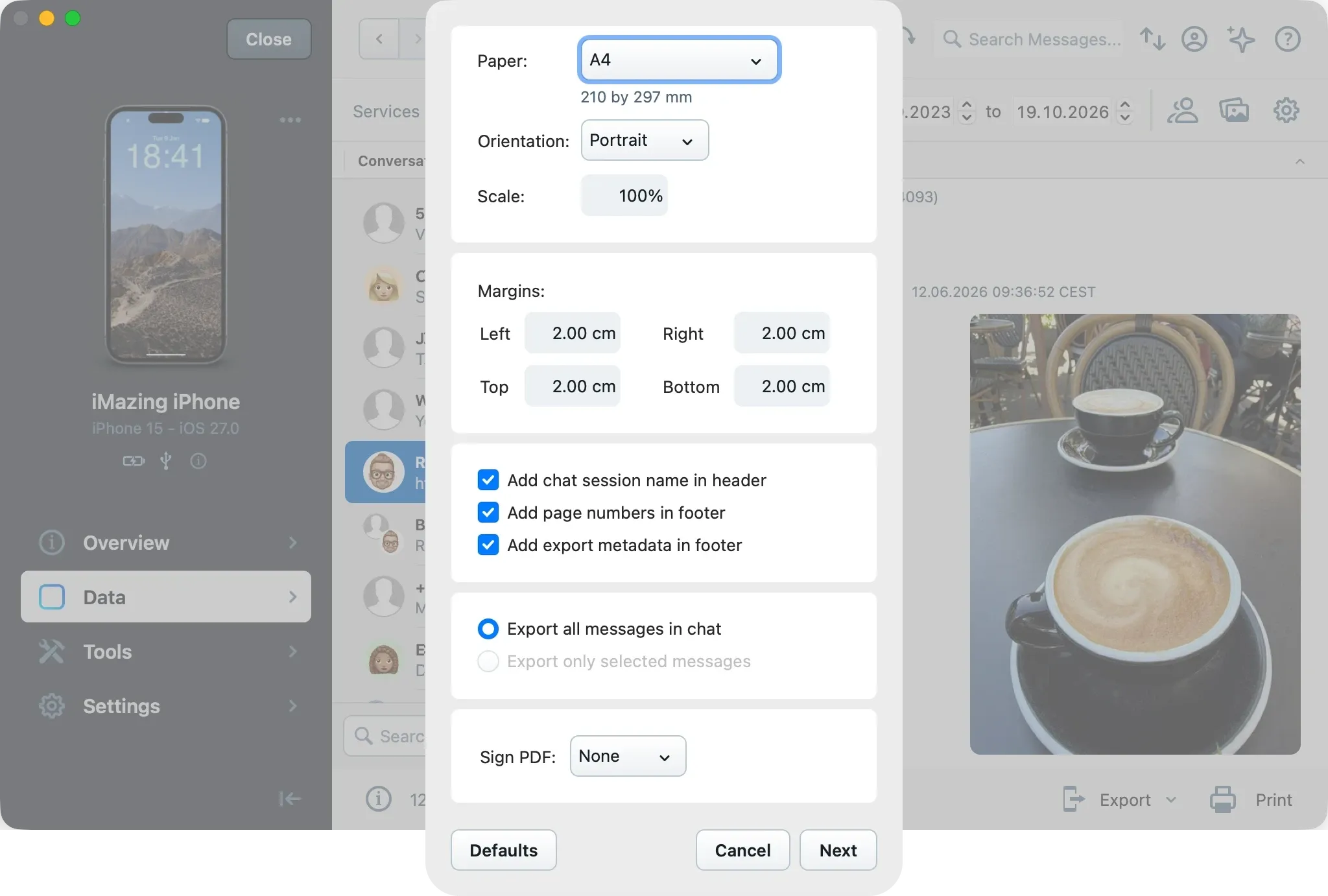
iMazing displays a configuration sheet where you can customize your export. Each format presents different options, covered in Export formats and options below. Click Next to continue.
Choose a location and save the file
iMazing then asks where to save the exported messages.
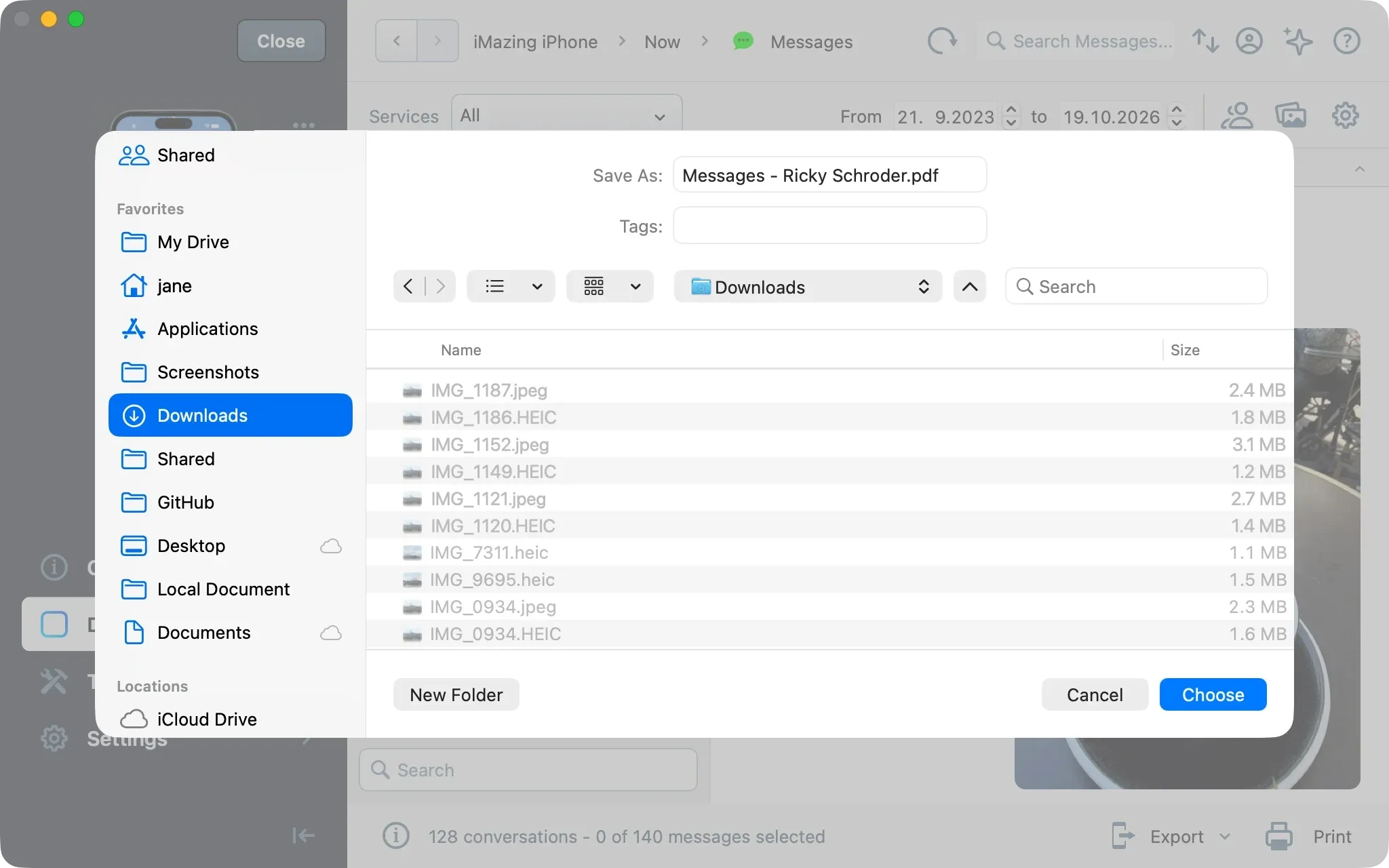
Select a location, change the file name if needed, then click Choose on macOS or Save on Windows. iMazing generates the file, which you can read in your chosen format or import into other apps.
Tip: For quick workflows, drag a whole conversation or a selection of messages to any location on your Mac or PC. If your selection contains only attachments, iMazing exports the raw attachments. Otherwise it generates a PDF with default export options. Drag straight into a text editor to get a raw text export.
Export formats and options
Each export format offers its own options.
Export to PDF and print
iMazing generates PDFs and prints messages with a layout close to what appears on your iPhone. Printouts are customizable.
The following options are available:
- Printer (Print only)
- Paper size and orientation
- Scale: changes font and image size, from 30% to 300%.
- Margins
- Add chat session name in header
- Add page numbers in footer
- Add export metadata in footer: adds the iPhone's name and serial, the current date, and the last modified date of the iOS messages database to the footer. This adds credence to exported messages for use in court cases.
- Export all messages in chat or Export only selected messages
- Sign PDF: add a digital certificate to verify the signer's identity and protect the file's integrity. Select an existing certificate or create a new one.

Info: PDF Signing requires a Business Subscription.
Legal exports: If you're producing a PDF or printing messages for a court case, it is often required that phone numbers or contact details, and timestamps are to be included. So before clicking Export to PDF or Print, click the top right Gear icon, check Show contact details and Show time for all messages, if necessary.
Export to Excel or CSV
Export message data to a spreadsheet for further analysis. A common use case is documenting and billing client interactions. Excel or CSV work well alongside iMazing's WhatsApp and Call History export features.
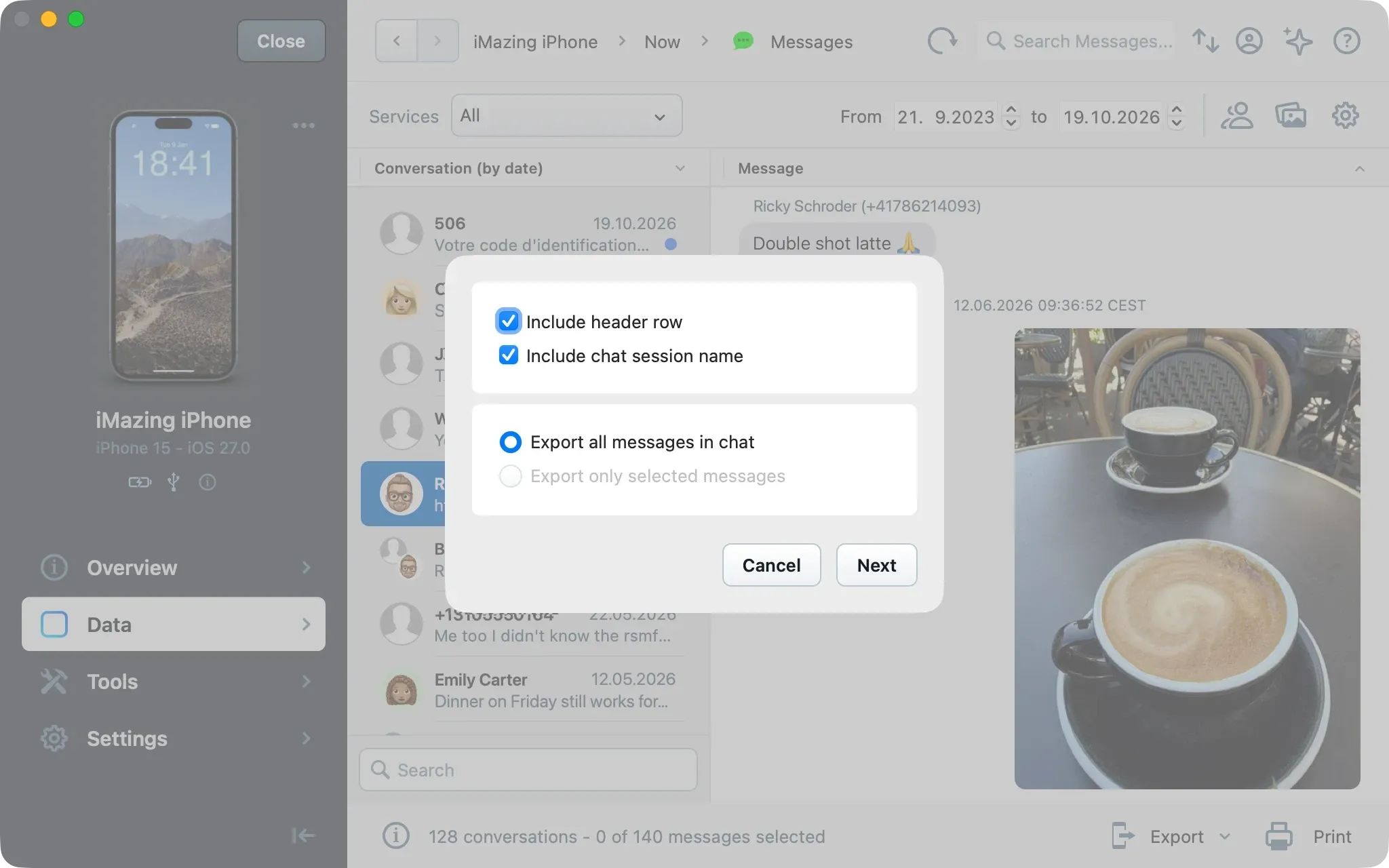
- Include header row: disable to export the data only, useful when appending to an existing spreadsheet.
- Include chat session name: useful to identify a specific chat when aggregating multiple chats in one spreadsheet.
Analyst Tip: You can export all conversations to a single Excel or CSV file in bulk. iMazing appends each conversation to the same file, which you can then import into Excel or Google Sheets. Sort by Sent Date to display an aggregated timeline of your messaging activity.
Export to Text
Use this format to output a .txt file compatible with any text editor, for example to cite messages from a source in an article, or to quote your chats in an autobiography. You choose exactly what the file includes:
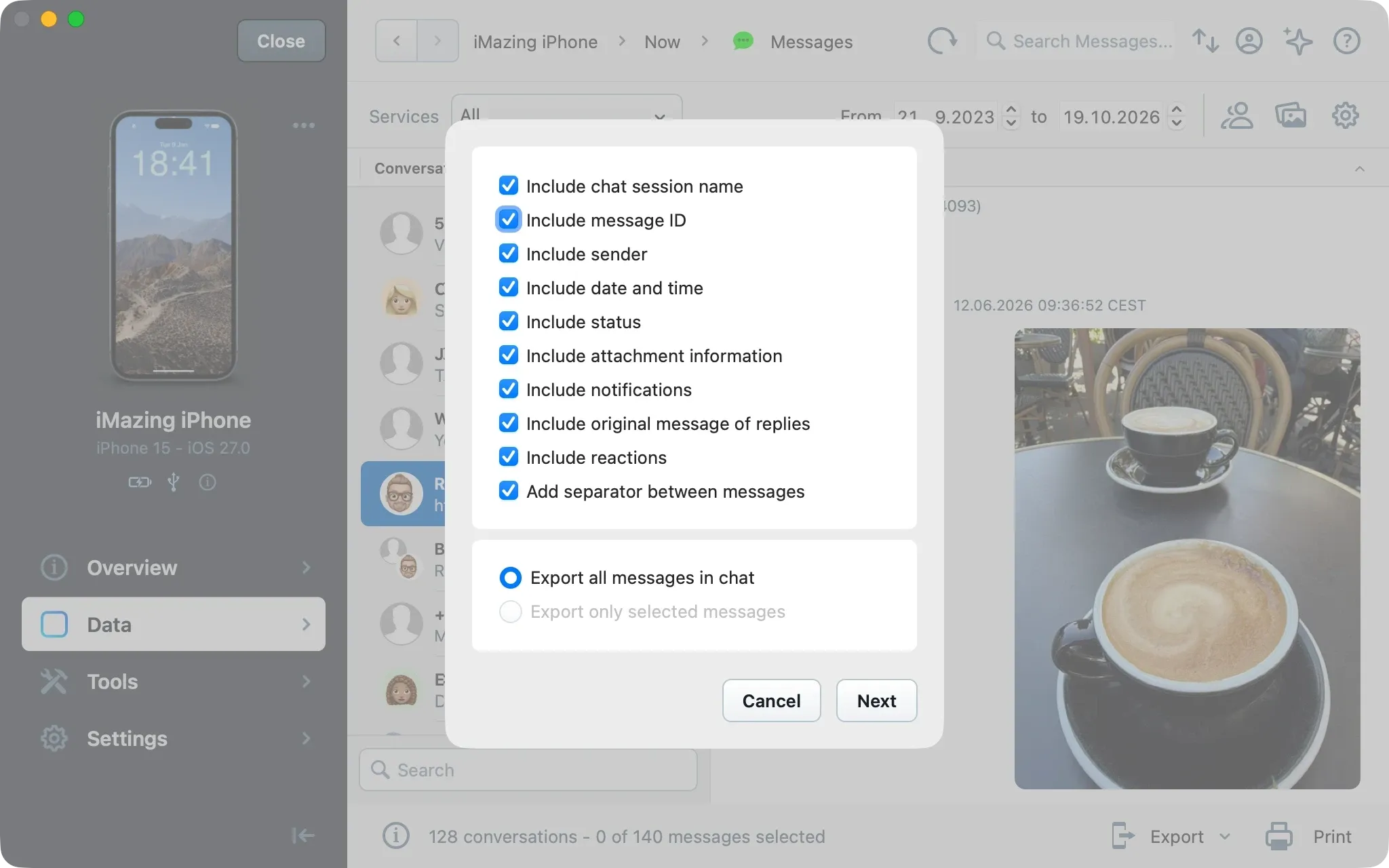
- Chat session name
- Message ID
- Sender name
- Date and time of individual messages
- Message status: sent, delivered, or read
- Attachment info (file name, links, GPS coordinates)
- Notifications (who joined a group chat, who left)
- Original message of replies
- Reactions
- Separator for readability
Export attachments
When you need only the photos, videos, contacts, and files from your conversations, select one or more threads and click Export, then Export Attachments. Choose a destination on your Mac or PC. iMazing exports these attachment types:
- Images
- Videos
- Audio recordings
- Contacts
- Calendar events
- Links and locations (as link files to Google Maps)
- Other file attachments (PDFs, Office documents)
You can also browse attachments only: check the Only show attachments option in the Gear menu.
Export to RSMF - requires a Business subscription
Relativity Short Message Format (RSMF) is a standardized format for chat and message data. It follows the RFC 5322 (Internet Message Format) standard and normalizes short message content for efficient searching, reviewing, and processing. RelativityOne has converted over 75 chat applications to RSMF, and the format can accommodate virtually any conversation-style data. It is used primarily for data retention, e-discovery, and forensic analysis in business settings.
What to keep in mind
- When exporting to CSV, you can choose a comma, tab, or semicolon as the delimiter. Set this in iMazing's preferences: on macOS, open iMazing > Preferences > Other Data; on Windows, open Edit > Preferences > Other Data. See the Preferences in iMazing guide for details.
- To move your messages and other data to another device, see the how to transfer data from an iPhone, iPad or iPod touch to another device guide.