


Backup issues
When iMazing, Finder, iTunes or Apple Devices fails to back up your device, the error message may include Device Disconnected, Generic Error, or similar. This guide covers the most common causes and how to resolve them on macOS and Windows.
Check the USB connection
Rule out a connection issue first:
- Try a different USB cable.
- Connect directly to a USB port on your computer. Do not use a USB hub.
- Try a different USB port.
If your device is not detected at all, see our guide on Device connection issues with iMazing for detailed troubleshooting steps.
If the device is detected, but the backup fails, check whether the error also occurs in Finder, iTunes or Apple Devices. The next steps depend on that result.
Rule out software and storage conflicts
Several categories of software and storage configurations are known to interfere with iMazing backups on both macOS and Windows.
Antivirus, firewall, and VPN software
Antivirus programs, firewalls, VPN clients, and ad-blockers can slow down or interrupt backups, sometimes without displaying any error message. CleanMyMac is also known to cause interference.
iOS backups contain tens of thousands of small files. Real-time scanners check each file individually, which can severely slow the backup process or cause it to fail.
If you use any of these utilities:
- Exclude your iMazing backup location folder from antivirus scanning.
- If the issue persists, quit or pause the utility and attempt the backup again.
- If the issue persists after pausing, uninstall the utility, restart your computer, and retry.
Note: Windows 10/11 and recent versions of macOS include built-in threat protection. Third-party antivirus software is not required in most cases.
Cloud storage as backup location
Avoid storing iMazing backups in a folder managed by Google Drive, iCloud Drive, or Dropbox. The low read/write speeds, connection interruptions, and file-locking behavior of cloud sync clients can corrupt backups.
Tip: As of version 3.6, iMazing on Windows can pause OneDrive synchronization during backups. See Back up an iPhone or iPad to an external drive, or network drive (NAS) for details.
If your backup location is currently inside a synced folder:
- Open iMazing Preferences and change the backup location to a local folder.
- If you cannot change the location immediately, pause cloud sync before starting the backup:
- Google Drive: Pause syncing
- iCloud Drive: No pause option is available. To stop sync temporarily, go to System Settings > Apple Account > iCloud > iCloud Drive and turn off Sync this Mac. See Set up iCloud features on Mac.
- Dropbox: Pause syncing
Computer backup software
Applications such as Time Machine, Acronis, Carbon Copy Cloner, and Backblaze can lock the temporary folder that iMazing uses during a backup. When this happens, the backup will almost always fail.
Schedule iMazing backups and computer backups at different times to prevent conflicts.
Device storage
iOS needs free space on the device to prepare files before transferring them to iMazing.
Ensure at least 10 GB of free storage is available on your device before starting a backup. To check: open Settings > General > iPhone Storage on the device.
Device activity during backup
Downloads, iCloud sync activity, or file modifications happening on the device during a backup will extend the backup duration. Modified files must be re-processed, which can also cause the backup to fail. This is most common during a first backup.
Before starting a backup:
- Enable Airplane Mode on your device.
- Keep the device idle until the backup completes.
If the error appears in iMazing and in iTunes, Apple Devices, or Finder
If the same error occurs across apps, the issue is most likely with your Apple drivers or with the backup files themselves.
Update iTunes (if installed) or Apple drivers
On Windows, open iMazing, go to Preferences > General, and click the Reinstall Apple Mobile Device Service button. For detailed steps, especially if you use Apple’s iTunes or the Apple Devices app, see our guide: How to fully reinstall Apple Components on a Windows PC.
On macOS: Apple drivers are bundled with the OS. Make sure macOS is up to date via System Settings > General > Software Update.
Delete the most recent snapshot
If updating drivers does not resolve the issue, delete only the most recent backup snapshot.
Important: Before deleting, consider exporting the backup first. Use Export Backup as Folder to preserve your data as a human-readable folder structure.
- In the Tools section, under Backup, select Manage Backup Snapshots.
- Select the most recent snapshot (at the top of the list).
- Delete it.
- Retry the backup.
Delete the entire backup
If deleting the snapshot does not help, delete the entire backup.
Important: This removes all snapshots for this device. Export the backup first if it contains data you want to preserve.
Export the backup:
- Right-click your device in the Devices section and select Export Backup as Folder.
- Choose a destination and confirm.
Then delete the backup:
- In the Tools section, under Backup, select Delete Backup.
- Confirm deletion.
- Run a new backup from scratch.
Note: If you have previously backed up with iMazing, always delete the backup from within iMazing to ensure all associated files are removed correctly.
If the device disconnects during a backup or restore
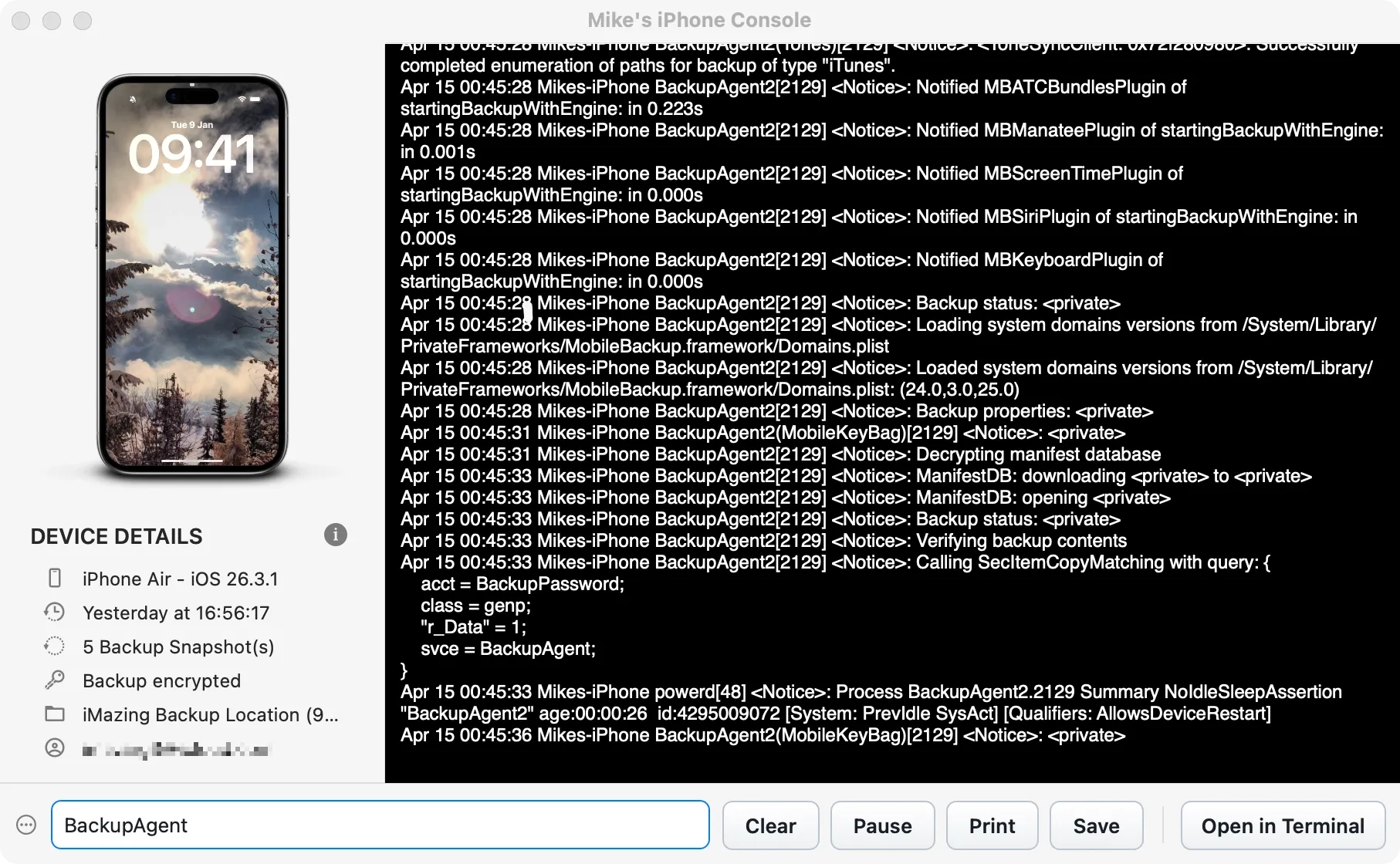
If your device disconnects during a backup or restore operation, the most likely cause is the iOS BackupAgent process crashing on the device. Use the Device Console to identify what is causing the crash.
Monitor BackupAgent activity in the Device Console
- Select your device in the Devices section.
- In the Tools section, under Advanced, select Show Device Console.
- In the search field, enter
BackupAgentto filter the logs. - Start a new backup and wait for the error to occur.
- Check the latest log entries: they indicate which app or file caused the crash.
Remove problematic apps or files
Once you have identified the cause:
- For backup issues: delete the problematic app or file from your device, then retry the backup.
- For restore issues: in the Tools section, under Backup, select Create an Editable Copy of this Backup. Remove the problematic files from the copy, then retry the restore.
Disable and re-enable Backup Encryption
If you cannot identify the problematic app or file from the logs:
- In the Settings section for your device, under Backup Options, disable Backup Encryption.
- Run a new backup.
- Re-enable Backup Encryption.
Understanding & fixing slow iPhone or iPad backups
If you encounter slow backup speeds, please read our dedicated troubleshooting guide: Understanding & fixing slow iPhone or iPad backups
If nothing works
If none of the above resolves the issue, back up your device via iCloud, erase the device, and restore from the iCloud backup.
For further assistance, contact iMazing support.