


Understanding the iMazing.Versions folder in iMazing backup locations
Updated on Sep 17, 2026
Reading time ~4 minutes
When iMazing backs up an Apple device on macOS or Windows, it creates a structured folder in the backup location. The iMazing.Versions folder is part of that structure. It stores your backup history (snapshots) and manages deleted backups in a way that keeps iMazing responsive.
This guide explains the purpose of the main subfolders and how iMazing handles snapshots and deleted backups.
Understand the iMazing.Versions folder:
Understand the backup folder structure
iMazing stores all device backups in a folder at the backup location you configured.
On an external drive or NAS, if you select the root (for example
/on macOS orX:\on Windows), iMazing creates aniMazing.Backups/folder at the root to avoid permission issues. If you select macOS Backup Location (on macOS), iTunes Backup Location (on Windows), or iMazing Backup Location, your backups will be stored in the locations described in Find the location of your iTunes, Finder or Apple Devices Backup.
Inside the backup location folder, iMazing creates:
- One subfolder per device, named after the device's UDID (Unique Device Identifier). This folder contains the latest backup for that device.
- Additional UDID-named folders with a date-time suffix (for example,
<UDID>-20260108-104514) when you archive a backup using the Archive Backup action in iMazing. - A single
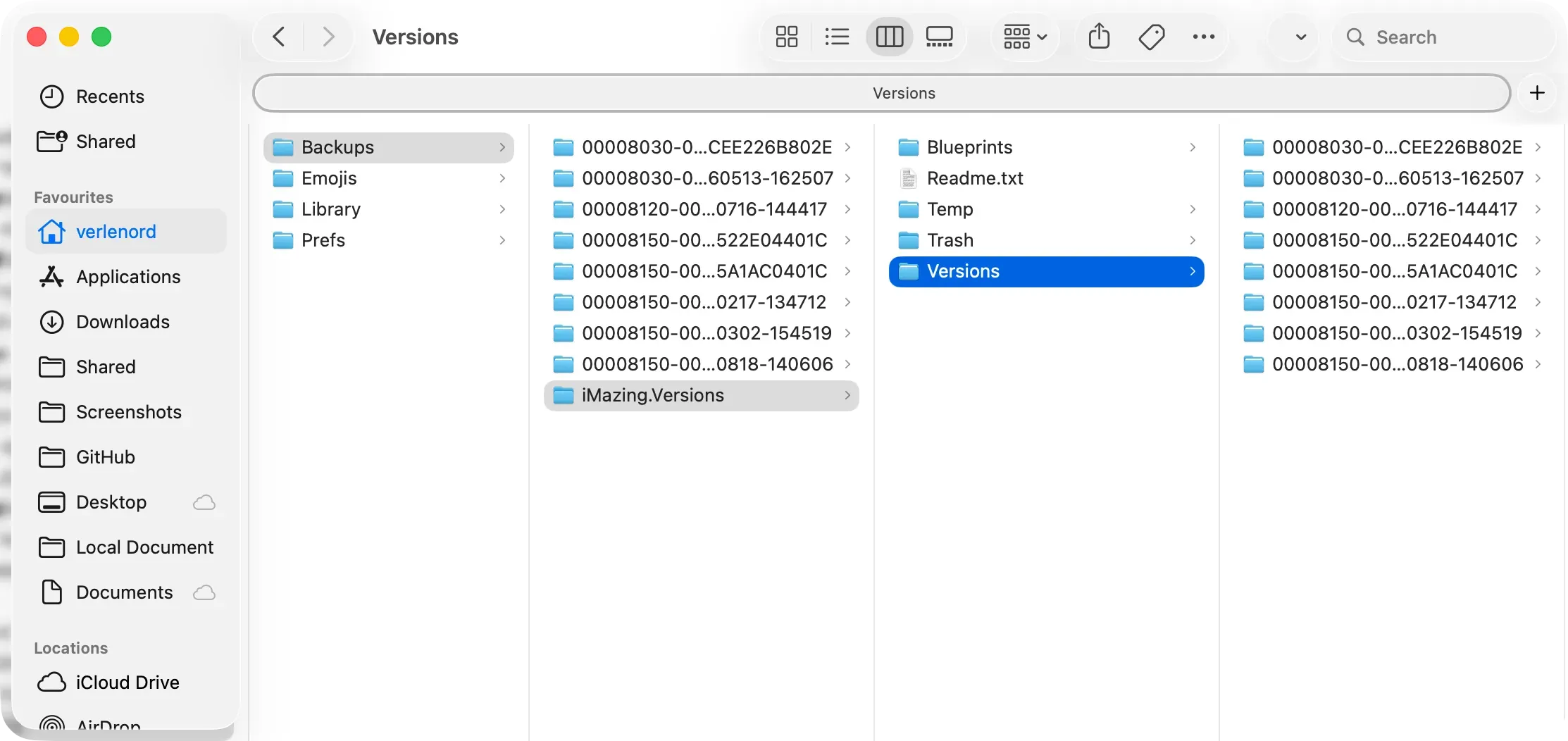
iMazing.Versions/folder shared by all devices. This folder stores backup history (backup snapshots) and internal iMazing data.
Backups/
├── <UDID-1>/                          ← last backup, device 1
├── <UDID-2>/                          ← last backup, device 2
├── <UDID>-YYYYMMDD-HHMMSS/            ← archived backup (via "Archive Backup")
└── iMazing.Versions/                  ← one folder at root, for all devices
    ├── Blueprints/
    ├── Readme.txt
    ├── Temp/
    ├── Trash/
    └── Versions/
        ├── <UDID-1>/
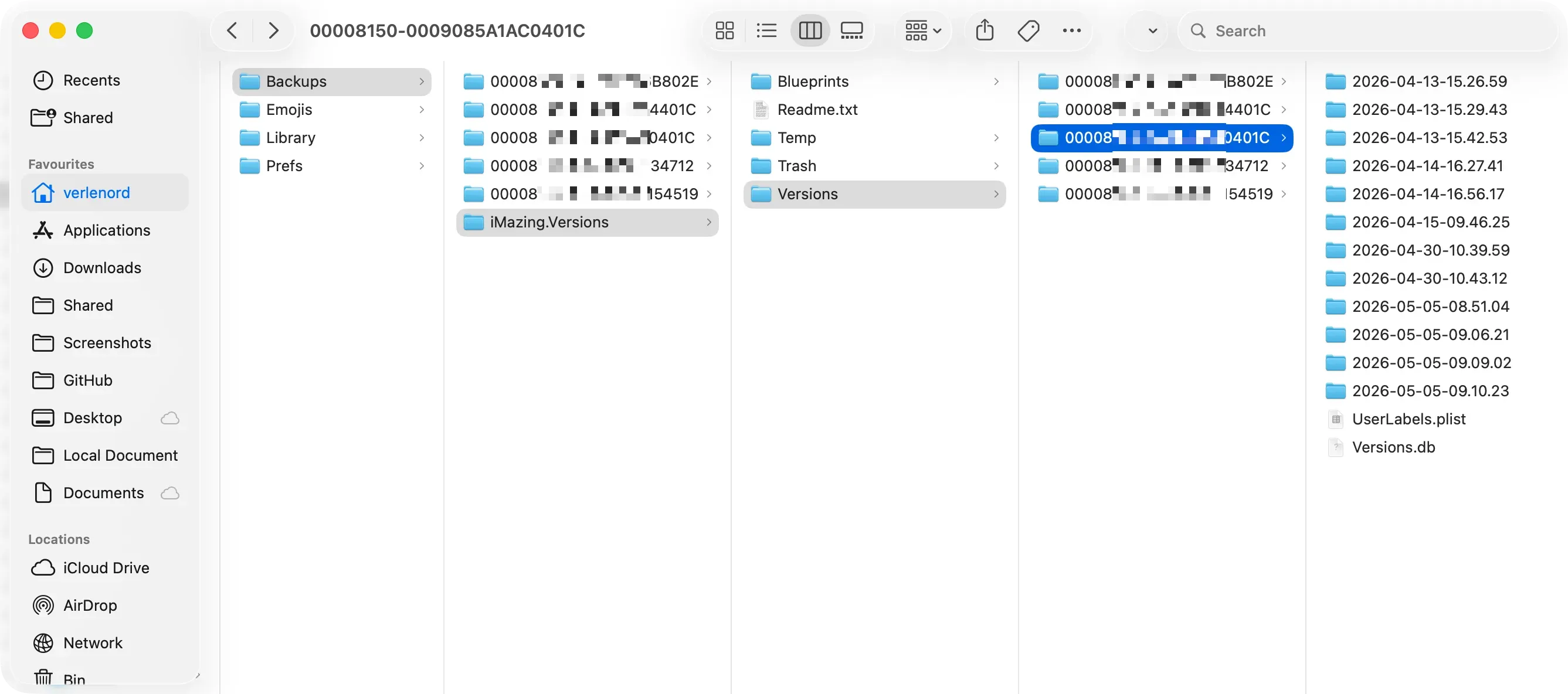
        │   ├── 2026-01-08-10.45.14/  ← snapshot 1
          │   └── 2026-01-09-11.52.11/  ← snapshot 2
        └── <UDID-2>/
            └── ...
Understand the iMazing.Versions subfolders
The iMazing.Versions folder contains several subfolders, most of them managed exclusively by iMazing. This section describes each one.
Blueprints/
Blueprints/ stores editable backups.
Temp/
Temp/ holds temporary working data during backup operations.
Versions/
Versions/ stores all backup snapshots. Inside, iMazing creates one subfolder per device UDID. Within each UDID folder, each snapshot appears as a dated subfolder (for example, 2026-01-08-10.45.14).
Snapshots use hard links rather than duplicate files. They reference unchanged files from the main backup instead of storing copies. Only files that changed between backups consume additional space.
Note: Because of how hard links work, macOS Finder and Windows File Explorer report
iMazing.Versionsas much larger than its actual footprint on disk. The size shown in iMazing is accurate.For details, refer to the guide on why iMazing backups appear larger than Apple's native backups.
Trash/
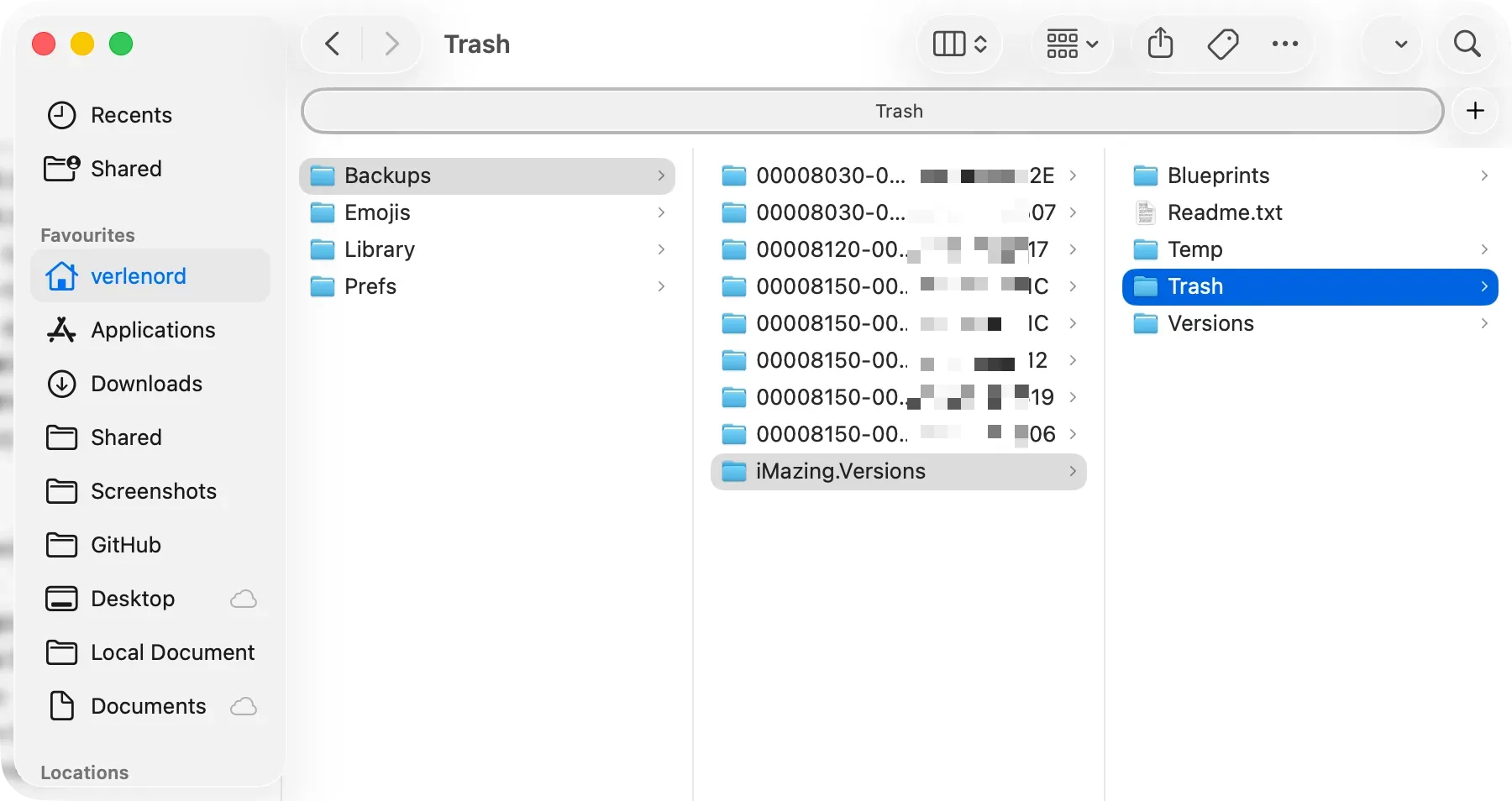
When you delete a backup or snapshot in iMazing, the data moves to Trash/ rather than being deleted immediately. Removing a snapshot can involve unlinking thousands of files, which takes time. By deferring this work, iMazing returns control to you without delay.
iMazing empties Trash/ progressively in a background task. You do not need to take any action. If you quit iMazing while it is still emptying Trash/, the task stops and resumes in the background the next time you launch iMazing, until the folder is cleared.
Important: Until
Trash/is fully emptied, the deletions still in progress can slow other backup operations that use the same backup location. This is most noticeable on a NAS, where iMazing removes each file individually and a single iOS backup can contain 20,000 to 100,000 files.
Note: In some cases, files in
Trash/are locked and iMazing may only be able to remove them after you quit and relaunch the app.
If disk space is critical, delete the contents of Trash/ manually in Finder (macOS) or File Explorer (Windows). Emptying Trash/ while iMazing is running is safe. This is the only folder inside iMazing.Versions that is safe to empty manually.
Warning: Do not modify, move, or delete these folders, as this could corrupt your backups. Always delete snapshots or entire backups using iMazing.
If you want to move a backup with its snapshots, refer to this guide: Move an iPhone or iPad backup to another location
Delete snapshots in iMazing
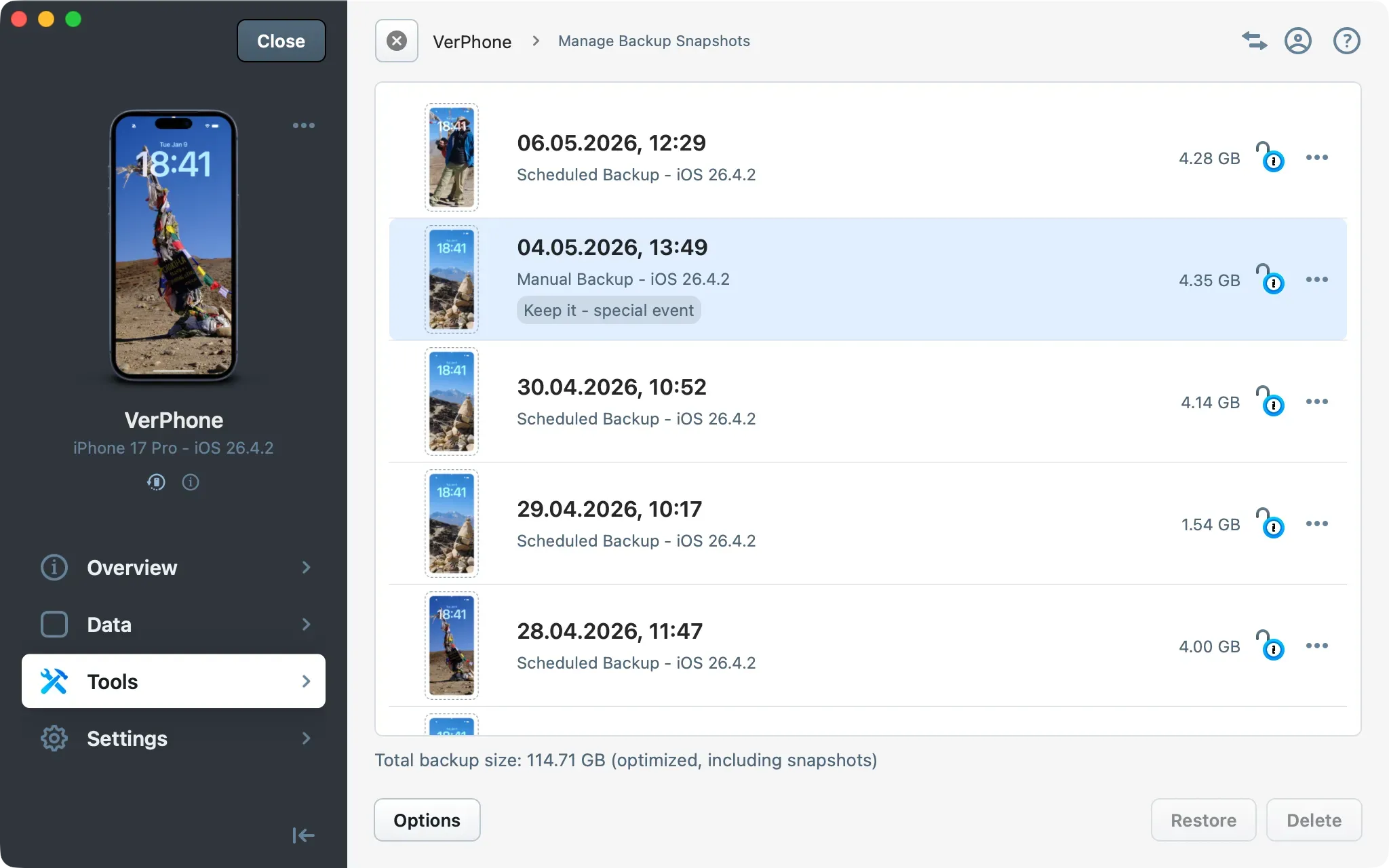
To remove backup snapshots, use iMazing's Manage Backup Snapshots tool. Do not delete snapshot folders in Finder or File Explorer.
Important: Do not modify, move, or delete
Blueprints/,Temp/,Versions/, or any snapshot folder. Altering those folders outside of iMazing will corrupt your backup history.
To delete snapshots through iMazing:
- Select your device in the Devices section of the Home Screen.
- Select Tools in the device sidebar.
- Under Backup, select Manage Backup Snapshots.
- Select the snapshots you want to remove, then confirm deletion.
What to keep in mind
- iMazing creates one
iMazing.Versionsfolder at the root of each backup location configured in iMazing, including external drives and secondary backup locations. It is shared across all devices backed up to that location. - Snapshot folders use hard links and consume far less disk space than their apparent size in Finder or File Explorer.
- iMazing Mini, when running automatic backups, also creates and manages snapshots in this same folder structure.
- Only iMazing can safely copy, move, or restore backups stored in
iMazing.Versions. Do not copy or sync this folder with third-party tools. - iMazing deletes the contents of
Trash/progressively. If disk space is critical, delete the contents ofTrash/manually in Finder (macOS) or File Explorer (Windows).