


Backup an iPhone, iPad, or iPod touch to your Mac or PC computer
A backup is a snapshot of the current state of your iPhone, iPad, or iPod touch. When you back up your device, your data is safe.
With a backup, you can:
- Restore your device to the state it was in when that backup was made.
- Transfer your data to a new device.
- View the backup's content (in iMazing).
iTunes only keeps one current backup per device. Every time you back up your device, your last backup is overwritten, potentially resulting in data loss.
iMazing archives your backups automatically, a unique solution that is comparable to a Time Machine for your device. Disk usage is optimized so that you can easily keep dozens of backups.
iCloud | iTunes | iMazing |
|---|---|---|
Only one backup per device | Only one backup per device | Unlimited backups per device(Time Machine like) |
You don't know when the backup is done | You know when the backup is done | You know when the backup is done |
Cannot browse backup content | Cannot browse backup content | Fully fledged backup browser and editor |
Cloud storage | Local storage in default drive only | Local storage in any user defined location (external drive or NAS included) |
Storage costs after 5GB | No storage costs | No storage costs |
Here's how to Back up an iPhone, iPad, or iPod touch to your Mac or PC computer:
Before you begin
Always make sure you are running the latest iMazing version, to do so select Check for Updates from the iMazing menu, or just download the latest available version for your computer below.
Download and install iMazing
Back up your iPhone, iPad or iPod touch
- Launch iMazing and connect your device.
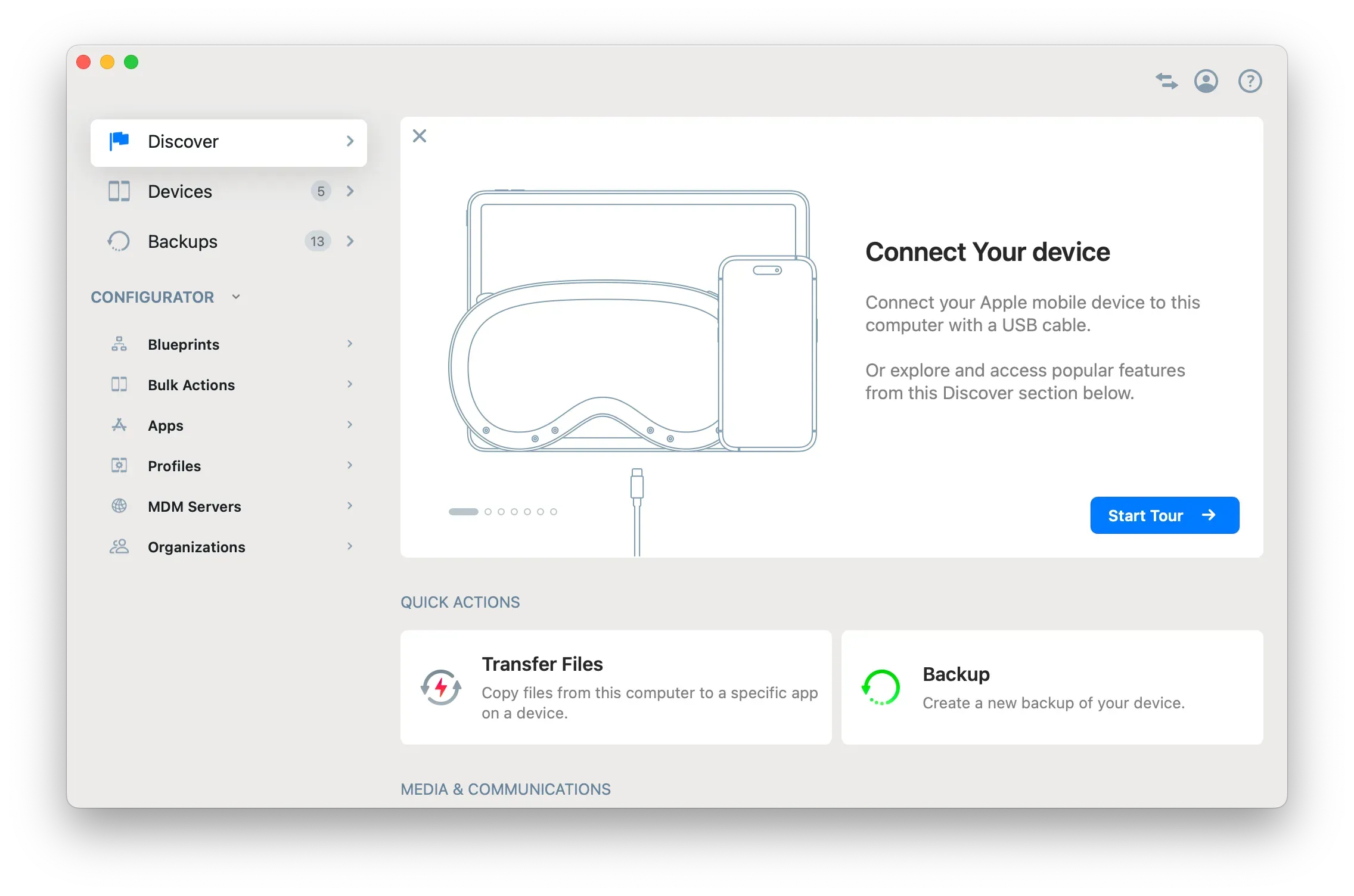
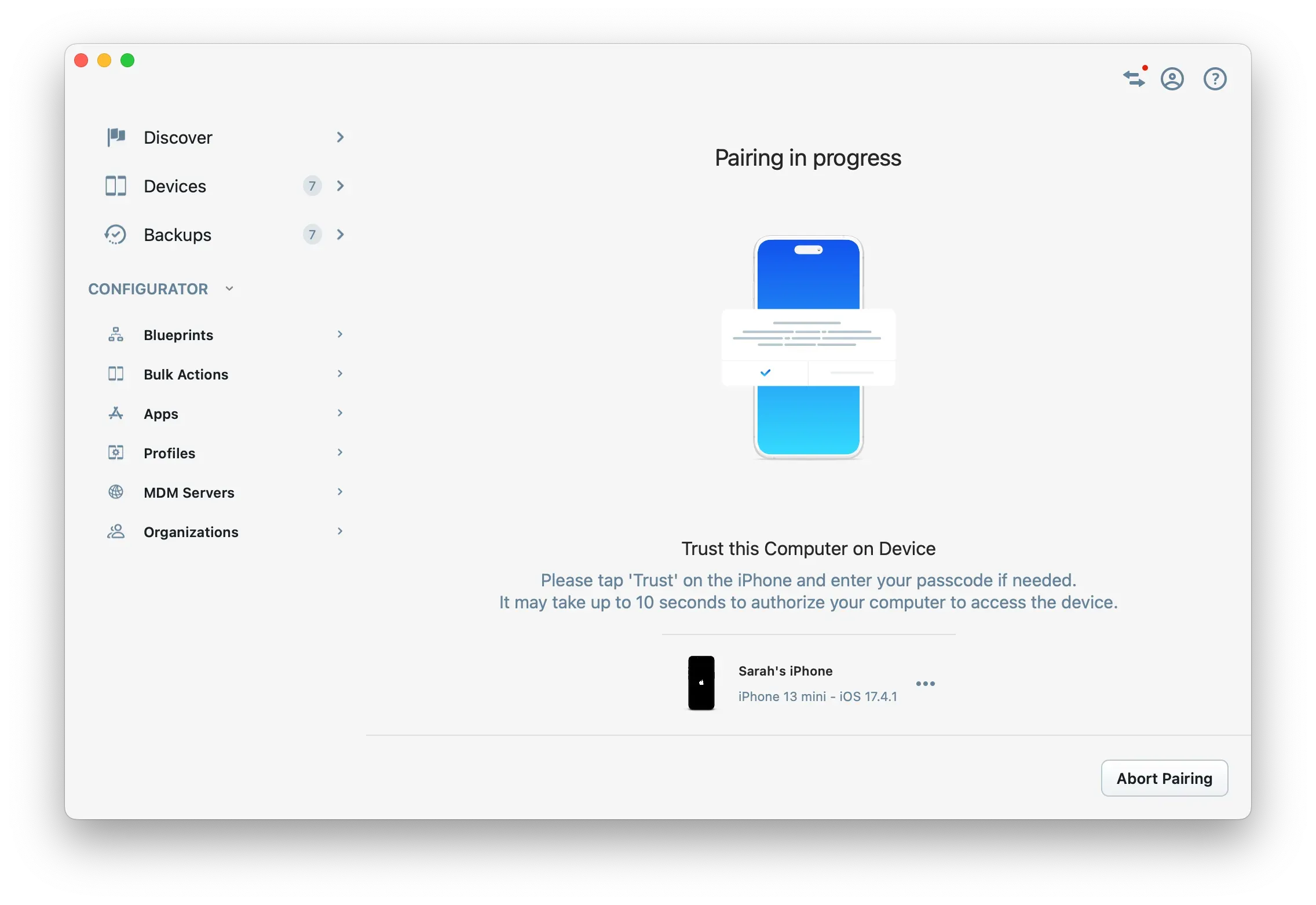
- If this is your first time connecting your device, you will need to pair it to your computer.
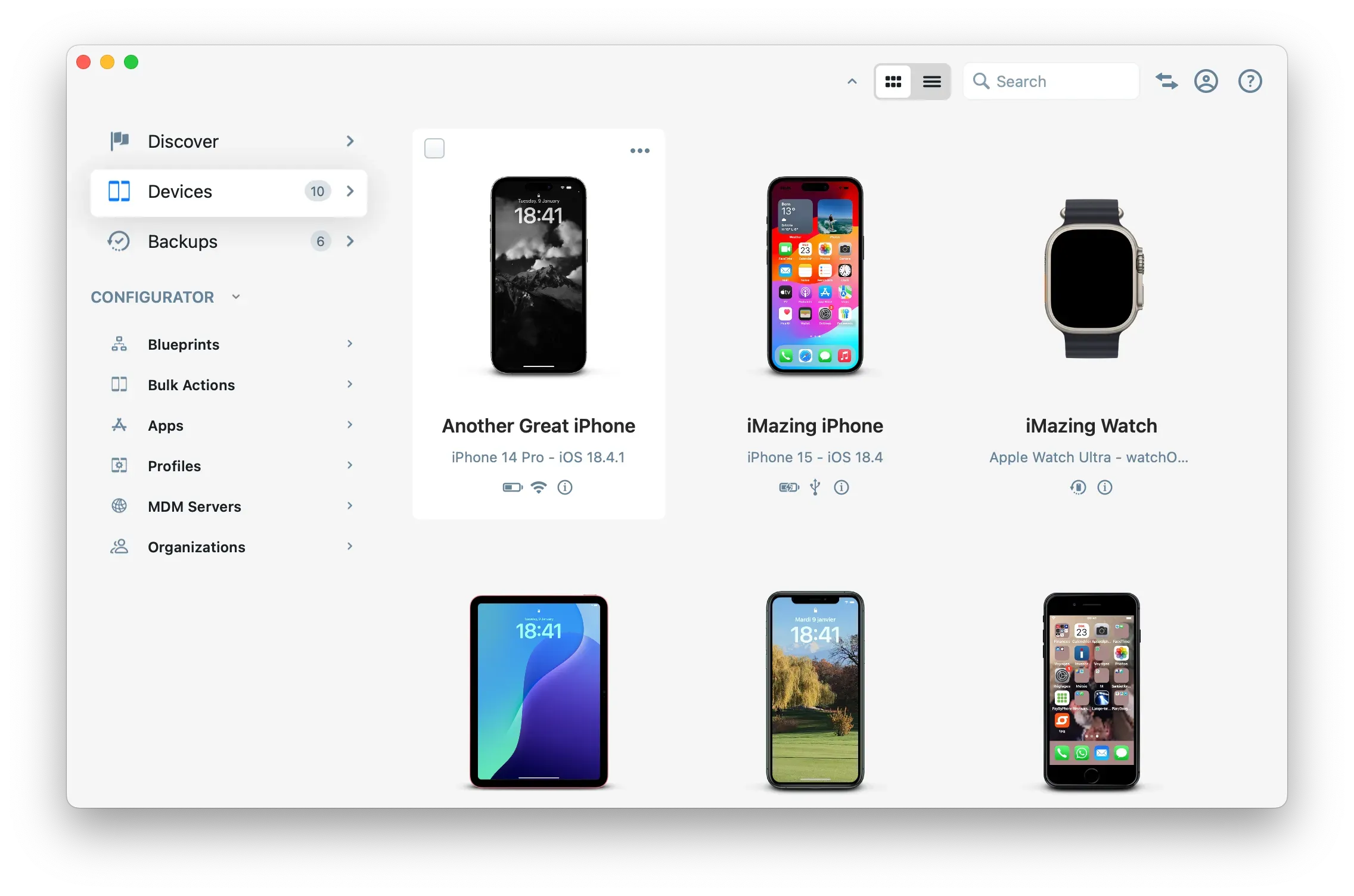
- Click on Devices list on the left sidebar to reveal your connected device(s). Select your device from the list.
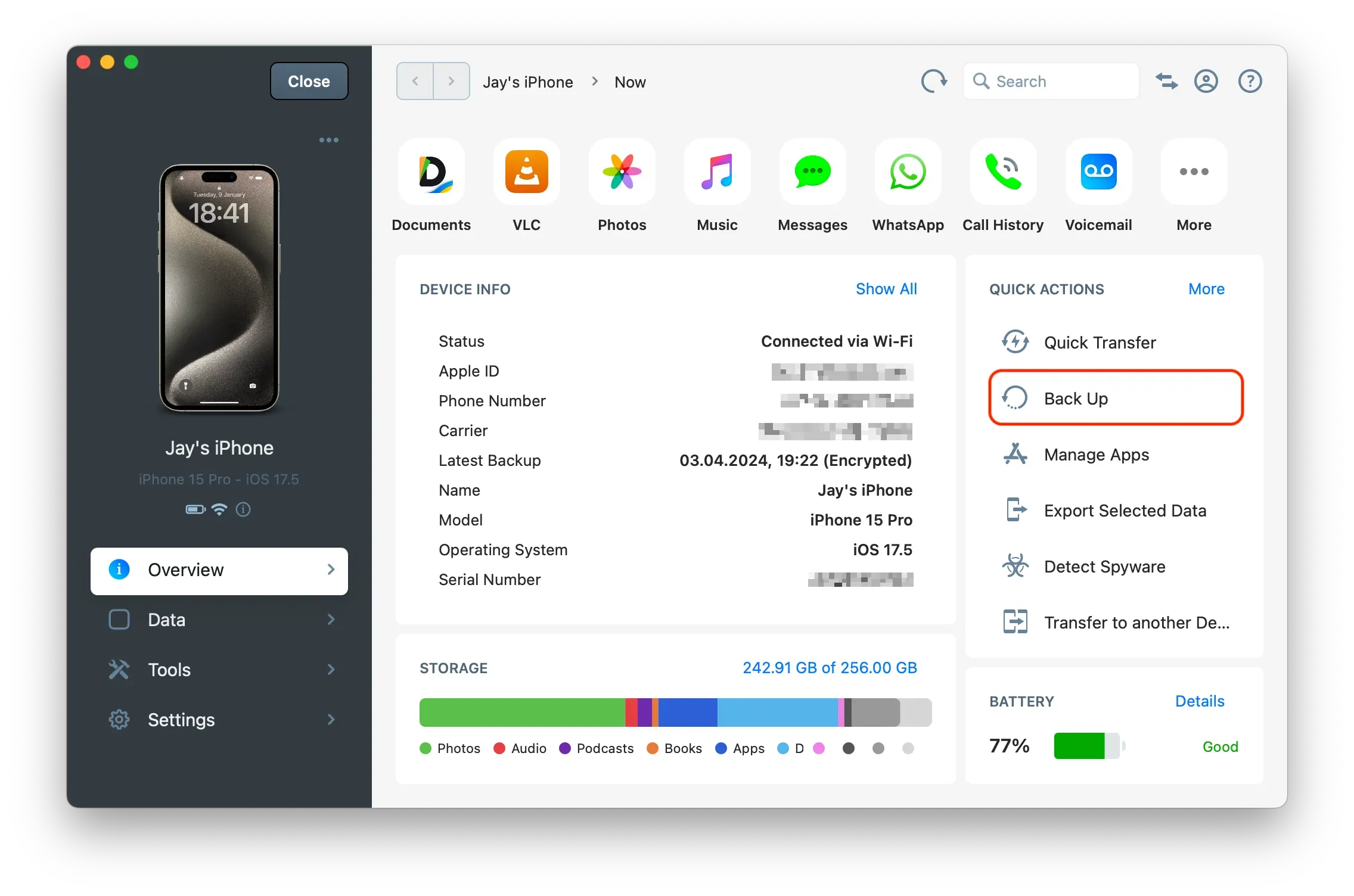
- From the device's overview screen, select Back up.
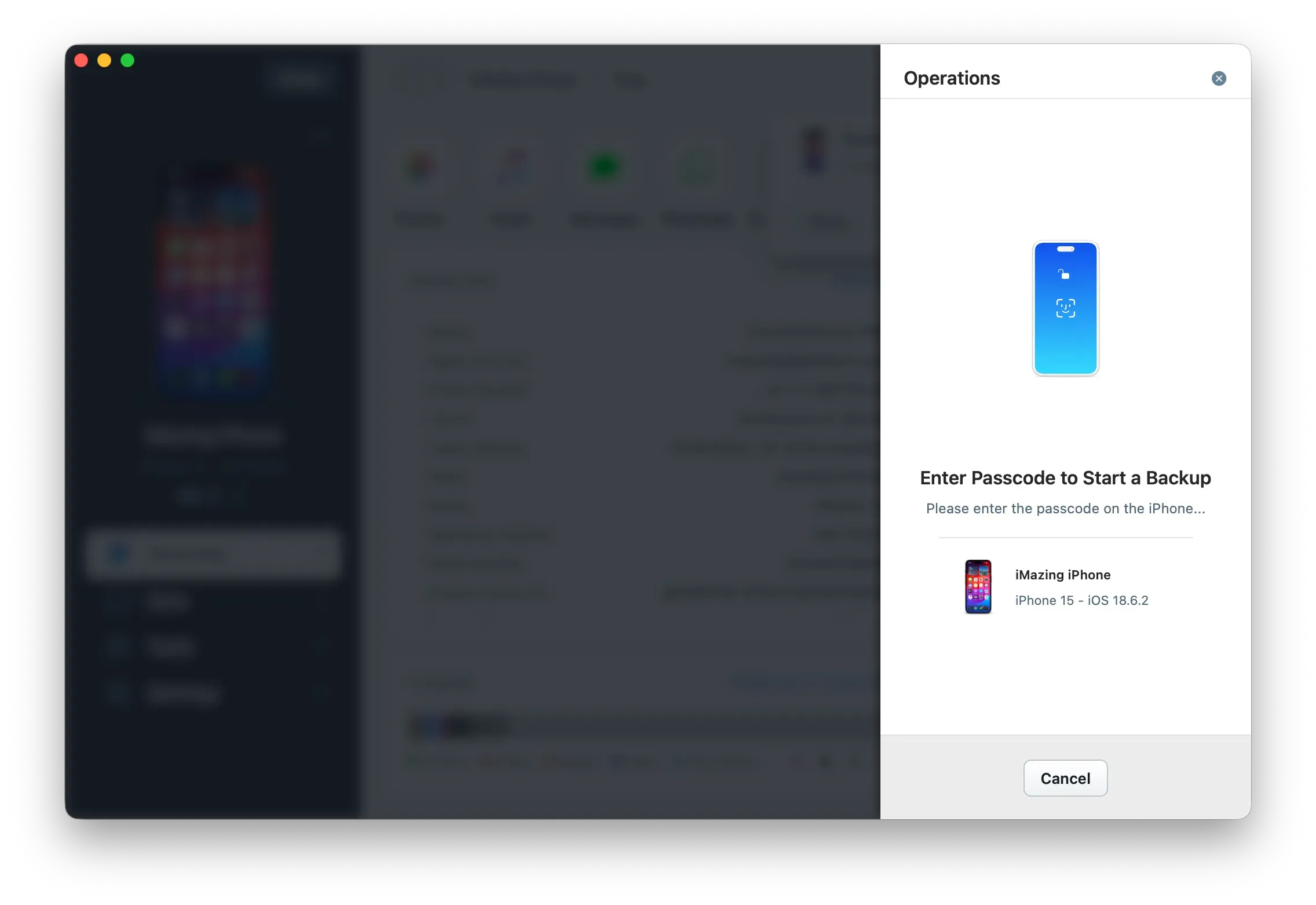
- You will be prompted to enter your device passcode to initiate a backup, enter it on the device as requested.
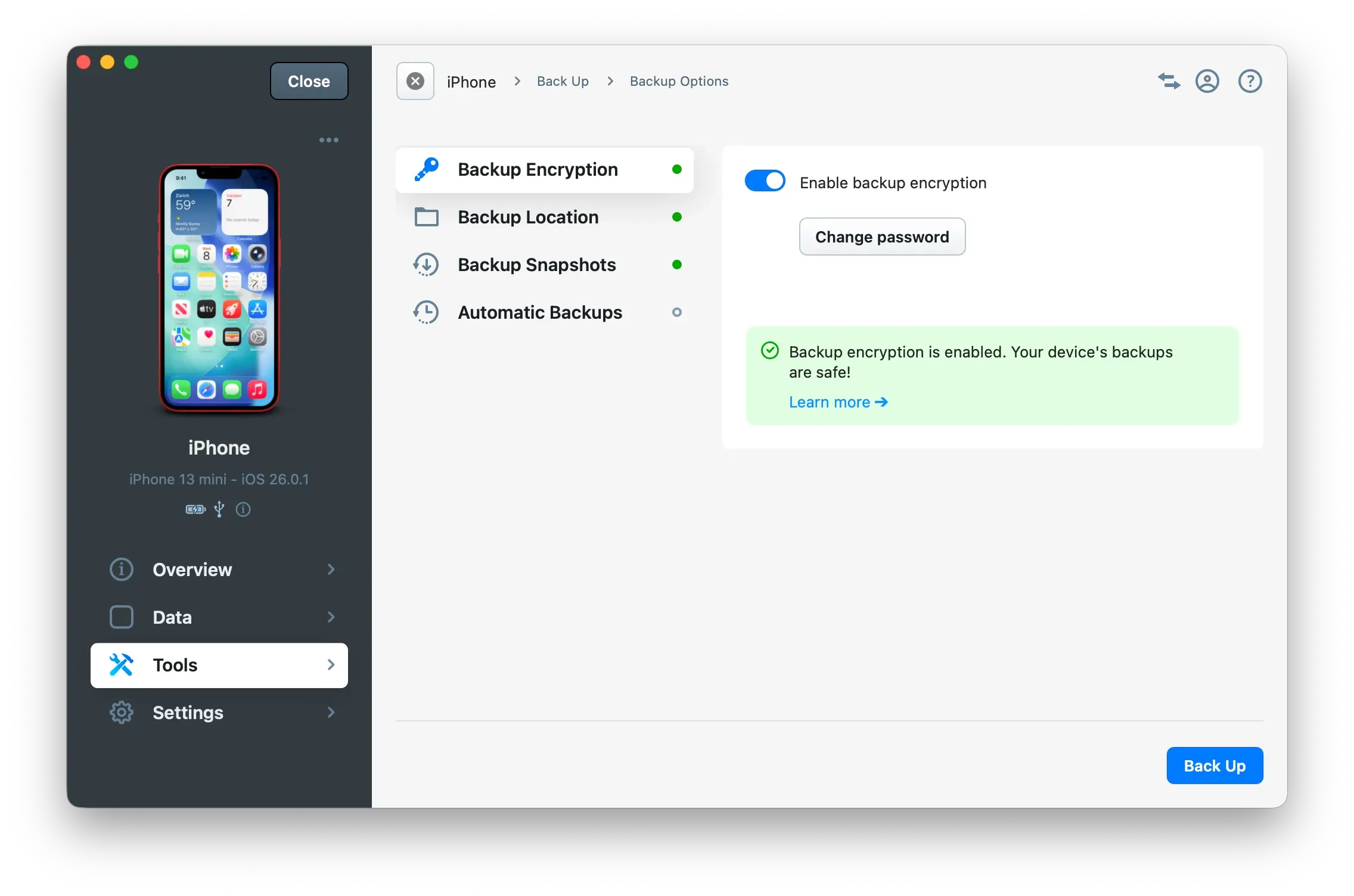
- Carefully review backup options and click the Back Up button.
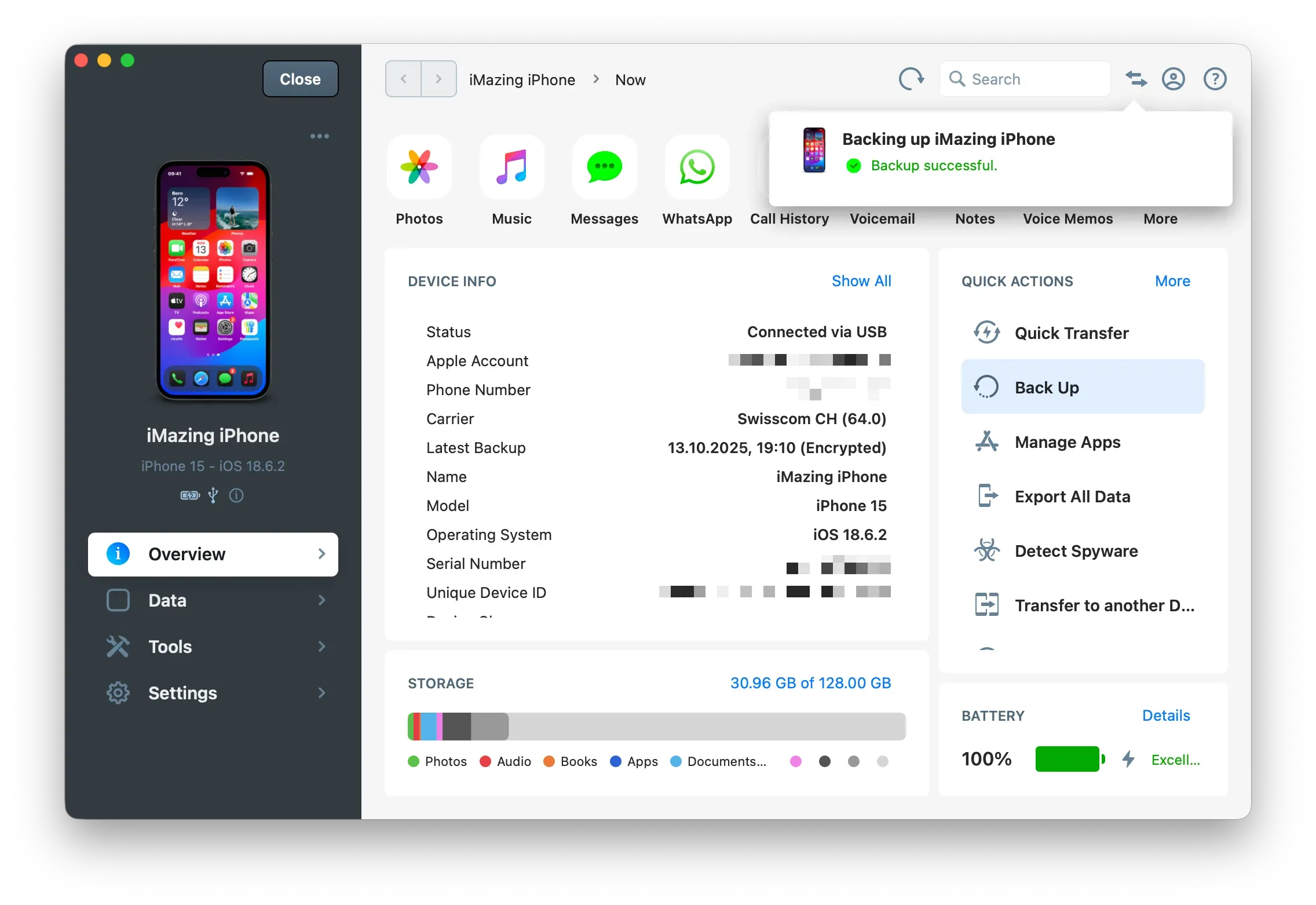
- You will see a notification once the backup is completed successfully.
Tip: You can check the status of your operations by clicking the Operations button (two arrows), top left of the screen.
Backup Options
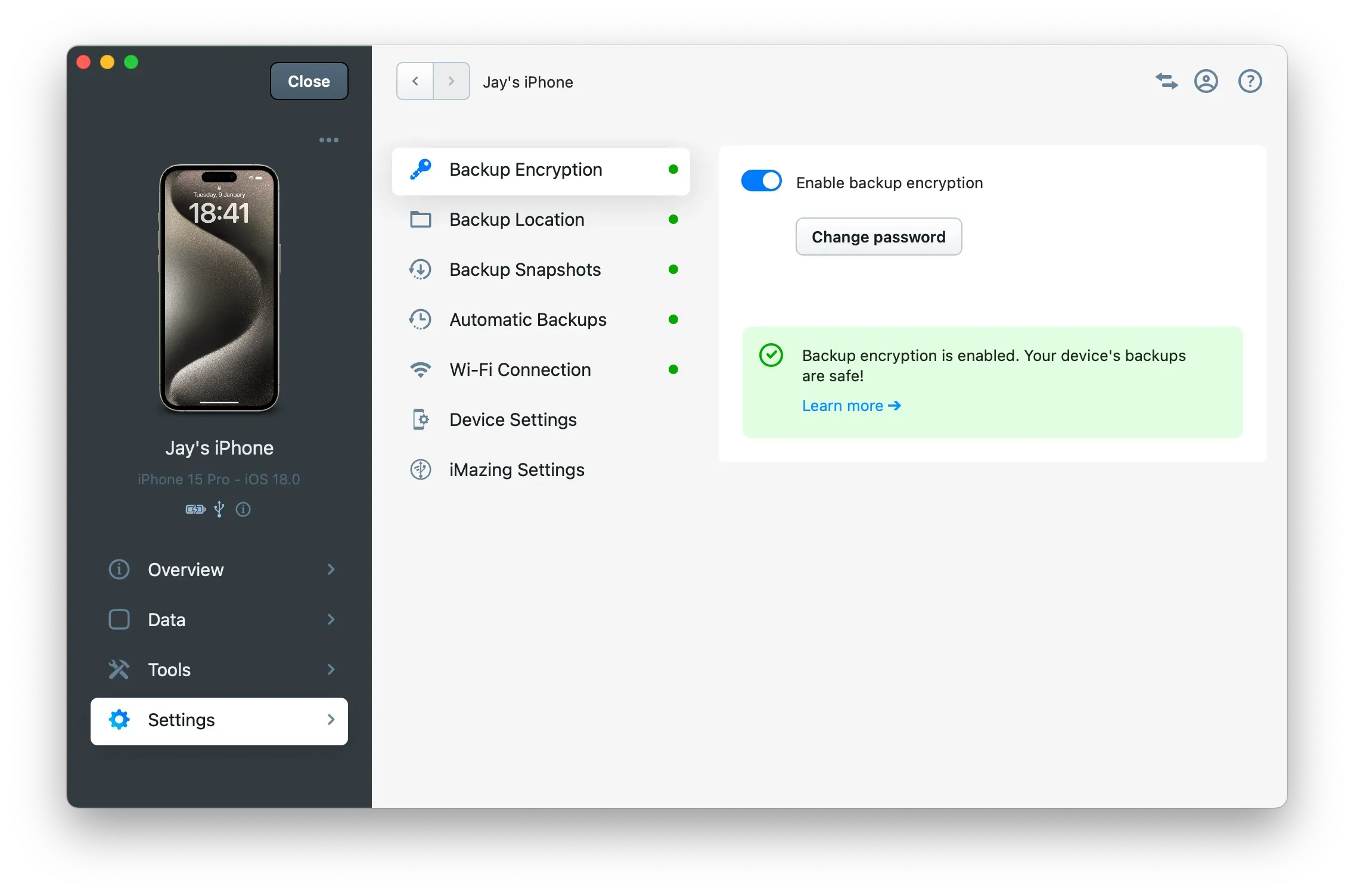
The Backup Options for the device can be accessed anytime by clicking on Settings in the left sidebar. They allow access to the following backup options:
- Configure Automatic Backups Scheduling
- Change Backup Location
- Change Backup Archiving Options
- Enable or disable Backup Encryption
For a more detailed break down of backup options, see Backup Options in iMazing.
Snapshot List
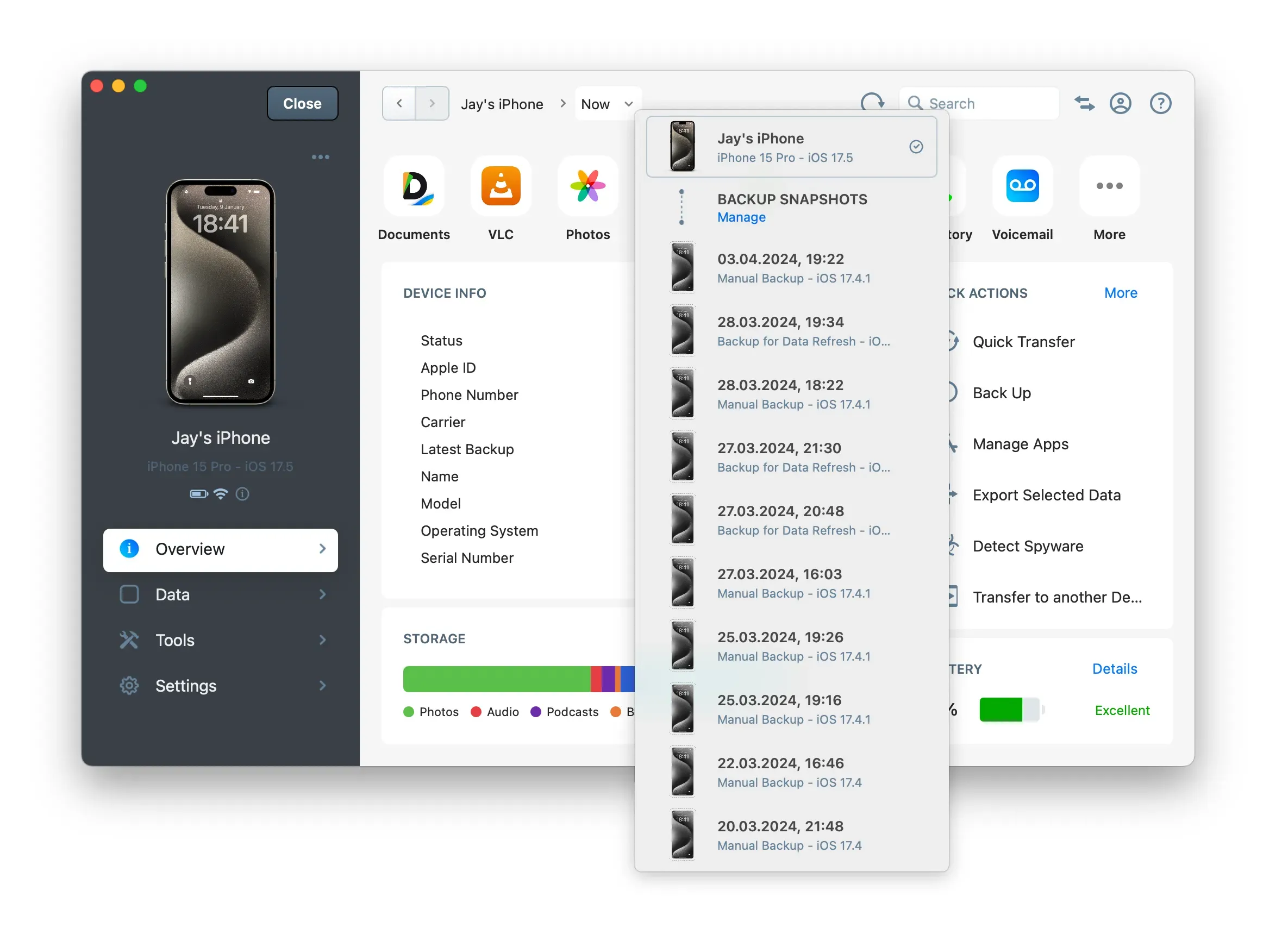
All past snapshots of your backup are accessible from the Snapshot List. To access the list, click on "Now" right next to your device's name in the upper toolbar. Learn more about iMazing's Backup Snapshot List.
What to keep in mind
- If you enable backup encryption, all further backups, whether they are made with iTunes or iMazing, will be encrypted. Forgetting your encryption password will cause major hassles. Be cautious when activating encryption and make sure to check Remember Password!
- Backups do not include your iTunes Media Library (Music, Books, iTunes U, Podcasts, Ringtones and Movies synced or purchased on iTunes), so that data will not be included and should be synced separately if needed. These data is usually already synced via iTunes, Apple Music or iCloud Music Library. Have a look to our Music section to transfer these data to your computer.
Going further
- Everything you need to know about iOS/iPadOS backups and how to manage them with iMazing
- Automatically Backup an iPhone or iPad via Wi-Fi
- Back up to an external drive.
- Understanding & fixing slow iPhone or iPad backups
- Learn what is included in an iOS backup.
- View the contents of a backup.
- Extract files and data from a backup.