


iMazing for Repair Shops: The Complete Guide
Repair shops handle customer devices daily: data extraction before a repair, backup and restore, data transfer from one phone to another, battery diagnostics, and device preparation for resale. iMazing covers these workflows from a single application on macOS and Windows.
Every repair technician has encountered these situations:
- My iPhone broke and I need to recover the data
- My iPhone is stuck on the Apple logo and I don't have a backup
- I bought a 256GB iPhone but I previously had a 512GB and I can't restore my backup
- I have a backup, but I can't restore it because I'm getting a cryptic error message
iMazing runs entirely locally. No customer data is sent to external servers at any point. Backups, exports, and diagnostics stay on your Mac or PC, giving you full control over your customers' data throughout the repair process.
Processing a large number of customer devices? Our business plans can be tailored to your repair shop’s workflow and device volume. Contact our business team to find the right plan for your needs.
- Recover data from a damaged device
- Reinstall OS to recover from boot loops
- Back up and restore a customer's device
- Selectively restore specific data
- Export media libraries
- Export all data at once
- Diagnose battery health
- Erase a device for resale or refurbishment
- Detect spyware before returning a device
- Streamline device refurbishment with Configurator
- Automate workflows with iMazing CLI
- Troubleshoot backup and restore failures
- Hand off the backup and recommend automatic backups
- What to keep in mind
Before you begin
Customer requirements:
- The customer must provide their device passcode. Without it, iMazing cannot pair with the device or access any data.
- If device backup encryption has been previously enabled by the customer, they must provide the encryption password. iMazing can create the backup without it, but cannot read or export data from it.
Notes:
- Some data types (Photos, Music) are accessible directly from a connected device. Others (Messages, WhatsApp, Contacts, etc.) require a backup first. See Data Access Only vs. Full Backup in iMazing for a full breakdown. If the device is too damaged to interact with the screen, a temporary hardware repair is needed before data extraction. See section 1.
- We strongly advise enabling backup encryption. Without it, iMazing cannot back up Safari data (history and bookmarks), Health data, or Keychain items and passwords. See Backup Encryption in iMazing for details.
Recover data from a damaged device
When a device has a hardware issue that can be fixed, even temporarily (a broken screen, a faulty connector, a damaged battery), restoring basic functionality is often enough to extract the customer's data with iMazing.
- Repair the device sufficiently to establish a USB connection and unlock it with the customer's passcode.
- Connect the device to your Mac or PC via USB.
- Tap Trust on the device and enter the passcode again when prompted.
- Select the device from the Devices section on the Home Screen.
Extract media directly (no backup required):
Photos, music, books, audiobooks, podcasts, TV shows, and third-party app files (e.g. VLC) are accessible directly from the connected device without creating a backup. This is critical when the device is unstable (e.g., rebooting every few minutes after liquid damage). Select the dataset you need in the Data section and export. Even if the device reboots mid-process, reconnect and continue extracting.
Related guides:
- How To Transfer iPhone, iPad, or iPod photos to your Mac or PC computer
- How To Transfer music from an iPhone, iPad, or iPod to your Mac or PC
Extract messages, contacts, and other app data (backup required):
Messages, WhatsApp, Call History, Voicemail, Voice Memos, Notes, Contacts, Calendar, and Safari data all require iMazing to perform a backup before they become accessible. If the device is stable enough to stay connected for the duration of a backup:
- Click Tools in the sidebar.
- Under General, click Back Up.
- Once the backup completes, open it from the Backups section and browse or export the data the customer needs.
Related guides:
- How To Export iPhone Messages (SMS, RCS, iMessage)
- How To Export WhatsApp Chats and Attachments from iPhone
- How To Easily Export all iPhone Data to Mac or PC

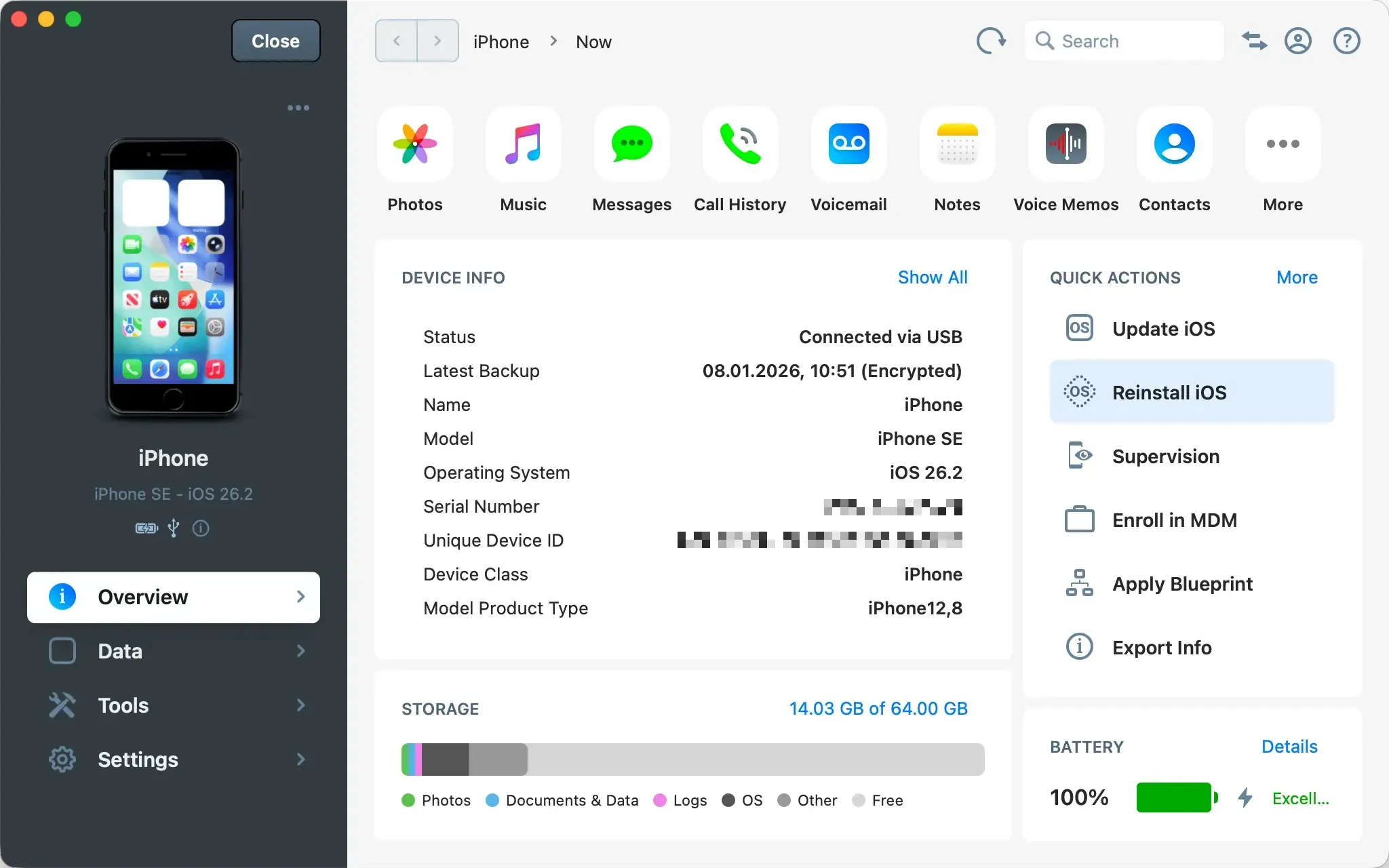
Reinstall OS to recover from boot loops
When a device is stuck in a boot loop or the OS is malfunctioning, a non-destructive OS reinstallation can recover it without erasing customer data. The feature is called Reinstall OS in iMazing (Restore OS in Finder, iTunes, and Apple Devices) and requires a USB cable (Wi-Fi is not sufficient).
A boot-looping device may not appear normally in iMazing. In that case, put the device into Recovery mode or DFU mode:
- Recovery mode loads a minimal version of the operating system to communicate with the computer. Try this first.
- DFU mode (Device Firmware Upgrade) bypasses the OS entirely and operates at the hardware level. Use it when the OS itself is corrupted and Recovery mode does not work.
Unlike Finder, iTunes, or Apple Devices, iMazing can reinstall the OS on a device in DFU mode without erasing its data.
- Connect the device via USB.
- Put the device into Recovery mode or DFU mode. See How To Put an iPhone or iPad into Recovery or DFU mode for instructions. Read instructions directly from Apple’s support documentation article.
- iMazing detects the device and displays a reinstallation prompt.
- Follow the on-screen prompts. iMazing downloads the appropriate OS version from Apple's servers and reinstalls it over the existing installation.
Important: If the non-destructive reinstall fails in DFU mode, the only remaining option is to erase the device entirely, which results in data loss.
Related guides:
- How To Reinstall or restore iOS on a malfunctioning iPhone or iPad
- Apple: If you can't update or restore your iPhone or iPod touch
Back up and restore a customer's device
Offering a backup before any intervention protects the customer's data and shields the shop from liability. If the repair requires an erase, or if the customer needs their data restored to a different device afterward, the backup is ready.
iMazing can store backups on an external drive or network location, so shops processing many devices daily can keep backups off the main workstation. See How to Back up an iPhone or iPad to an external drive, or network drive (NAS).
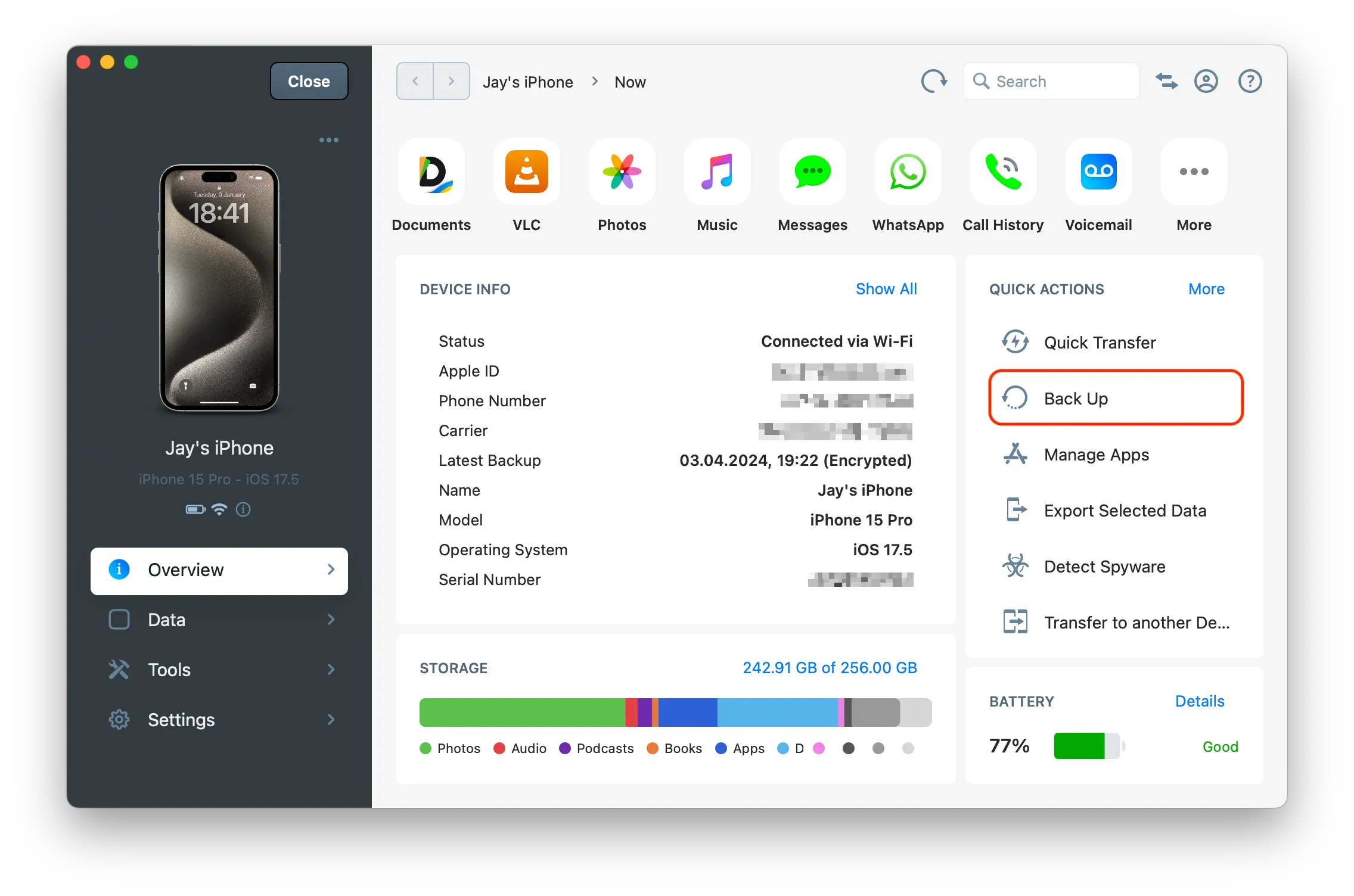
Back up before the repair
- Select the device from the Devices section on the Home Screen.
- From the device's Overview, click Back Up.
- Review the backup options and click Back Up.
- iMazing runs a full backup and stores a timestamped snapshot. The backup is available in the Backups section when complete.
Tip: If backup encryption is not already enabled, iMazing offers to turn it on when starting a backup. Encrypted backups include Health Data, Keychain, and Safari data, and are the only backups for which iMazing can produce a cryptographic integrity checksum. See Backup Encryption in iMazing for details.
Related guides:
- How To Backup an iPhone, iPad, or iPod touch to your Mac or PC
- What data is included in an iPhone or iPad backup?
Restore after the repair
Restore from the backup created in section 3.1.
- Select the device from the Devices section on the Home Screen.
- Click Tools in the sidebar.
- Under General, click Restore a Backup.
- Select the backup snapshot to restore from.
- Follow the on-screen prompts to complete the restore.
Note: When a customer changes device, Transfer to Another Device (under General in the Tools section) performs a backup and restore in a single guided operation. Configure the initial settings, and iMazing handles the rest. For most same-ecosystem transfers, Apple's built-in OTA migration covers the majority of cases. Use iMazing's transfer tool when the OTA workflow is unavailable or when the source device cannot be activated.
Related guides:
- How To Restore an iPhone, iPad or iPod touch from a local backup
- How To Transfer data from your old iPhone or iPad to a new one

Selectively restore specific data
Some repair scenarios require restoring only part of a backup, not the full device state. iMazing supports dataset-level restore, which covers three common cases in a repair context.
For details on selectively restoring specific datasets, see How To Restore an iPhone, iPad or iPod touch from a local backup.
Reduced storage (e.g., 512GB to 256GB)
When a customer moves to a device with less storage, a full restore will fail if the backup exceeds the new device's capacity. The usual culprits are the photo library and large third-party apps (games, video editors, etc.).
- Back up the source device in iMazing (see section 3.1).
- Confirm with the customer that iCloud Photos is enabled on the source device and that iCloud storage is not full. When both conditions are met, the full photo library is in iCloud and will re-sync on the new device after setup. The local backup may still contain photos depending on the Optimize iPhone Storage setting and available device storage, but they can be safely excluded from the restore.
- Select the target device from the Devices section.
- Click Tools > Restore a Backup.
- Click Customize next to Data, then deselect Photos if iCloud Photos was active on the source device.
- Complete the restore. After setup, the customer re-enables iCloud Photos on the new device and the library re-downloads.
Important: This workflow depends on iCloud Photos being active with sufficient iCloud storage. If iCloud Photos is not enabled, or if iCloud storage is full, excluded photos will not appear on the new device after setup. They remain in the backup and can be extracted separately with iMazing.
Tip: If photos have been offloaded from the device to iCloud, iMazing can authenticate with the customer's Apple Account to download them directly. See How to manage and transfer photos for details.

Restore app data when the original Apple Account is no longer accessible
A customer may have an app installed under an Apple Account they can no longer access, for example one that belongs to a friend or family member. That app cannot be updated or reinstalled under the current Apple Account. The only way forward is to delete the app and re-download it with the correct Apple Account. If the app data is not extracted before deletion, it is permanently lost.
iMazing can extract the app data before the customer deletes the app, so it can be restored after reinstallation. WhatsApp conversation history is the most common case, but the workflow applies to any app that stores data locally.
Important: iMazing displays an "App Extraction" dialog warning that some applications store data in locations iMazing cannot access, which may result in an incomplete restore. Have the customer verify the restore before deleting the source data.
- Select the device or a backup from the Devices or Backups section.
- Select Apps.
- Select WhatsApp (or the app you need to extract data from).
- Click Copy to Device in the toolbar.
- If working from a live device, iMazing prompts you to create a backup first. Click Extract from Current Backup to use an existing backup, or Back Up Now to create a fresh one.
For the full WhatsApp transfer workflow, see How To Transfer WhatsApp from one iPhone to another.
iCloud restore failure: local alternative
When an iCloud restore stalls, fails, or is unavailable (no Wi-Fi, account issues, server errors), create a local backup with iMazing and restore from it instead.
- Connect the source device (the one with the customer's data).
- Back up the source device with iMazing (see section 3.1).
- Connect the target device.
- Restore from the iMazing backup (see section 3.2).
Export media libraries
Customers sometimes need their media delivered as individual files rather than restored to a device: photos, videos, music, books, audiobooks, podcasts, ringtones, and voice memos. The export steps are the same as described in section 1, but applied to a fully functional device or an existing backup.
Related guides:
- How To Manage and Transfer iPhone or iPad Photos and Videos with iMazing
- How To Transfer music from an iPhone, iPad, or iPod to your Mac or PC
- How To Manage Books and ePub books
- How To Transfer podcasts between iPhone, iPad, or iPod and Mac or PC
- How To Add ringtones to iPhone
- How To Transfer iPhone voice memos to your Mac or PC
Note: iMazing exports music tracks that are stored locally on the device. Tracks streamed from Apple Music or other services are not available for export.
Export all data at once
When a customer wants their entire dataset delivered as files on a drive rather than restored to a device, Export All Data extracts everything in one operation, parsed into human-readable folders (photos, messages, call history, contacts, notes, Safari data, app data, and more).
- Select the device or a backup from the Devices or Backups section on the Home Screen.
- Click Tools in the sidebar.
- Under General, click Export All Data.
- Select the data types to include and choose a destination folder.
- iMazing exports each category into its own folder in the chosen format (PDF, Excel, CSV, and original media formats).
Tip: Point the export at the customer's external drive to hand off everything in a single pass.
For the complete workflow, see How To Easily Export all iPhone Data to Mac or PC.
Diagnose battery health
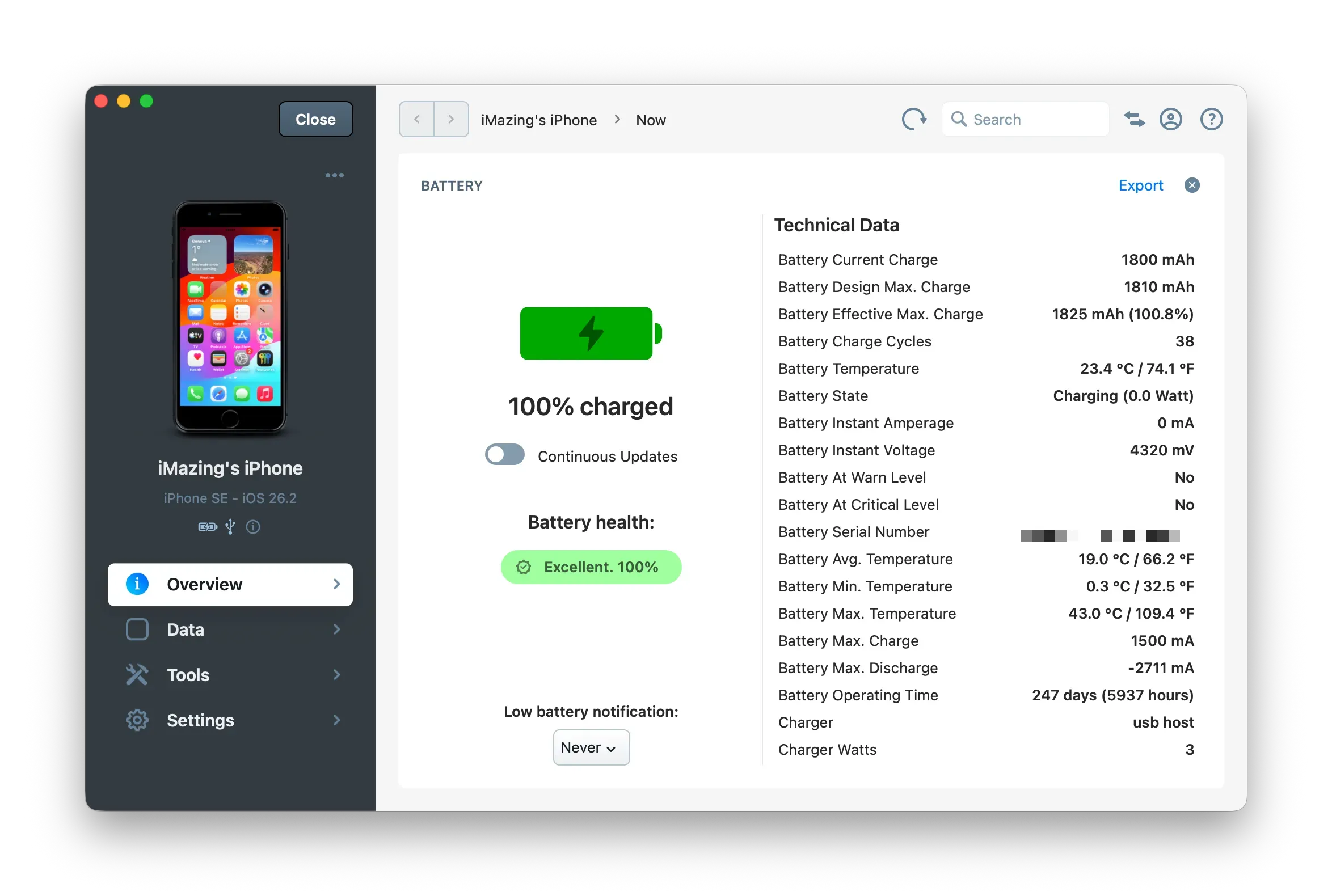
iMazing reads battery diagnostics directly from the device and produces an exportable report. Use it to inform the customer before and after a battery replacement.
- Select the device from the Devices section on the Home Screen.
- In the Overview section, locate Battery Health and click Details.
- Review the metrics: battery health percentage, design capacity vs. effective maximum capacity, cycle count, and charge status.
- To export the full battery diagnostic report, click Tools in the sidebar.
- Under Advanced, click Export Battery Diagnostic.
- Choose a destination folder. The report saves as a
.txtfile.
Note: Battery health percentage in iMazing reflects the same metric shown in iOS Settings. The detailed view adds cycle count and raw capacity figures not visible in iOS Settings.
For the complete battery diagnostics guide, see How To Check an iPhone or iPad's battery health and diagnostics.
Erase a device for resale or refurbishment
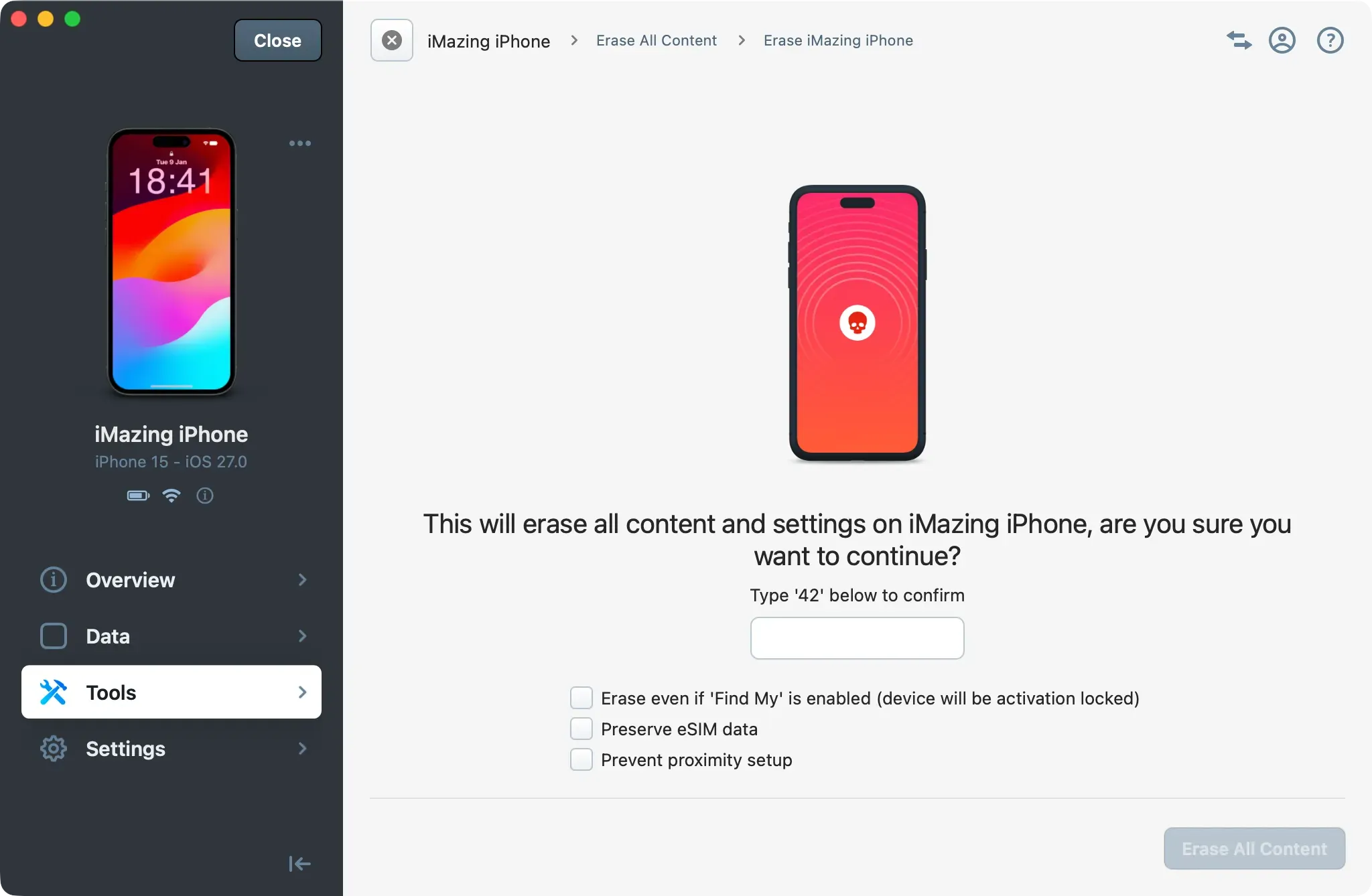
Before a device leaves the shop for resale or transfer to a new owner, erase all content and settings.
Important: If Find My is enabled on the device, the customer must disable it before erasure. Otherwise, the device remains locked to their Apple Account after the wipe (Activation Lock). iMazing detects this and prompts the user to disable Find My during the erase workflow.
- Select the device from the Devices section on the Home Screen.
- Click Tools in the sidebar.
- Scroll to Other and click Erase All Content.
- Confirm the operation. The device restarts and returns to the Setup Assistant.
- To install the latest OS version, click Tools > Operating System > Restore OS.
Important: Erasure is irreversible. Confirm a backup exists before proceeding if the customer's data may be needed.
Note: For bulk erasure as part of a refurbishment workflow, consider using iMazing Configurator blueprints (see section 10), which consolidate erase and OS update into a single operation.
For a complete checklist before resale (Find My, sign out, erase), see How To Safely wipe your iPhone or iPad before trading it in or reselling it.
Detect spyware before returning a device
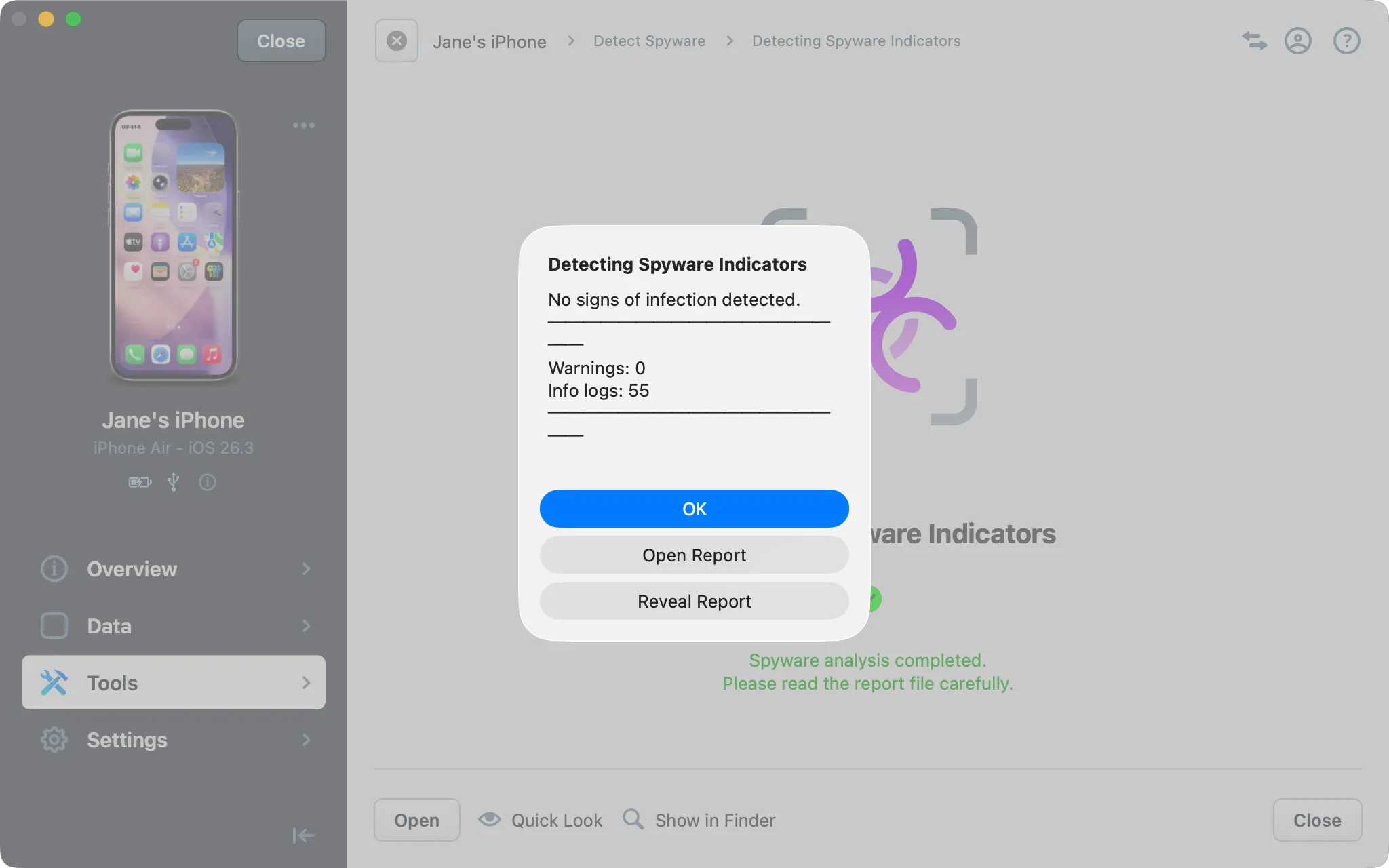
Run a spyware check before returning any device to a customer. This is a fast, non-invasive scan that flags known stalkerware and monitoring profiles.
The scan analyzes a backup, not the live device directly. If the device is connected but no backup exists yet, iMazing creates one automatically before running the analysis.
- Select the device or an existing backup from the Devices or Backups section on the Home Screen.
- Click Tools in the sidebar.
- Under General, click Detect Spyware.
- If no backup is available, iMazing prompts you to create one. Follow the on-screen steps to proceed.
- iMazing analyzes the backup and displays a report.
If the scan identifies suspicious profiles or applications, export the report before removing them. Include it in the customer's return documentation.
For the full spyware detection guide, see How To Detect Pegasus and Other Spyware on iPhone and iPad.
Streamline device refurbishment with Configurator
For shops processing multiple devices, iMazing Configurator automates the refurbishment workflow through blueprints, applied individually or in bulk. Blueprint creation and editing require macOS. Applying blueprints to devices works on both macOS and Windows.
A blueprint defines a complete sequence: pre-checks, erase, OS update, app installation, profiles, and post-configuration actions. iMazing skips steps already in the desired state. For example, it will not reinstall an OS version already present on the device.
Note: iMazing Configurator requires an iMazing Business Subscription. Processing a large number of customer devices? Our business plans can be tailored to your repair shop’s workflow and device volume. Contact our business team for more information.
Related guides:
Set up a refurbishment blueprint
A ready-made Device Refurbishment blueprint is available for download. The file is password-protected: enter 1234 when prompted. Import it and adjust the actions to your workflow, or build your own with the steps below.
- Open iMazing on macOS and select the Configurator tab from the Home Screen.
- Click New Blueprint.
- In the Pre-Configuration Actions section, add:
- Fail if battery health is poor: set a threshold (e.g., 80%). Devices below this threshold stop the workflow and display an "Unhealthy Battery" error, flagging them for battery replacement before further processing.
- Erase all data and settings: wipes the device.
- Update OS: installs the latest available iOS version.
- Restore OS: reinstall the OS and wipes the device.
- In the Post-Configuration Actions section, add:
- Wait for full battery charge: holds the workflow until the device is fully charged before completing.
- Shutdown device: powers the device off.
- Unpair device when done: removes the pairing link between the device and your computer.
- Save the blueprint.
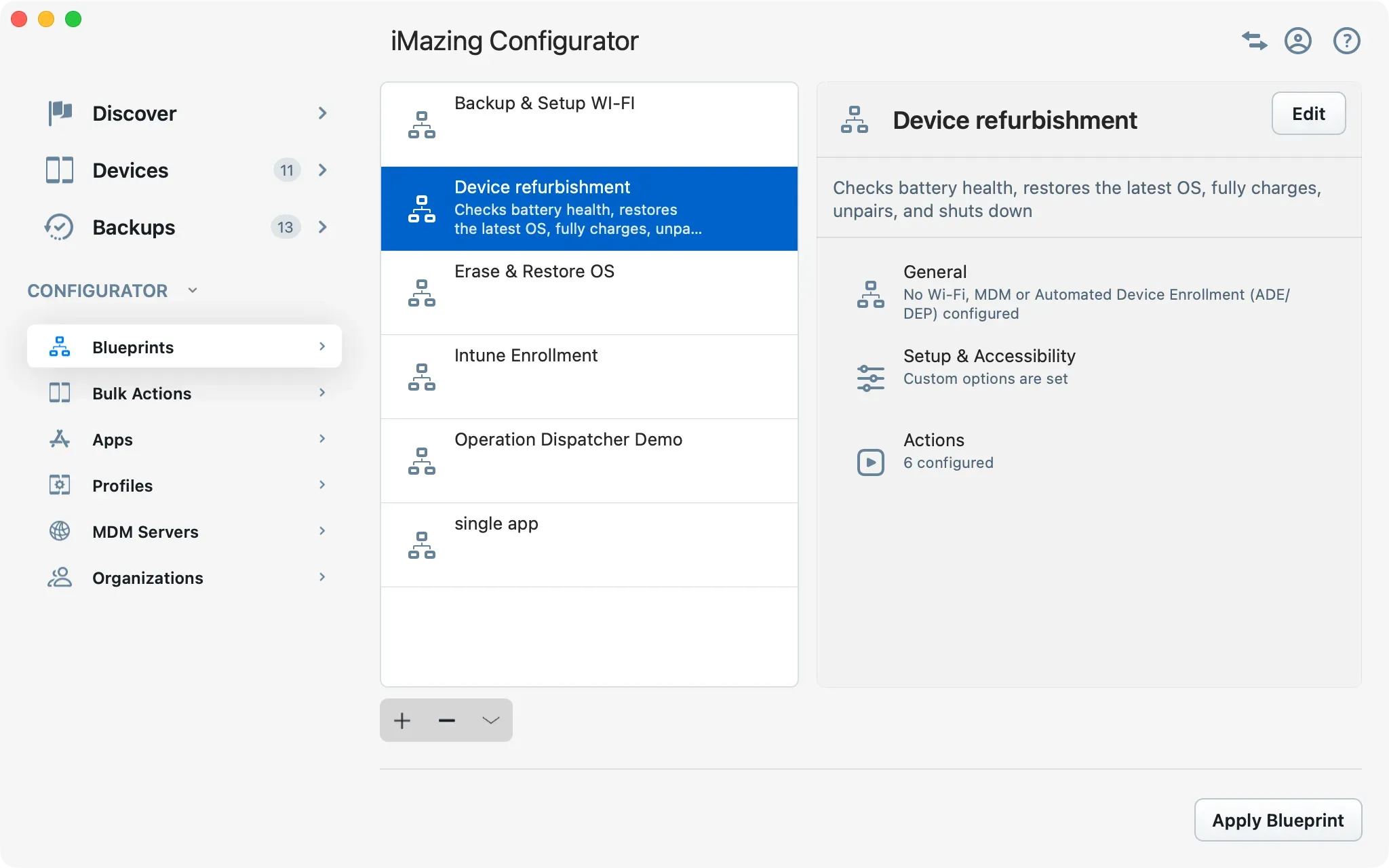
Note: When both Erase all data and settings and Update OS are included, iMazing consolidates them into a single OS restore operation. This reduces total processing time compared to running them sequentially.
For the full list of available blueprint actions and options, see iMazing Configurator: Blueprints Deep Dive.
Apply the blueprint
- Connect one or more devices to your Mac or PC via USB.
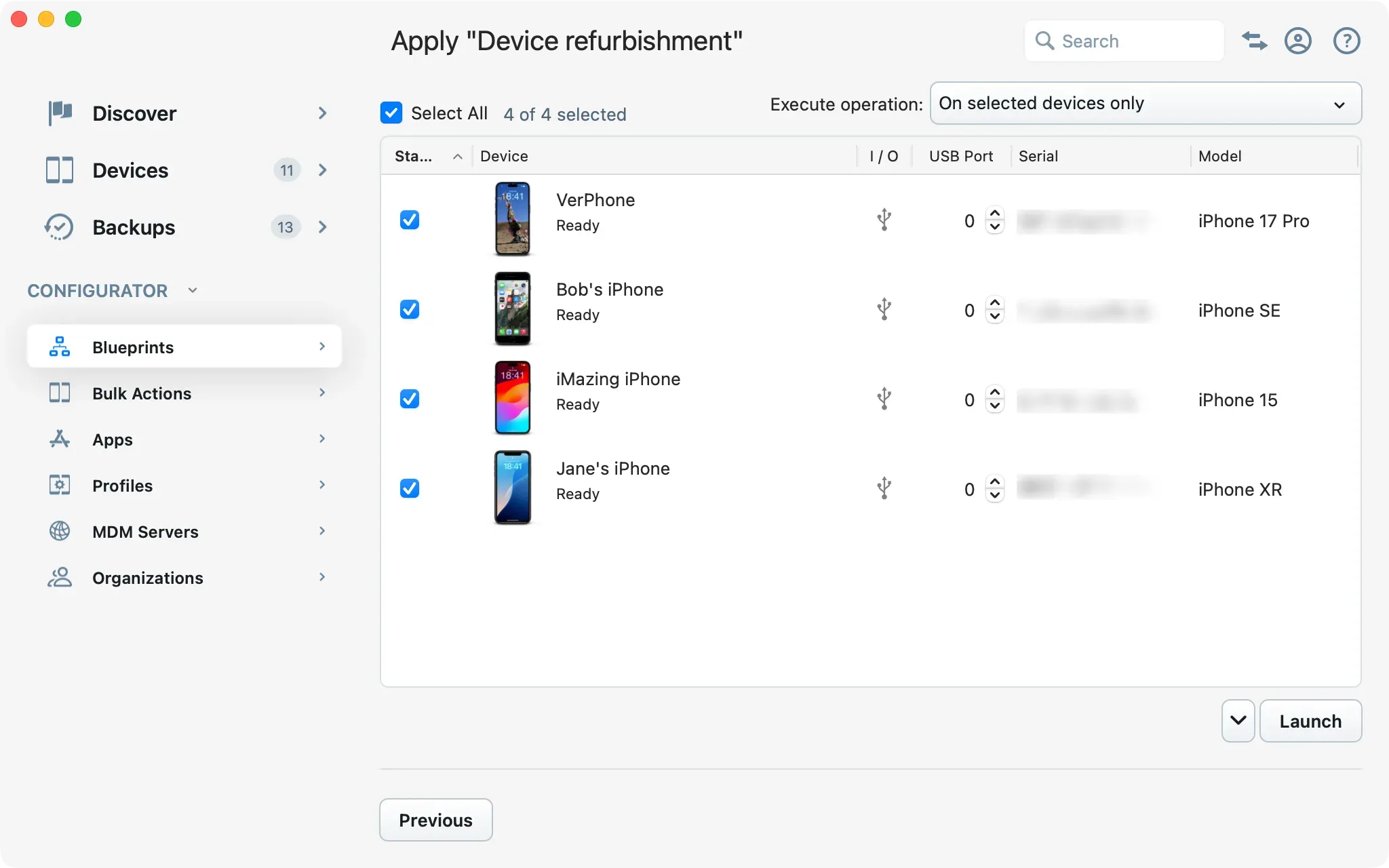
- On the Home Screen, under Configurator, select Blueprints, then select the blueprint and click Apply.
- Select the devices to process, or check Select All, and click Launch. To apply the blueprint to every device as soon as it is connected, set Execute operation to Automatically on all devices connected via USB.
- iMazing runs the blueprint steps on each device. Progress is visible in the Operations Panel.
Tip: For a single device, you can also select it in the Devices section and click Tools > Management > Apply Blueprint, or drag a
.blueprintfile onto the device.
Automate workflows with iMazing CLI
Applying a blueprint from the Configurator screen still runs inside the iMazing window, with a technician at the Mac or PC. iMazing CLI removes that dependency: it automates the same repair workflows from a terminal or script. Run a single command on a dedicated machine to process every device as it is plugged in, with no manual interaction.
Note: iMazing CLI requires an iMazing Business Subscription. Processing a large number of customer devices? Our business plans can be tailored to your repair shop’s workflow and device volume. Contact our business team for more information.
How --udid any works
Pass --udid any --usb to keep the CLI running and execute the command on every new USB-connected device automatically. Examples:
Back up every device on connect:
iMazing --backup-device --udid any --usb
Erase every device on connect (refurbishment line):
iMazing --device-erase --udid any --usb --confirm
Export battery diagnostics for every device:
iMazing --device-battery-diagnostic --udid any --usb
Apply a Configurator blueprint automatically:
iMazing --device-apply-blueprint --blueprint-id <blueprint-id> --udid any --usb
Available commands for repair shops
The CLI covers the same operations as the GUI: backup, restore, erase, battery diagnostics, spyware detection, dataset export, OS reinstallation, blueprint application, and more.
For the full command reference, see iMazing CLI Documentation.
Troubleshoot backup and restore failures
When a backup never completes or a restore fails, the cause is often a single third-party app whose data the iOS backup process cannot handle. iMazing surfaces the device log that identifies it.
Understand the role of BackupAgent
BackupAgent is the iOS system service that produces every backup. iOS requires the device passcode to initiate a backup. This is enforced at the OS level, not by iMazing. Files are streamed directly from the device to your Mac or PC as the backup runs. When a backup or restore stalls, the most likely cause is the BackupAgent process crashing on the device over a specific app or file.
For a deeper look at how BackupAgent handles encryption, file selection, and incremental backups, see How Apple's iOS BackupAgent Creates and Transfers Encrypted Backups to Your Computer.
Diagnose the failure with the Device Console
The Device Console streams the device's live system log, where BackupAgent reports what it is processing when it crashes.
- Select the device in the Devices section on the Home Screen.
- Click Tools in the sidebar.
- Under Advanced, click Show Device Console.
- In the search field, enter
BackupAgentto filter the log. - Start a new backup and wait for the error to occur.
- Read the latest log entries: they name the app or file that caused the crash.
Note: The Device Console requires a connected device (Device mode) and is available on macOS and Windows.
Remove the problematic app or file
Once you have identified the cause from the log:
- For a backup failure: delete the problematic app or file from the device, then retry the backup.
- For a restore failure: click Tools > Backup > Create an Editable Copy of this Backup, remove the problematic files from the copy, then restore from the editable copy.
Tip: If the log does not clearly name the culprit, disable Backup Encryption in Settings > Backup Options, run a new backup, then re-enable it. For a corrupted snapshot, use Tools > Backup > Manage Backup Snapshots to delete only the most recent snapshot, or Repair Backup to fix the backup on disk.
For the full troubleshooting flow, see Fix Common iPhone and iPad Backup Issues.
Hand off the backup and recommend automatic backups
Before the customer leaves, give them a portable copy of their backup and set them up to protect their data at home.
Give the customer their backup
Export the backup to the customer's drive. Two options are available under Tools > Backup:
- Export Backup as Folder (recommended, faster): exports a standard iOS backup folder, restorable by iMazing, iTunes, Finder, or Apple Devices. To import it on another computer, open the Backups section, click +, and select Add Backup Folder.
- Export Backup as iMazing File (slower, single file): packages the backup into one
.imazingfile. To import it, open the Backups section, click +, and select Add iMazing File.
- Select the device or backup in the Devices or Backups section on the Home Screen.
- Click Tools in the sidebar.
- Under Backup, click the export option of your choice.
- Choose a destination, for example an external drive to hand off to the customer.
Recommend automatic backups at home
Recommend iMazing to the customer for automatic backups at home. iMazing Mini, included with iMazing, runs in the menu bar on macOS or the system tray on Windows and performs automatic Wi-Fi backups in the background once the device has been paired over USB. No license is required for backups and restores.
For details, see How To Automatically Back Up an iPhone or iPad via Wi-Fi.
What to keep in mind
- iMazing keeps multiple timestamped backup snapshots per device. Unlike iTunes (Windows and macOS Mojave or earlier) or Finder (macOS Catalina and later), it does not overwrite the previous backup on each run. See Everything you need to know about iOS/iPadOS backups and how to manage them with iMazing.
- All data operations run locally on your Mac or PC. Nothing is routed through iMazing's servers or any third-party infrastructure.
- A device passcode is required to pair the device with the computer and to start a backup. Without it, iMazing cannot access the device. If backup encryption is enabled, the customer must also provide the encryption password: iMazing can create the backup without it, but cannot read or export any data from it.
- When iCloud Photos is enabled, the full photo library is stored in iCloud. What the local backup contains depends on what is physically on the device. With Download and Keep Originals, all originals are on the device and in the backup. With Optimize iPhone Storage, iOS offloads originals as the device needs space, keeping smaller versions locally. If the device has sufficient free storage, originals may remain even with this setting enabled. The backup always includes whatever version of each photo is on the device. If iCloud storage is full or syncing is paused, unsynced photos exist only on the device. See iCloud Photos for details on how storage optimization works.
- iMazing caches downloaded IPSW firmware files and apps locally. Each version is downloaded only once, regardless of how many devices need it. This saves bandwidth and speeds up repeated operations.
- For supervised devices in a managed environment, iMazing Configurator's blueprint workflow supports additional actions: clearing Screen Time passcodes, removing all profiles, and managing VPP app licenses. See Understanding Supervision, MDM, ADE (DEP), and Volume Purchase (VPP).
- The Detect Spyware scan is a fast check against known indicators. It does not guarantee complete detection of all monitoring software."